Type "best AI video generator" into any search bar and you get long lists, flashy demo reels and very little real help. Demo clips are hand-picked from many tries, so they show what a tool can do on its best day, not what you will get with your own photo on a busy afternoon. This guide gives you seven practical checks, a quick way to test any tool yourself, and an honest look at where an image to video AI tool like MagicSky AI fits.
Start with the job, not the ranking
The best AI video maker for a shop owner is not the best one for someone planning a short film. Before you compare tools, decide which of these jobs you need done most often:
- Bring a photo to life. You already have a picture, such as a product shot, a portrait or a landscape, and you want it to move.
- Make a scene from words. You have an idea but no footage, and you want to see it before you film anything.
- Fill a feed. You need short clips with sound for Reels, Stories and ads, week after week.
Keep that job in mind. Each check below matters more or less depending on it.
1. It can start from your own photo
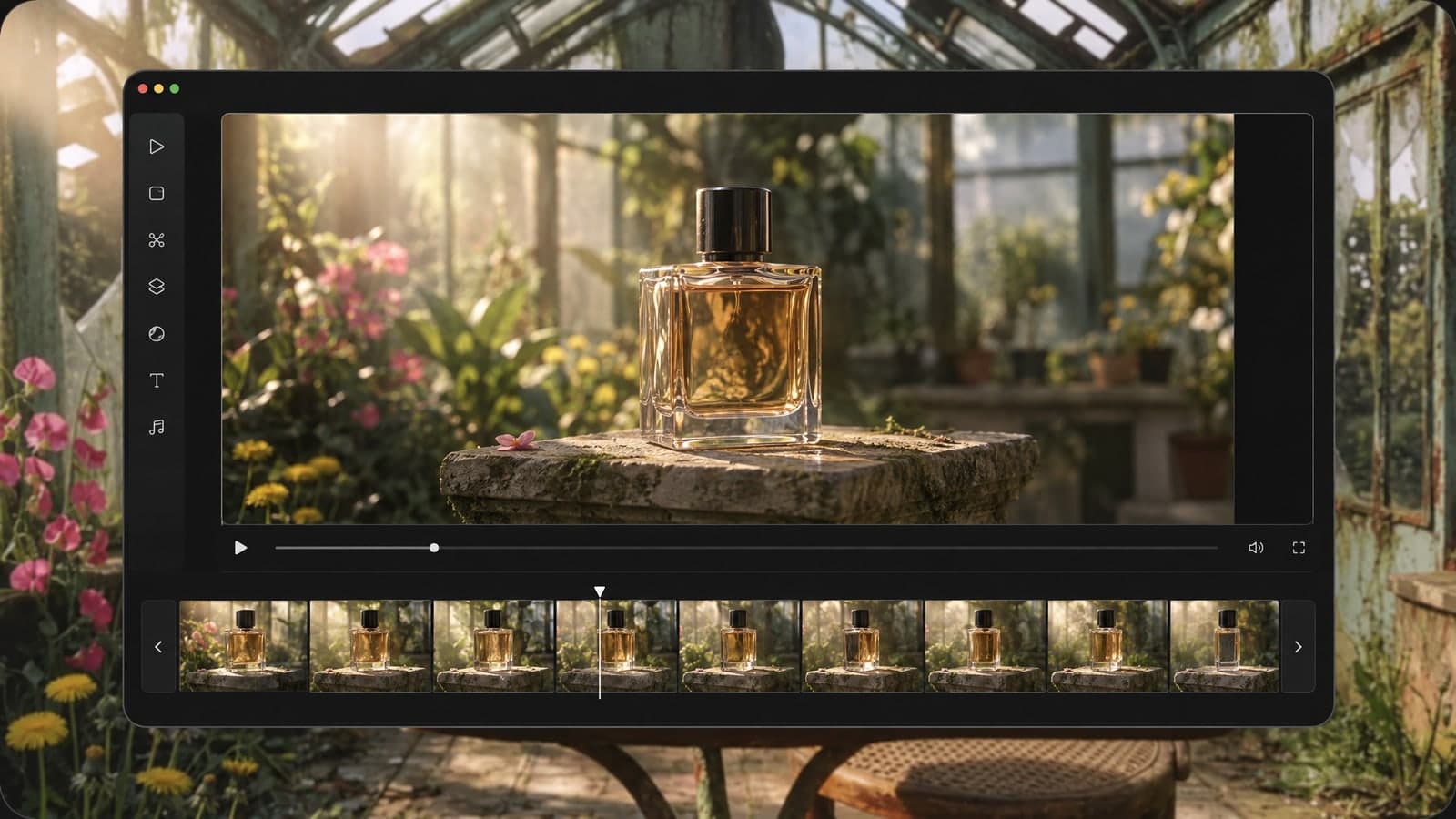
For most real projects, the strongest starting point is a photo you already trust. The best image to video AI tools use your picture as the first frame, so the product, face or place in the clip looks like the one you uploaded instead of a loose copy.
Check which files a tool accepts and whether you can send a photo straight from your phone. On MagicSky AI, the photo to video tool takes one JPG, PNG, WebP or iPhone HEIC file up to 30MB, and you can scan a QR code to send the photo from your phone.
2. You can direct the motion in plain words
A good generator lets you say how things should move: a slow push-in, a pan across a room, hair moving in the wind, a bottle turning on a table. Test this by asking for one camera move and one small action, then see whether you get both.
Simple prompts usually work best. One camera move or one action per clip gives cleaner results than a long list of things happening at once. If the motion is off, change one detail and generate again.
3. Sound comes with the video
A silent clip is only half finished. You still have to find music, add effects and line them up in an editor. Some tools now make the sound together with the picture, which saves a whole step for anyone who posts to social media.
Every clip from MagicSky AI comes with sound. It runs on MiniMax H3 Max, a video model that makes the audio along with the video, so the MP4 you download is ready to post.
4. Resolution and length match where you post
Look for a low-cost draft setting, a sharp final setting and a choice of length. A practical setup looks like this:
- 480p to test an idea quickly and for fewer credits
- 768p as the everyday middle option
- 1080p for the version you publish
- 5 or 10 seconds, which fits most Reels, Stories and ads
Shape matters too. When you start from a photo, the video should keep that photo's shape. When you start from text, you should be able to pick the frame. MagicSky AI offers six choices for text-only videos: 16:9, 9:16, 1:1, 4:3, 3:4 and 21:9.
5. It also works from text alone
Sometimes you have no photo yet. The best text to video AI options let you describe a scene and pick a frame, so you can preview an idea before you plan a shoot. Check whether text and photo modes live in the same tool or need separate apps. On MagicSky AI it is the same box: skip the upload, write the scene and choose an aspect ratio.
6. It is fast enough to try again
You rarely get the perfect clip on the first try, so speed decides how many ideas you can test in one sitting. Most MagicSky AI videos are ready in one to four minutes. A 5-second clip at 480p is the fastest, and you can keep browsing while it works. The video shows up on the page as soon as it is done.
7. Pricing and rights are clear before you click
The best AI video creator for you is one where you know the cost before you press Generate. Be careful with tools that ask for a card before your first clip or only show the price afterward.
Also check how you are allowed to use the videos. On MagicSky AI, you can try it without an account, new accounts get free credits, and the cost of each clip is shown before you generate. Videos made on the free plan are for personal, non-commercial use, while a paid plan or credit pack also covers ads, product pages and client work.
Picking the best AI video generator by use case
Here is how the checks play out for the most common jobs:
- Product videos: start from a clean product photo and ask for a slow spin or a gentle camera move. Photo-first tools win here because the product has to stay the same.
- Social clips: pick 5 or 10 seconds, keep the sound and reuse a prompt that works, so every post feels consistent.
- Portraits: choose a sharp, well-lit photo of one person and ask for one small action, like a turn of the head.
- Ideas and storyboards: start from text, try several prompts at 480p, then run the one you like again at 1080p for the final version.
If your photo needs work before it moves, fix it first with image to image AI, for example a new background or a different aspect ratio, then animate the result.
How to test any AI video generator in 15 minutes
Run the same three tests on every tool on your shortlist:
- The photo test: upload one of your own sharp photos and ask for a single camera move. Check that the subject still looks like your photo.
- The motion test: ask for one camera move plus one small action. See whether both show up.
- The finish test: download the clip and play it on your phone with the sound on. Ask yourself whether you would post it as it is.
The tool that passes all three with your own material is the best AI video generator for you, whatever the rankings say. If most of your work starts from photos, turn a picture into a video on MagicSky AI and run the photo test first.