A good photo already tells a story. Animating it adds the next few seconds: hair moving in the wind, waves rolling in, a slow camera push toward a face. With image to video AI, you can animate a photo in a few minutes, and the clip comes with sound, so it is ready to post as soon as you download it.
This guide walks through how to pick the right picture, how to describe the motion, and which settings to use so the result looks natural instead of strange.
What it means to animate a photo with AI
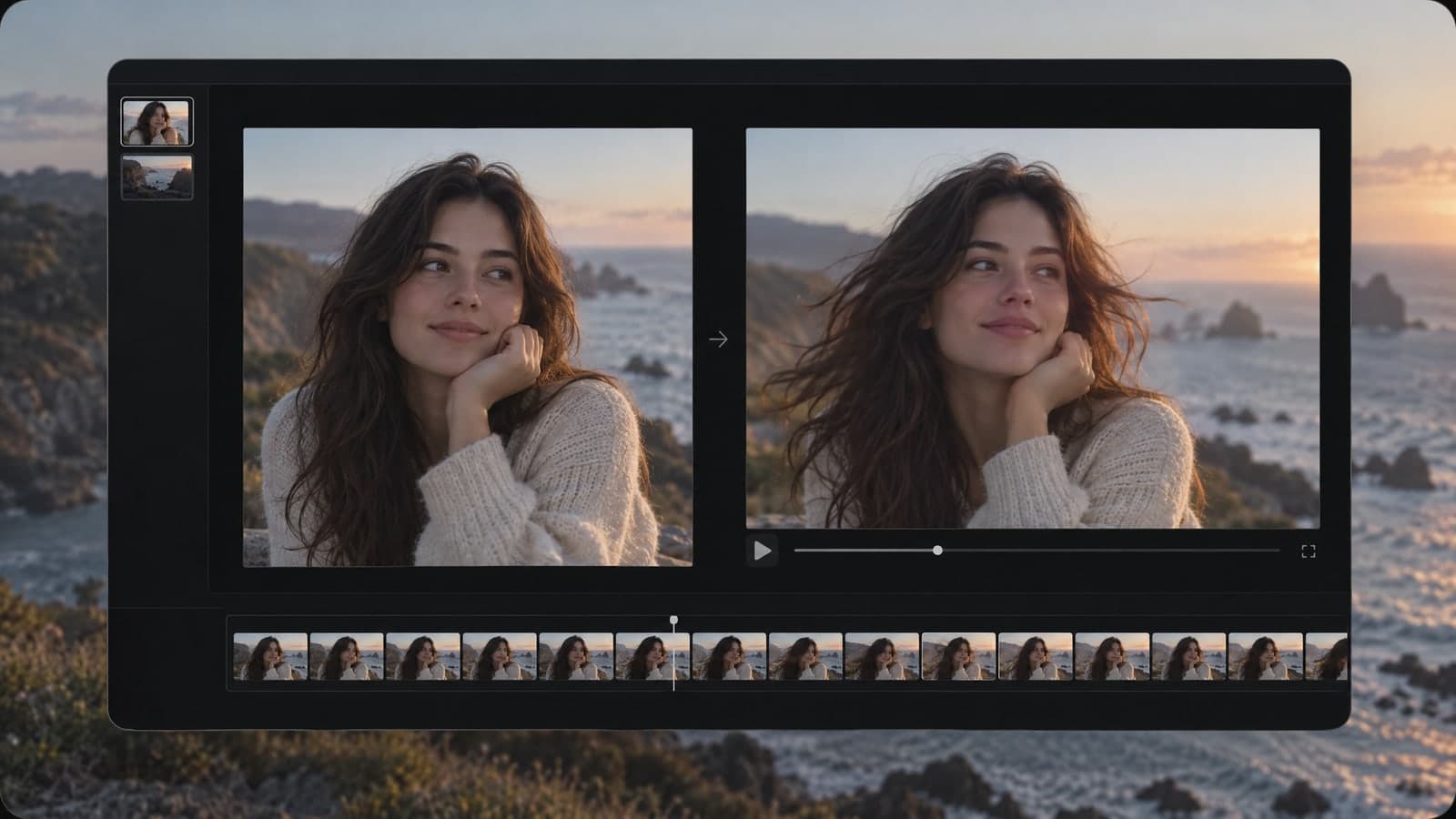
When you animate a photo, the AI treats your picture as the first frame of a short video. It keeps the people, objects and colors you already have, then works out how the scene would move over the next 5 or 10 seconds. You tell it what kind of movement you want in plain words. You may also see this called photo to video AI.
That is different from simple "living photo" effects that only zoom in or shift the background a little. Here the subject itself can move: a person smiles and turns, steam rises from a cup, leaves sway behind a window. The video also comes with sound that fits the scene, such as wind, water or the quiet hum of a room.
Pick a photo that wants to move
The photo matters more than any setting. Clips look cleanest when the AI can clearly see what should move and what should stay still. Before you upload, check for:
- One clear main subject. A single person, pet, product or landscape works better than a crowded group shot.
- Good light and sharp focus. Blurry or very dark pictures give the AI less to work with, and the motion can look smeared.
- Some room around the subject. A little space at the edges lets the camera move without cutting off heads or hands.
- A natural pose. Moments already in motion, like hair lifted by the wind or a person mid-turn, are easy to continue.
JPG, PNG, WebP and iPhone HEIC files all work. If the photo is on your phone and you are on a computer, you can scan a QR code and send it straight over. Ready to test one? Upload a photo and animate it.
Describe one motion at a time
The motion prompt is where most people overdo it. Asking for a camera move, a new facial expression, a weather change and a background action all at once usually ends up messy. Pick one camera move or one action and describe it simply.
Prompts that tend to work well:
- "Slow push-in, her hair moves in the wind."
- "The camera circles the bottle on the table."
- "Waves roll onto the beach, gentle handheld feel."
- "The dog tilts its head and wags its tail."
- "Steam rises from the coffee, soft morning light."
If the first result is close but not quite right, change one detail and generate again. Small edits get you there faster than rewriting the whole prompt.
Tip: Name the speed. Words like "slow," "gentle" and "subtle" keep faces looking natural, while words like "fast" or "dramatic" often bend them out of shape.
Choose the length and resolution
You pick two settings before you generate:
- Length: 5 or 10 seconds. Five seconds is plenty for one clear motion and fits easily into reels and stories. Ten seconds gives a slower camera move room to breathe.
- Resolution: 480p, 768p or 1080p. Use 480p to test an idea, since it costs the fewest credits and finishes fastest. Once the motion looks right, run the same prompt at 1080p for the version you publish.
When you upload a photo, the video keeps the shape of that photo, so a vertical portrait stays vertical. If you want a different shape, crop the photo first. You can also skip the photo entirely and turn a text description into a video, choosing 16:9, 9:16, 1:1, 4:3, 3:4 or 21:9.
Step by step: animate a photo on MagicSky AI
- Open the image to video page and upload your photo.
- Write one short sentence about the motion you want.
- Pick 5 or 10 seconds and a resolution. Start at 480p while you experiment.
- Press Generate. Most videos are ready in one to four minutes, and you can keep browsing while you wait.
- Watch the result, then download it as an MP4 with sound or share a link anyone can open.
You can try it without an account. When you want to keep going, sign up: new accounts get free credits, and the daily check-in adds more.
Ideas to try
Portraits
A slow push-in with a soft smile or a small turn of the head is the classic choice. Keep the prompt subtle so the face stays true to the original.
Pets
Ear twitches, tail wags and head tilts are short, simple motions that AI handles well. They make fun profile videos and stories.
Travel and landscapes
Moving water, drifting clouds and swaying trees bring a still view to life. A gentle pan across the scene works especially well in a wide frame.
Products
A slow rotation or a light camera move turns a flat product shot into something that stands out in a feed. Pick any of these ideas and turn your favorite photo into a video.
Common problems and quick fixes
The face changes too much. Use calmer words such as "subtle" or "slight," and ask for a camera move instead of a change in expression.
Hands or edges look strange. Choose a photo where the hands are clearly visible or out of frame, and leave some space around the subject.
Not much happens. Be more specific about what moves. "Her hair and scarf move in the wind" gives the AI a clear target.
The motion feels rushed. Add "slow" to the prompt or switch to 10 seconds so the same movement has more time.
Start with one photo
You do not need editing skills to animate a photo. Pick a sharp picture with one clear subject, describe one motion, test it at 480p, then make the final version at 1080p. Every clip arrives with sound, ready for reels, stories or a message to a friend.