You no longer need a camera, a crew or editing skills to make a short video. If you have been wondering how to make AI videos, the whole process comes down to one photo or one sentence, a short description of the motion and a few minutes of waiting. This guide walks through each step with image to video AI on MagicSky AI, plus prompt ideas you can copy and quick fixes for the most common problems.
What you need before you start
Learning how to create AI videos takes less setup than most people expect:
- A starting point. Either a photo you want to bring to life or an idea you can describe in a sentence.
- A browser. There is nothing to install and no editing software to learn.
- A few minutes. Most clips are ready in one to four minutes.
You can try it without an account. To keep going, sign up: new accounts get free credits, and the daily check-in adds more.
Two ways to make an AI video
Start from a photo
This is the most reliable route. You upload one photo, and the AI uses it as the first frame of the clip, so your product, face or place stays recognizable as it starts to move. The video keeps the shape of your photo.
Start from text
No photo yet? Describe the scene in words and pick a frame: 16:9, 9:16, 1:1, 4:3, 3:4 or 21:9. Text works well for testing ideas and previewing a scene before you plan a shoot.
On MagicSky AI, both modes live in the same photo to video tool. Upload a picture to animate it, or leave the upload empty to start from text. Every clip runs on MiniMax H3 Max, a video model that makes the sound along with the picture.
How to make an AI video in 5 steps
Step 1: Pick the right photo
Your photo does most of the work. Sharp, well-lit pictures with one main subject, such as a product, a person or a landscape, move the most naturally. Busy or blurry photos tend to give messy motion.
The tool takes one JPG, PNG, WebP or iPhone HEIC file up to 30MB. On a computer, you can also scan a QR code and send the photo straight from your phone.
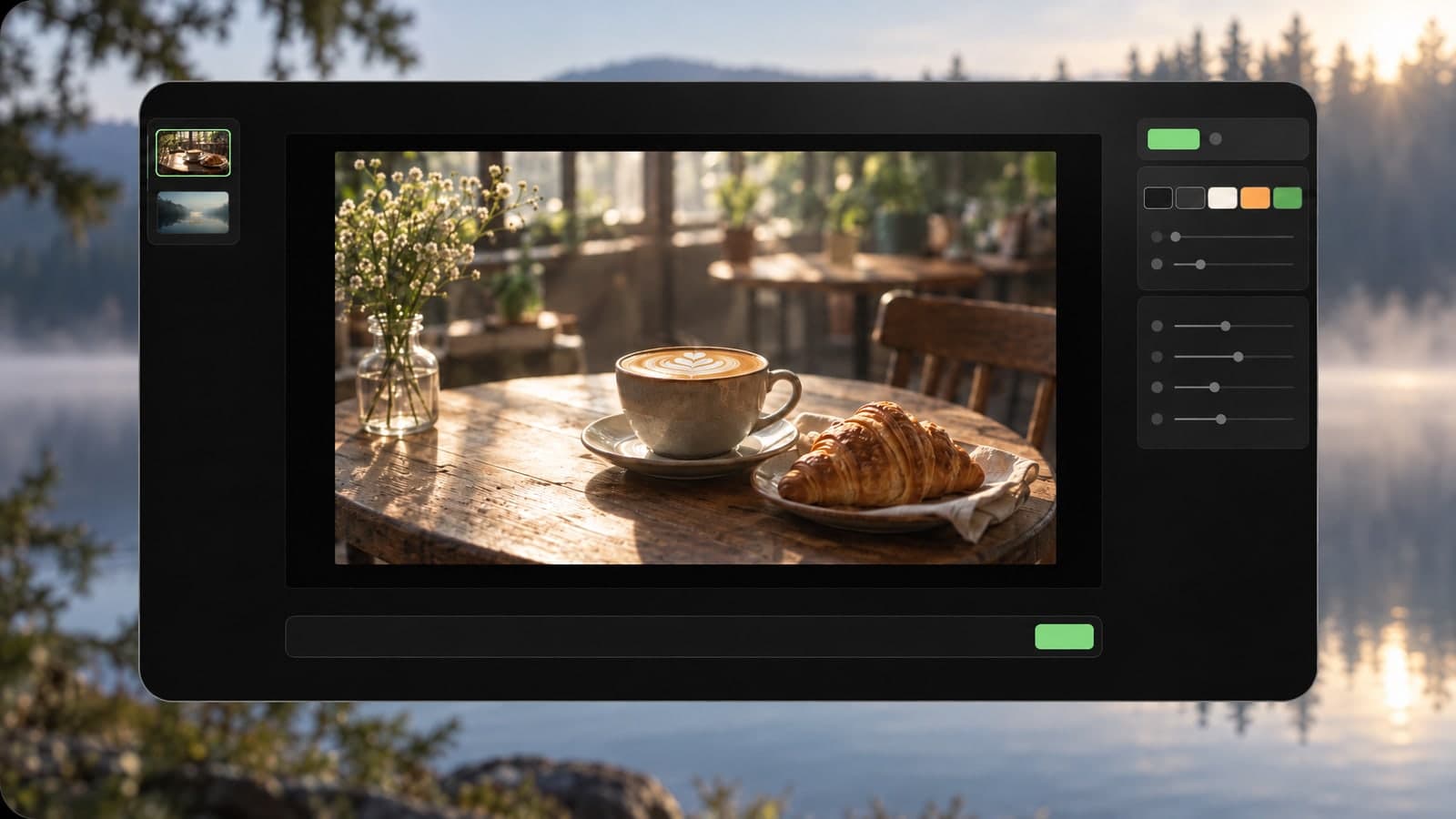
If the photo is close but not quite right, fix it before you animate it. With image to image AI you can swap the background, change an outfit or switch to another aspect ratio in about 30 seconds, then use the edited picture as your first frame.
Step 2: Describe the motion
The prompt tells the AI how things should move. Keep it short and specific, and name one camera move or one action. For example:
- "Slow camera push-in, soft wind in the hair"
- "The camera circles the bottle"
- "Clouds drift by as the light slowly changes"
Asking for many things at once usually makes the motion messy. One clear instruction beats a long paragraph.
Step 3: Choose resolution and length
Pick 480p, 768p or 1080p, and a length of 5 or 10 seconds. A simple rule: use 480p to test an idea for fewer credits, then run the version you like at 1080p for the clip you publish. 768p sits in the middle and is the default. You always see the exact cost before you press Generate.
Step 4: Generate and wait
Press Generate and keep browsing while it works. A 5-second clip at 480p is the fastest, and a 10-second clip at 1080p takes the longest. The video shows up on the page as soon as it is done.
Step 5: Download or share
Download the MP4 with sound, which plays on any phone or platform, or share a link that anyone can open without an account. When you are signed in, every video is saved to My Works and stays private until you share it.
Prompt ideas for common projects
Once you know how to make videos with AI, the next question is what to ask for. These starting points match the most common jobs:
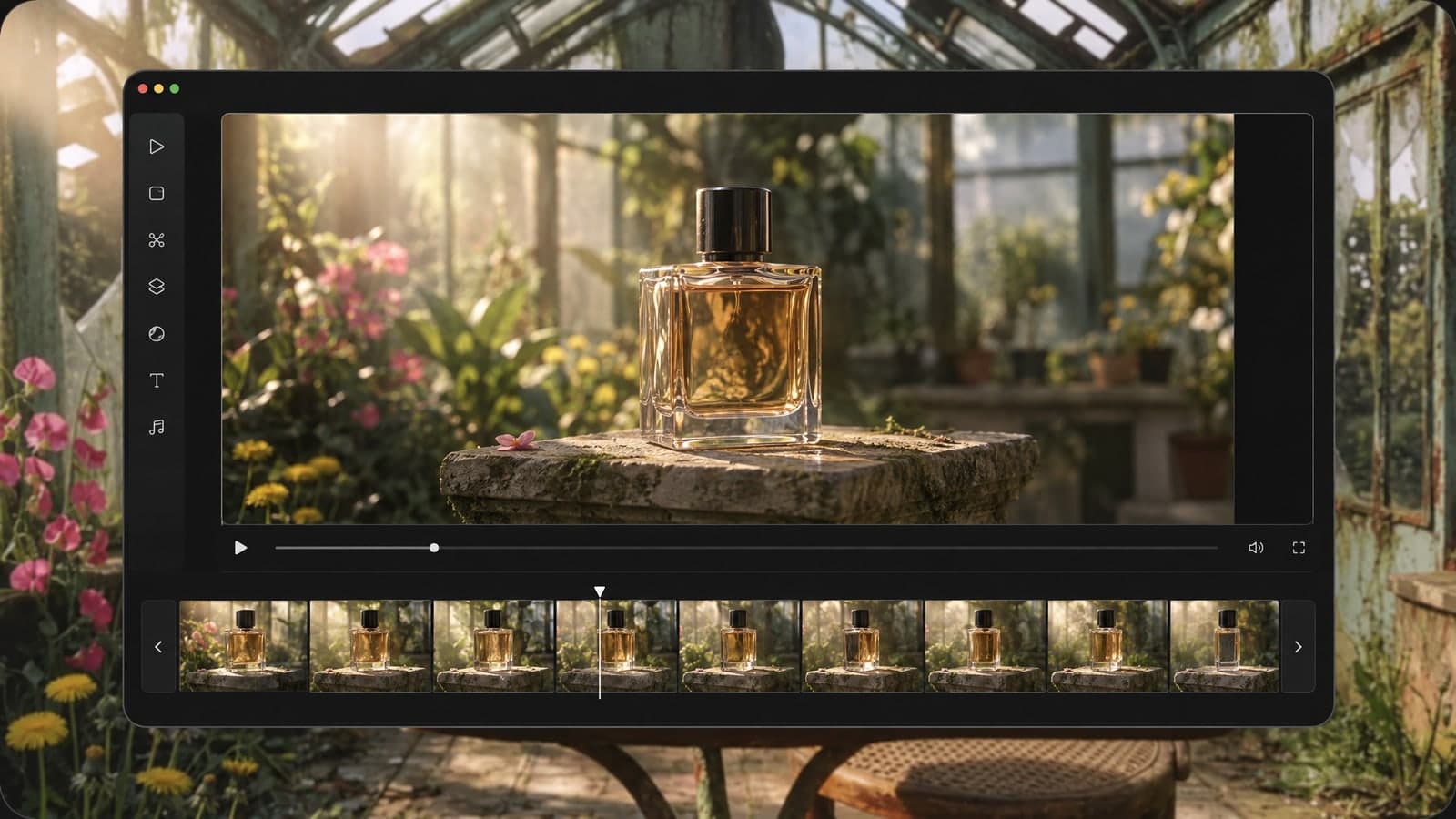
- Product videos: start from a clean product shot and try "the camera slowly circles the product" or "slow push-in on the bottle".
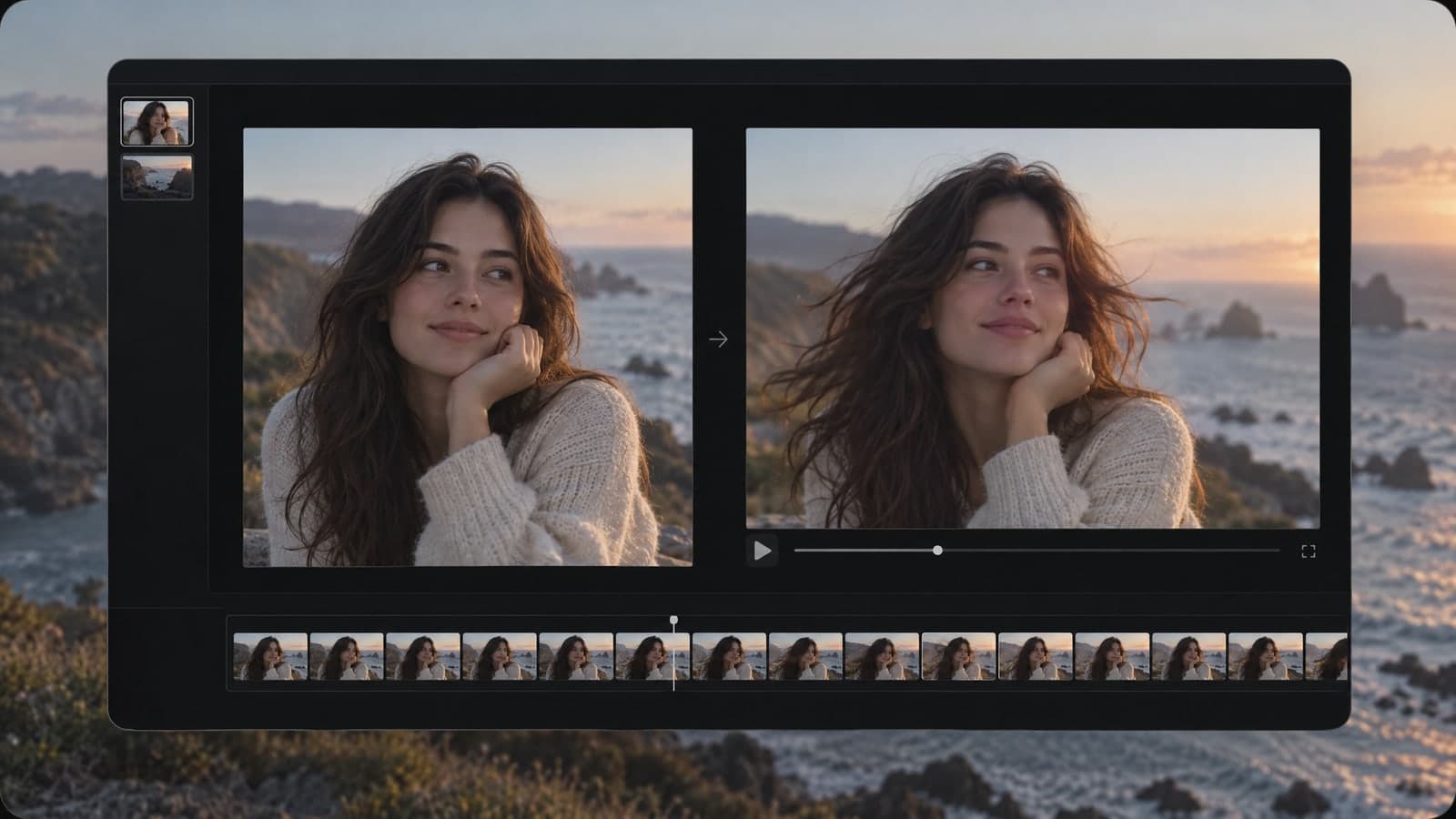
- Portraits: use a sharp photo of one person and ask for one small action, like "she turns her head, hair moving in the wind".
- Landscapes: pick a wide, clear shot and try "clouds drift across the sky as the light slowly changes".
- Social clips: choose 5 or 10 seconds for Reels, Stories and ads, and reuse a prompt that works so every post feels consistent.
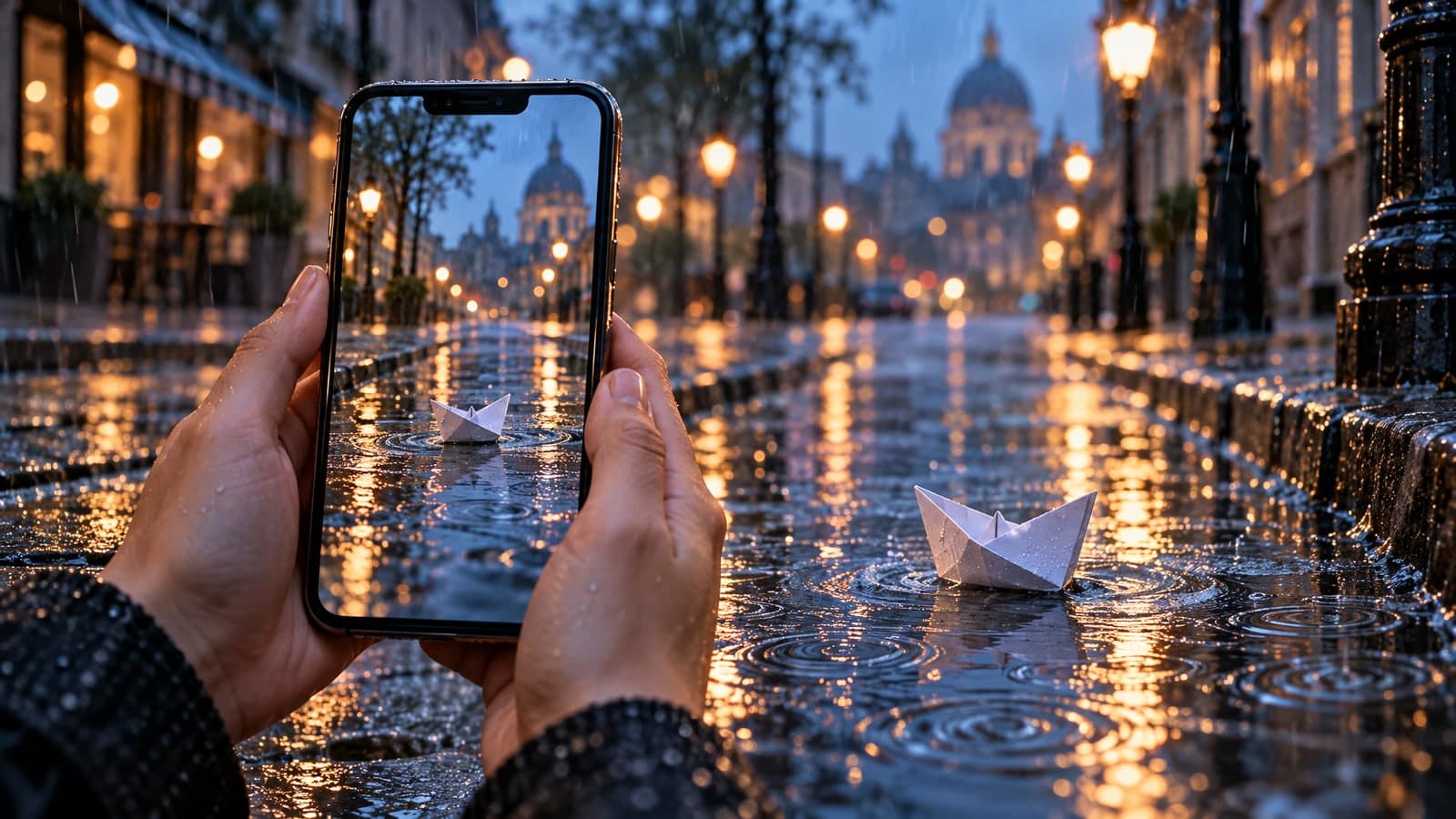
- Ideas from text: describe the whole scene, like "a paper boat drifts down a rainy street at dusk", then pick 9:16 for phones or 21:9 for a cinematic frame.
Common mistakes and quick fixes
Most weak results come from a handful of easy-to-fix habits:
- The motion looks messy. Cut the prompt down to one camera move or one action, then generate again.
- The scene falls apart. Start from a sharper, well-lit photo with a single main subject. Busy pictures give the AI too much to move at once.
- The frame is the wrong shape. With a photo, the video follows the photo's shape, so change the shape of the picture first. With text, pick the aspect ratio before you generate.
- Testing costs too much. Draft at 480p and 5 seconds, and switch to 1080p only for the final version.
- One detail is off. Change only that part of the prompt instead of rewriting everything, so you can see what made the difference.
Can you use AI videos for business?
That depends on how you pay. Videos made on the free plan are for personal, non-commercial use. With a paid plan or a credit pack, you can also use them for ads, product pages and client work. Either way, only upload photos you have the rights to.
Start with one photo
The fastest way to learn how to generate AI video is to make one. Pick a sharp photo, write a single line about how it should move and run a 5-second draft at 480p. When the motion looks right, render it again at 1080p and post it with its sound. Ready to try? Turn a photo into a video on MagicSky AI.