Image to Image AI - MagicSky AI
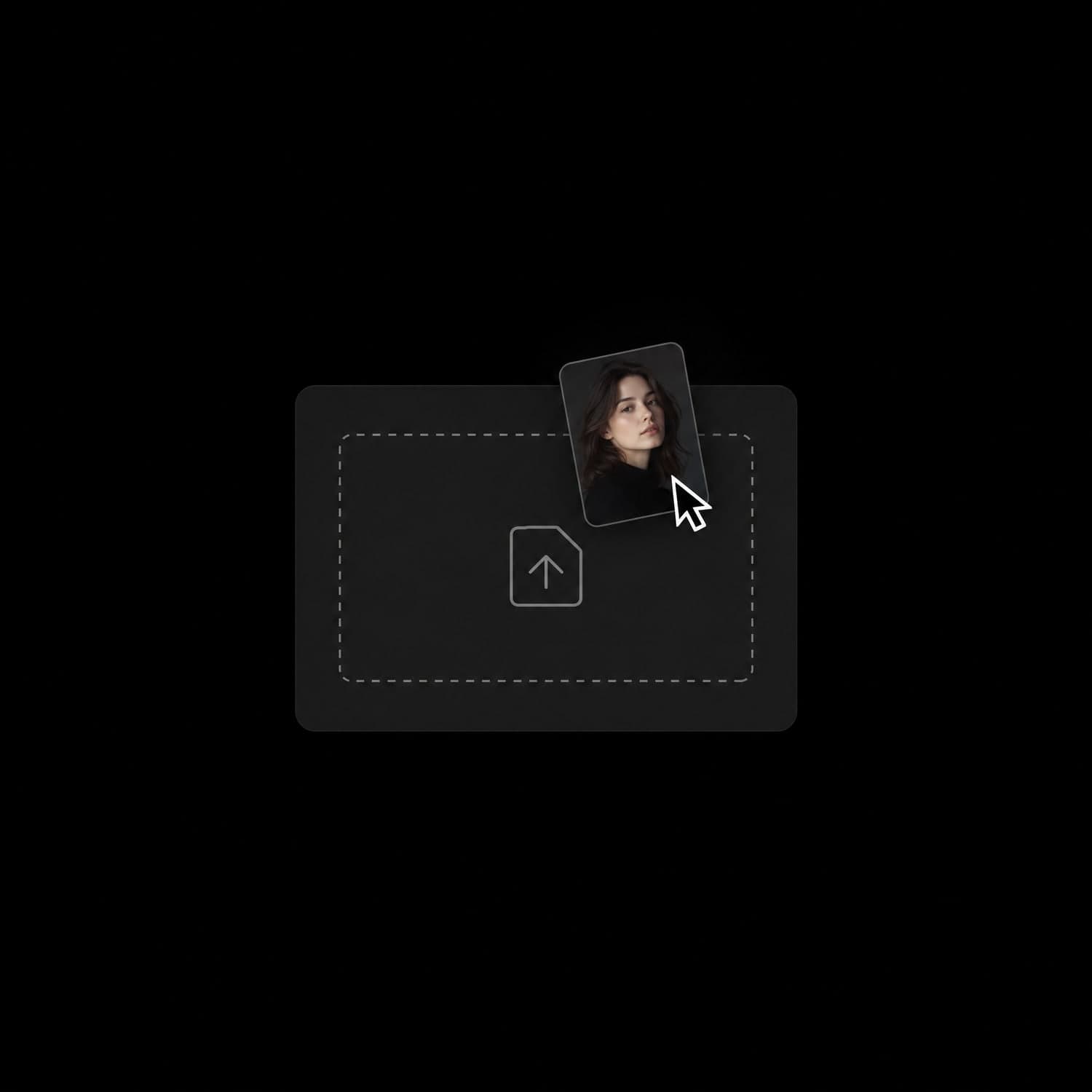
01 Upload
Add a photo, or skip it
Upload up to 4 photos, or leave the box empty to start from text.
Clear photos with one main subject give the cleanest edits.
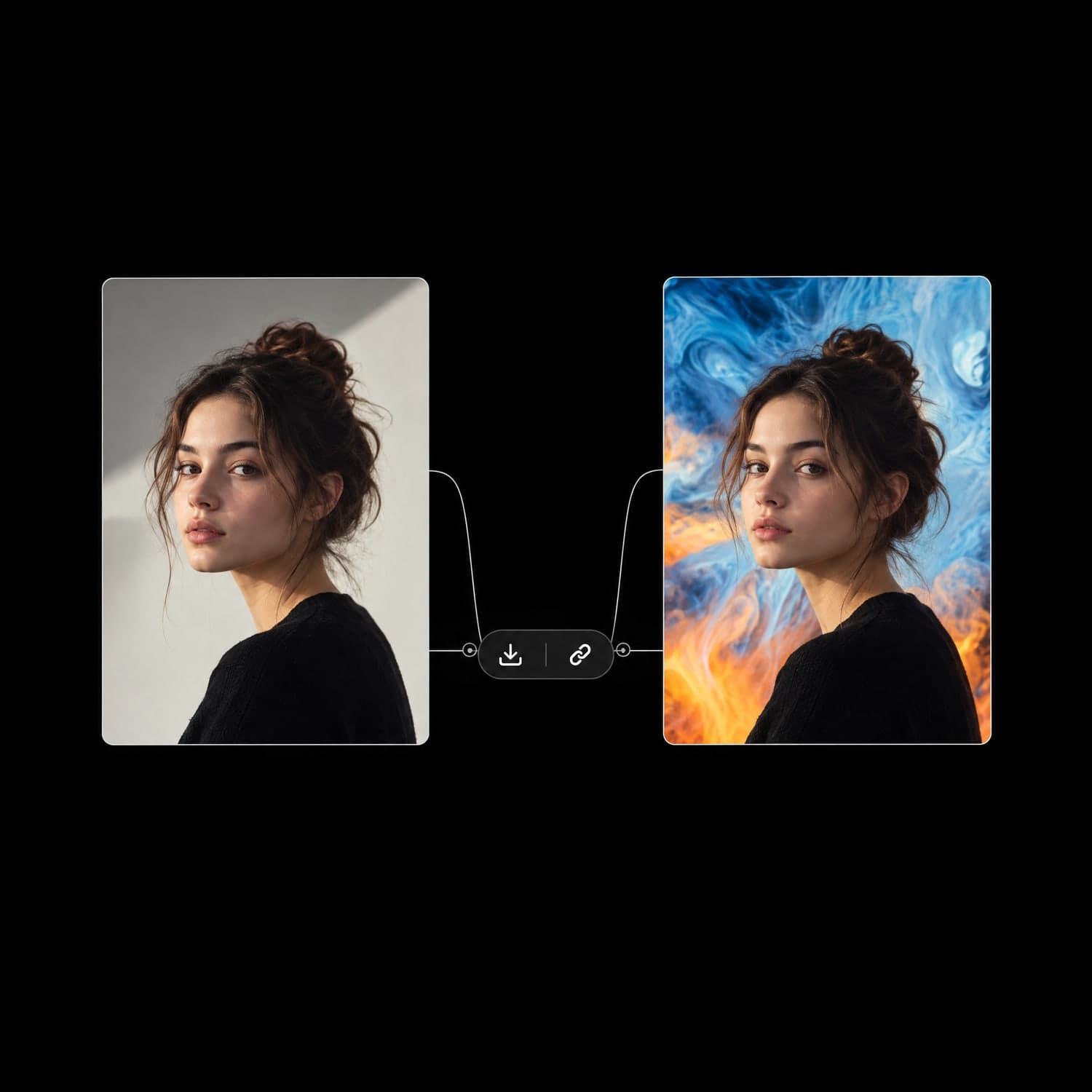
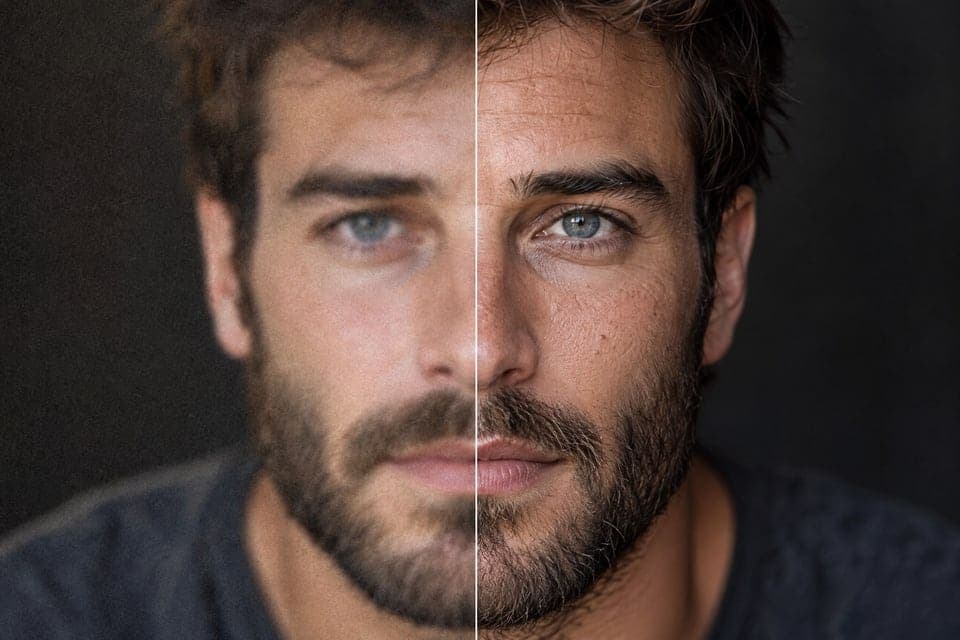
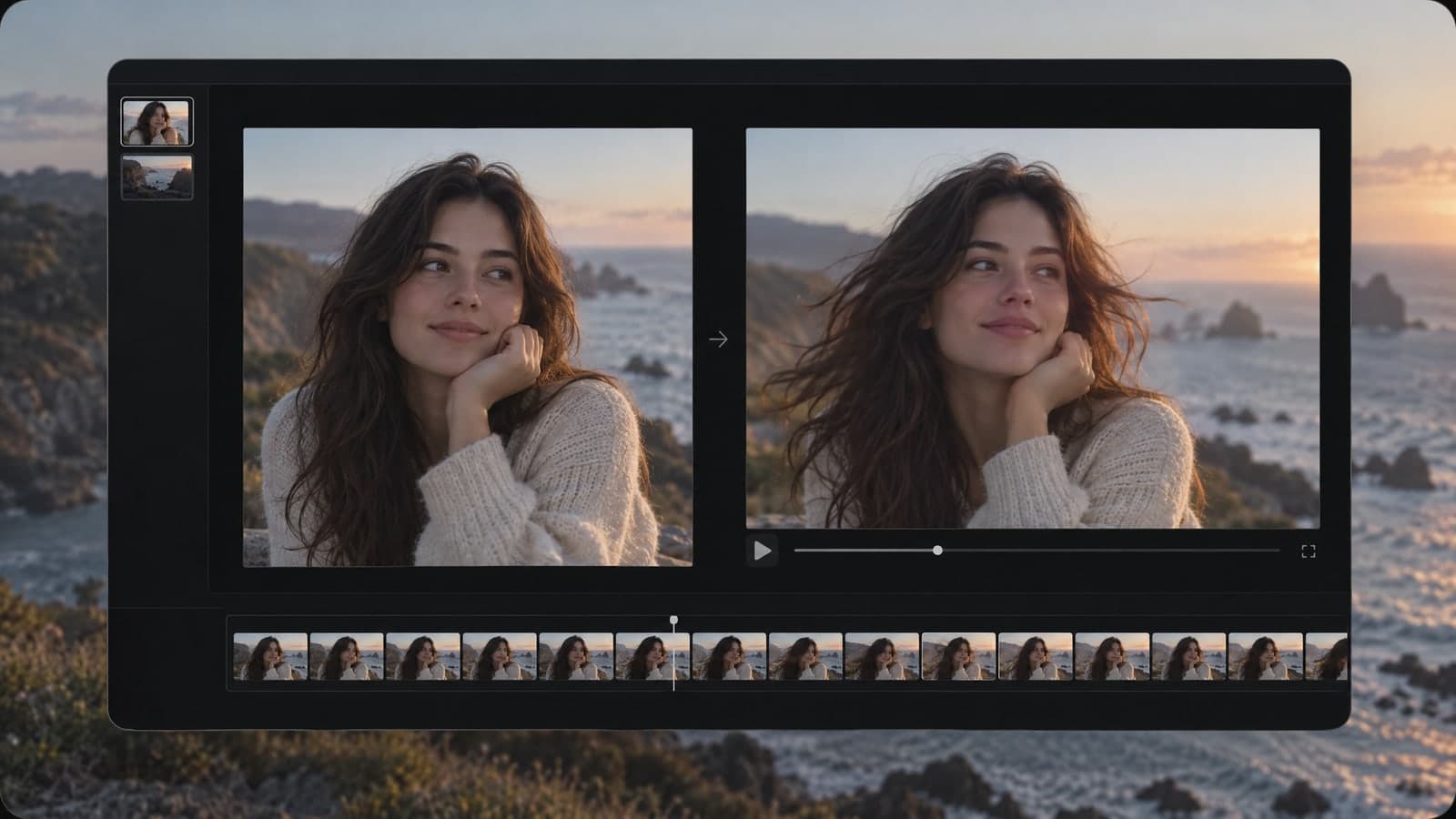
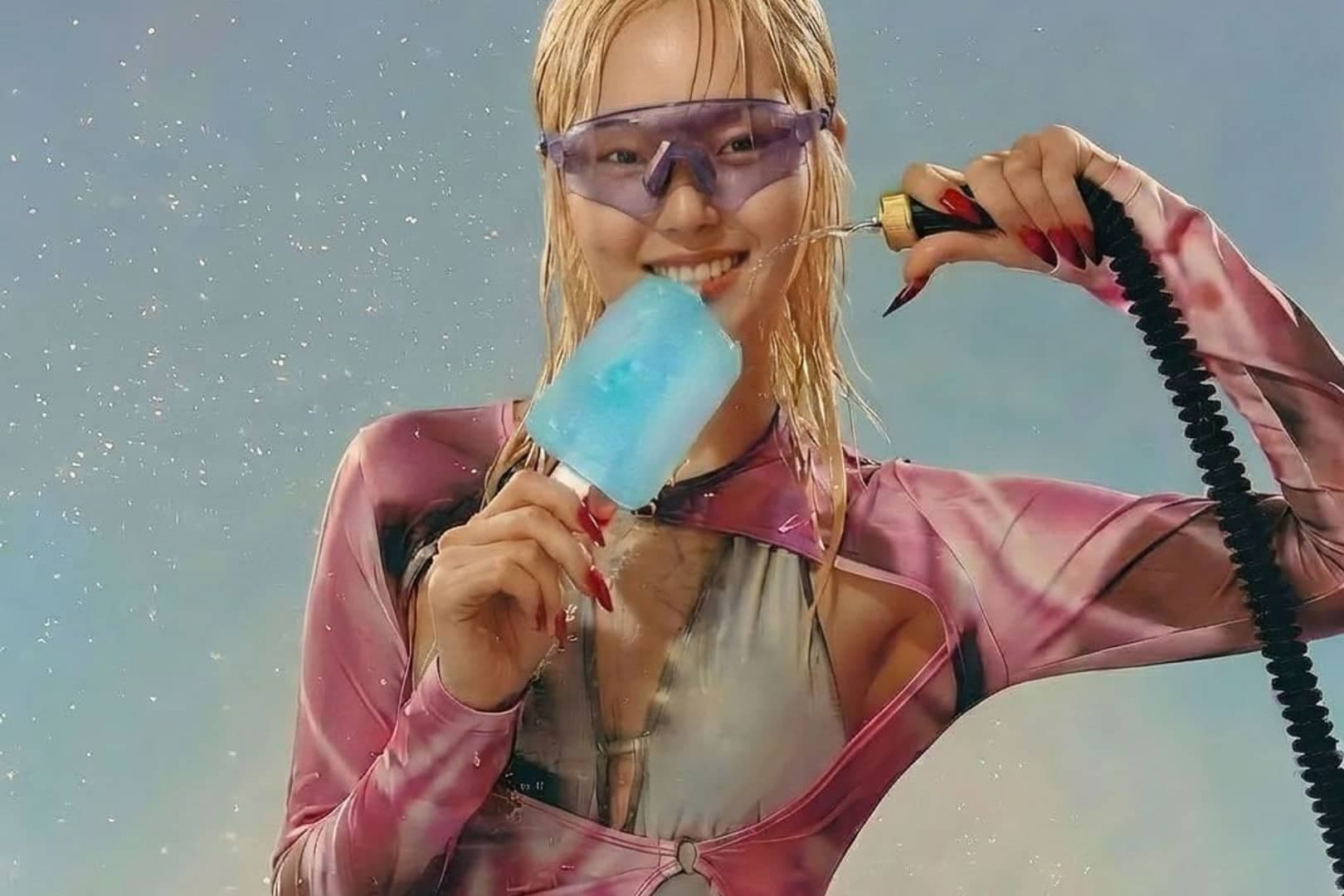
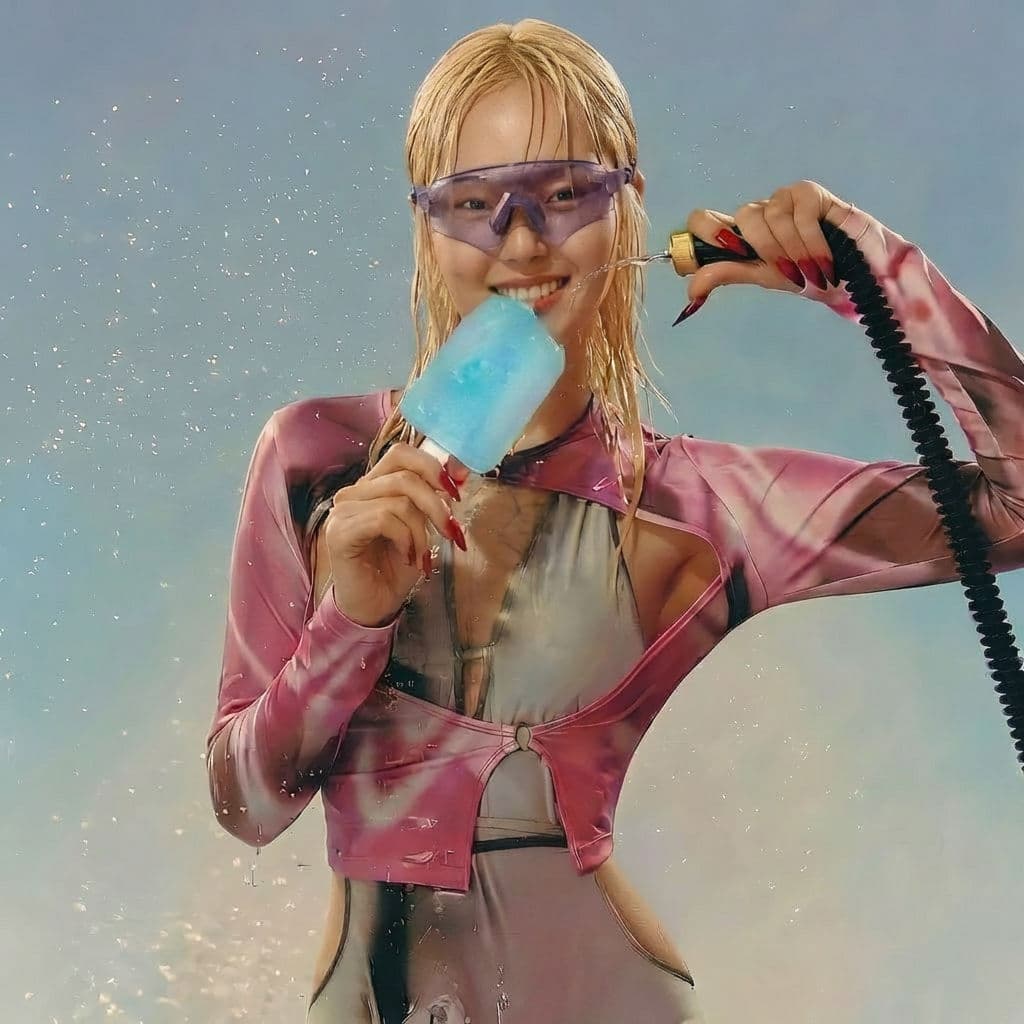
Upload a photo and describe the change. Image to image AI redraws it.
 Input image
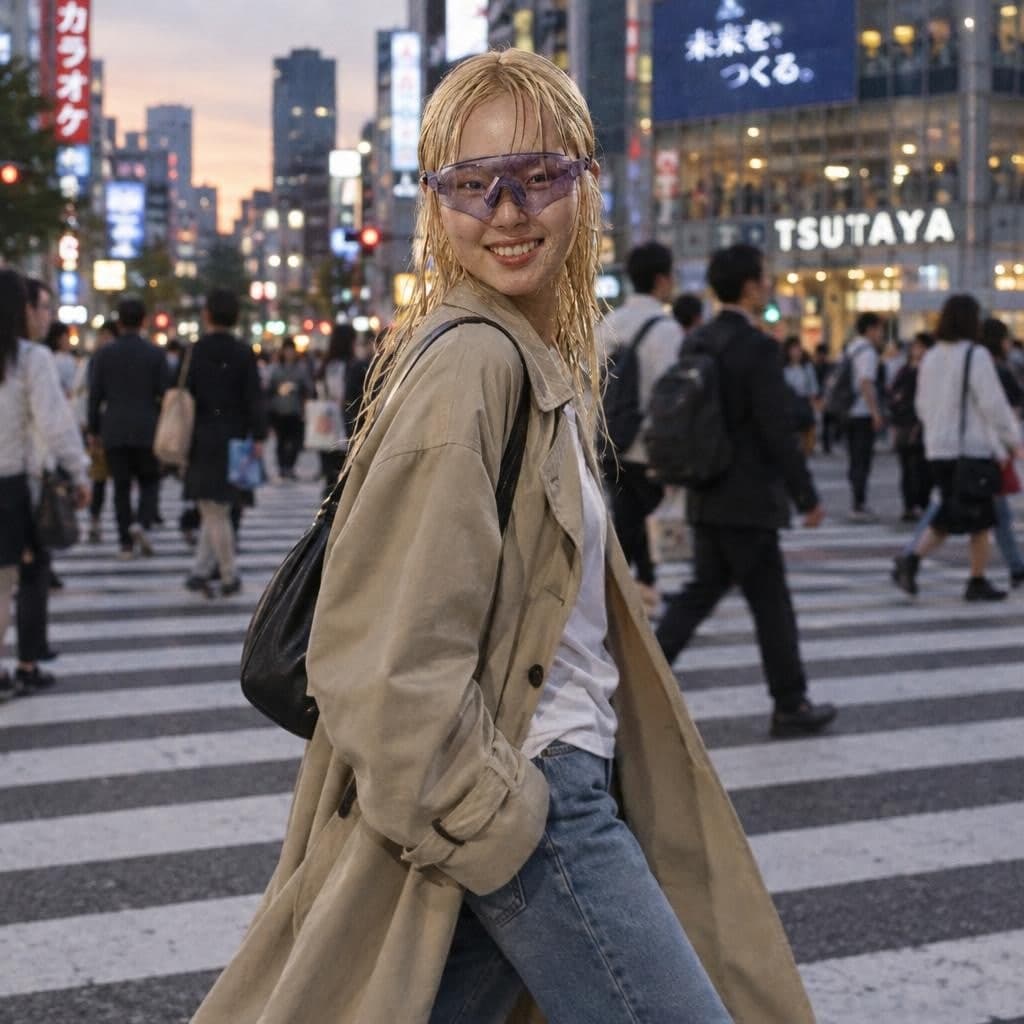 Result 1
Input
Input imageOutputs
Result 1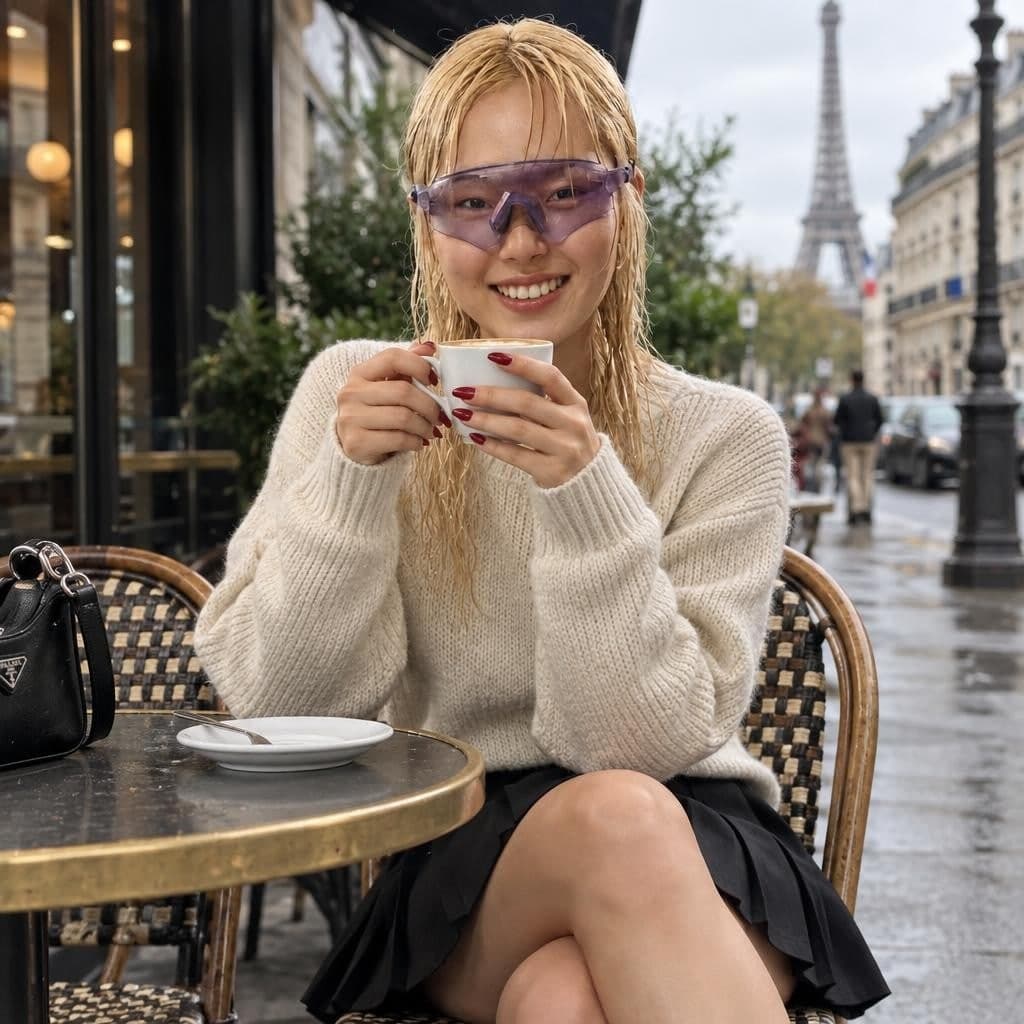 Result 2
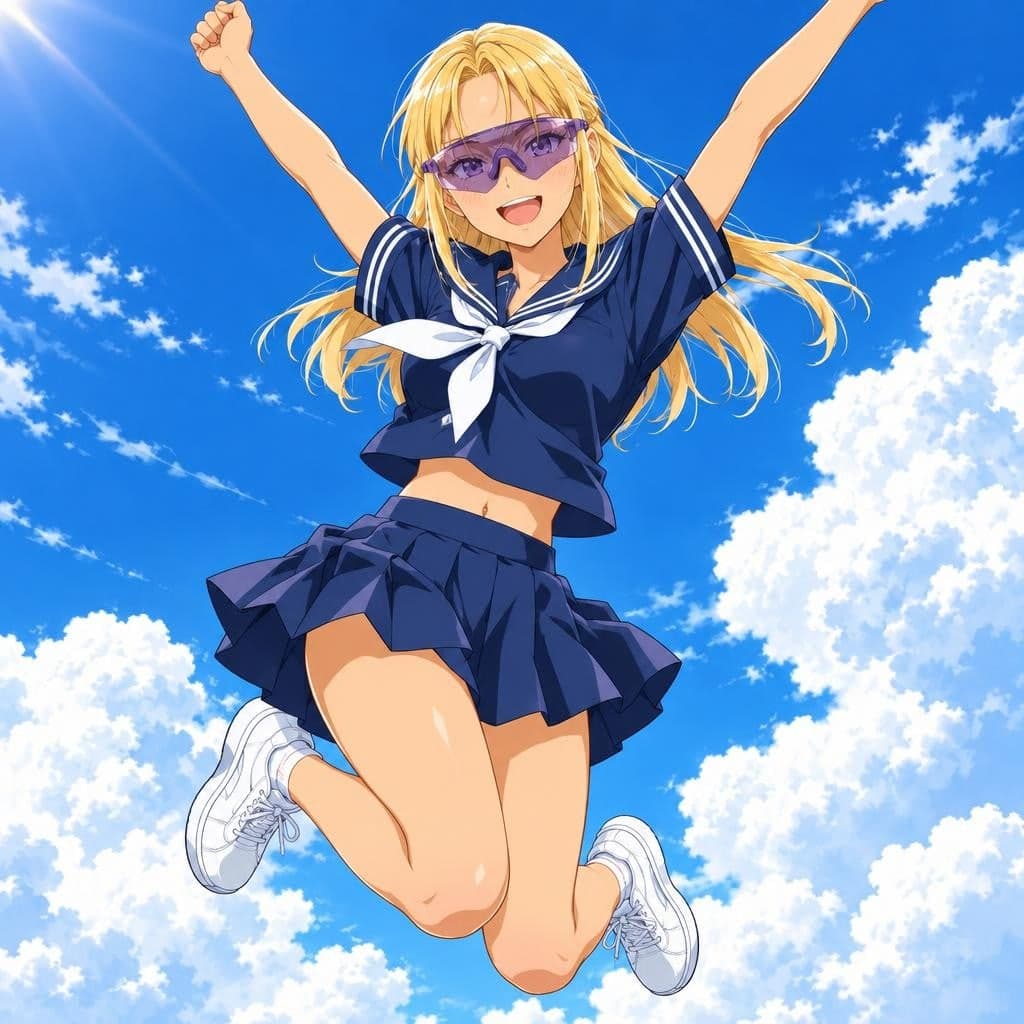 Result 3
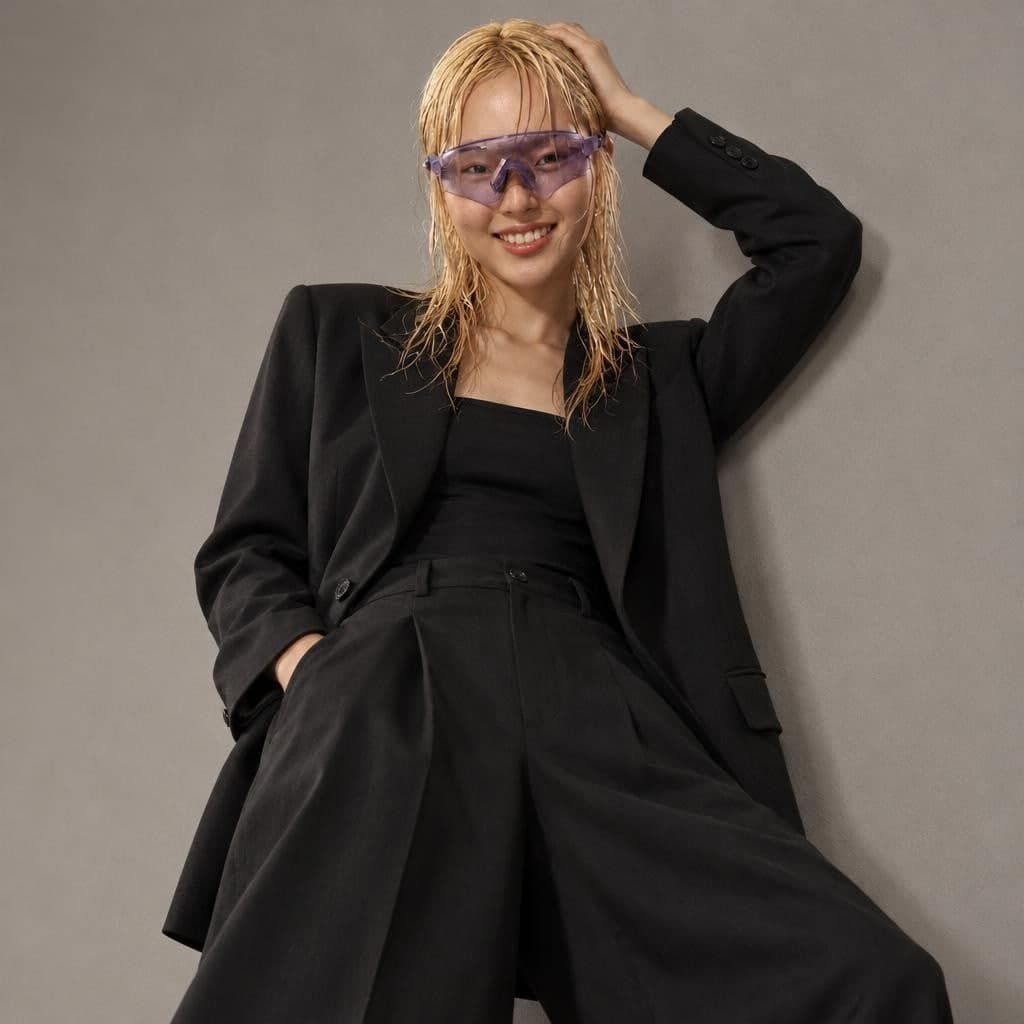 Result 4
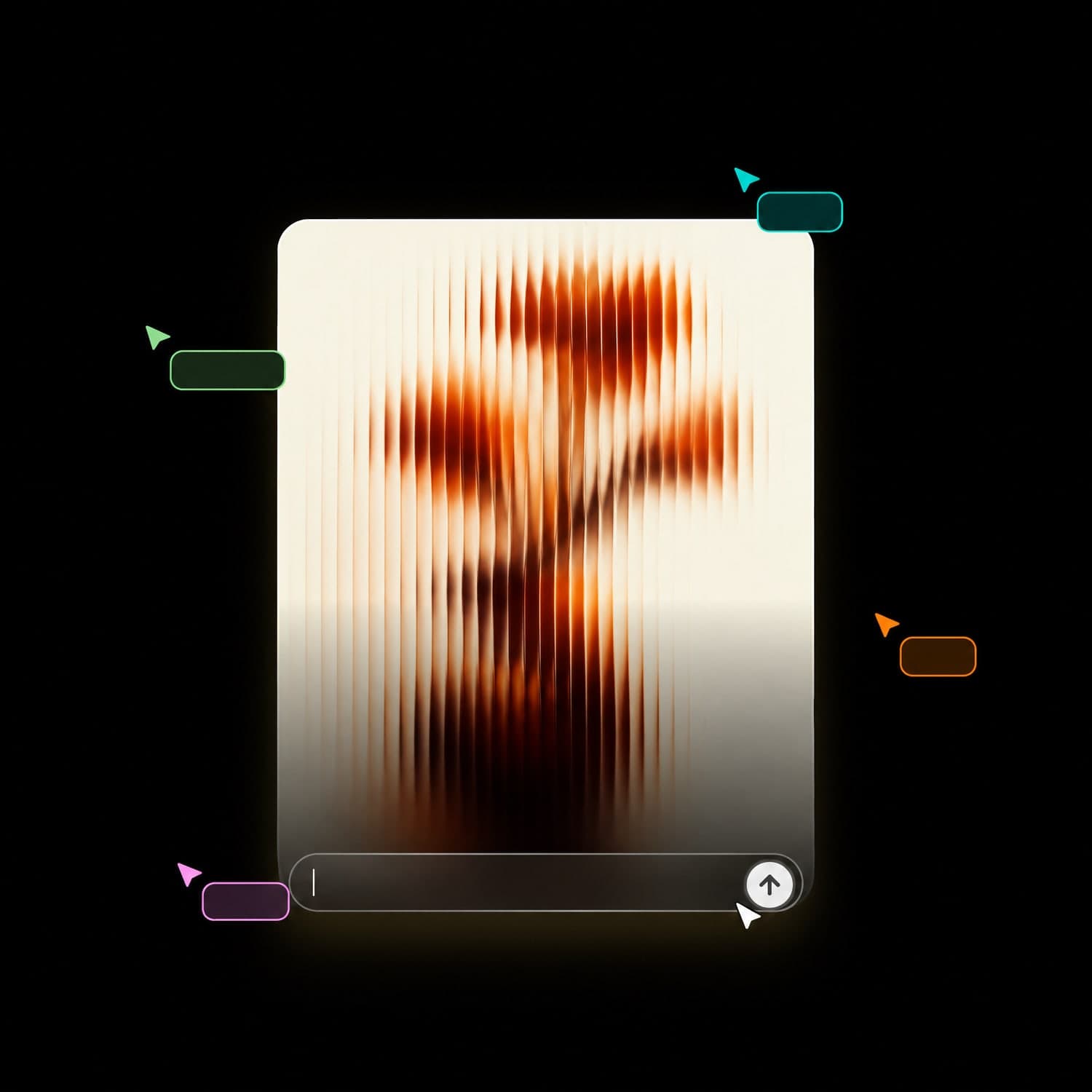
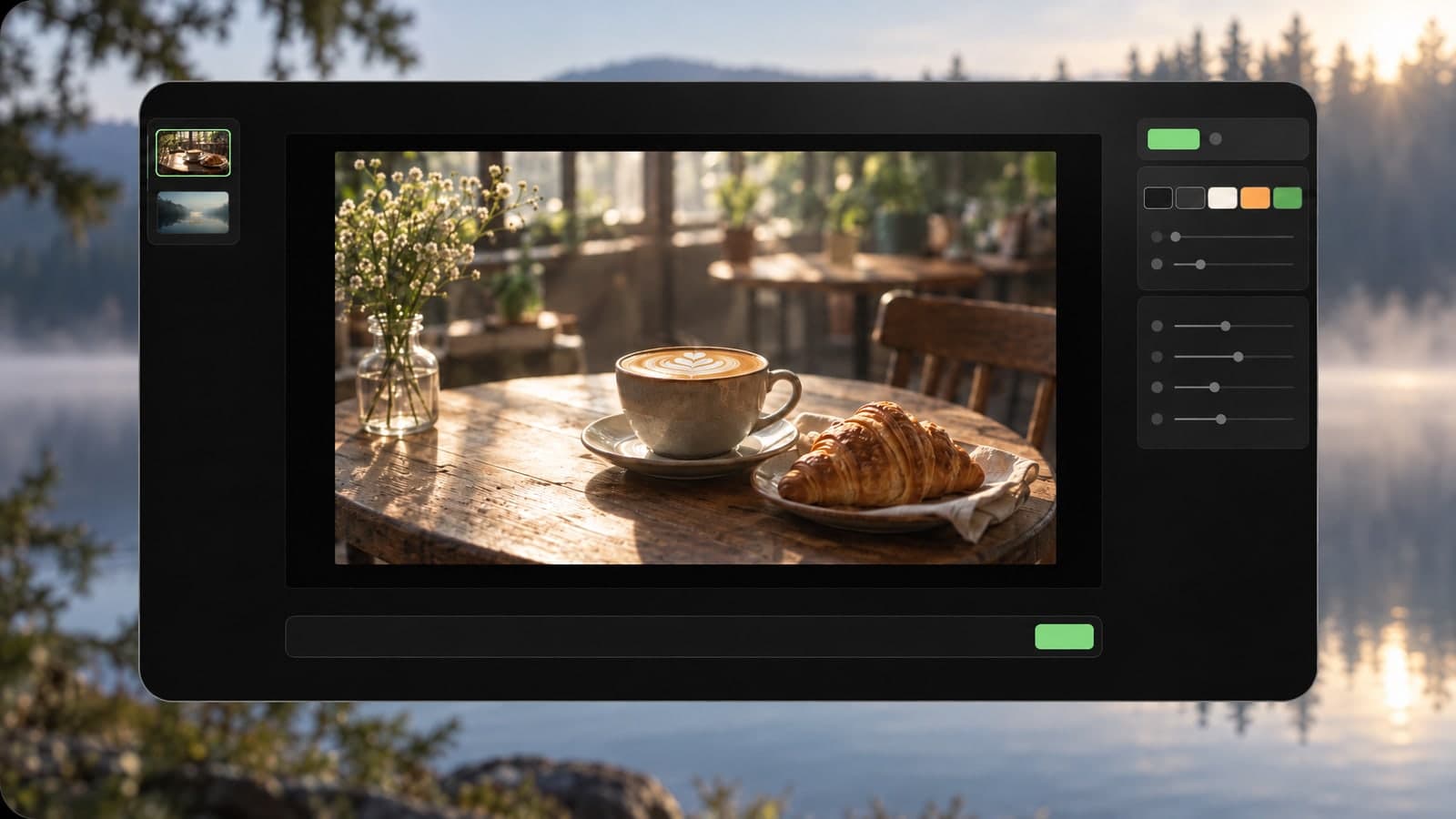
Upload a photo or just type a prompt. The same box edits the pictures you have and makes new ones.
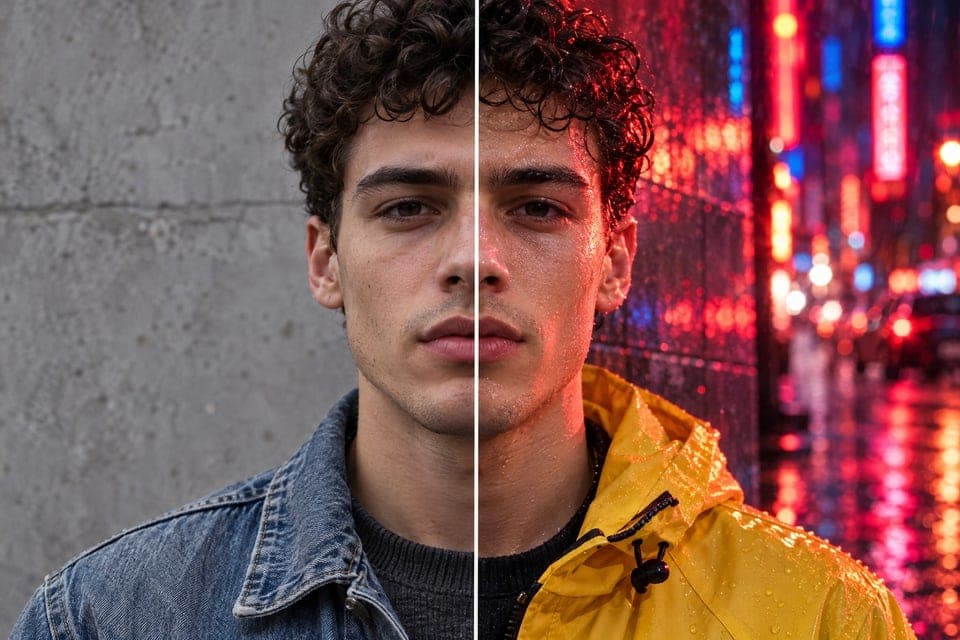
Tell the AI what to change, from the background to the outfit, and it keeps the rest of the photo.
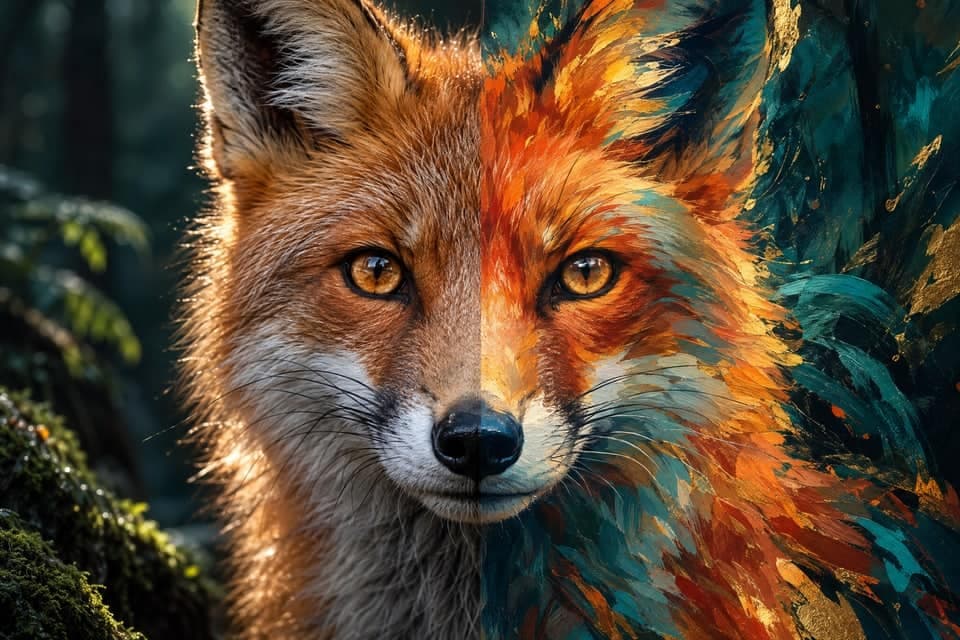
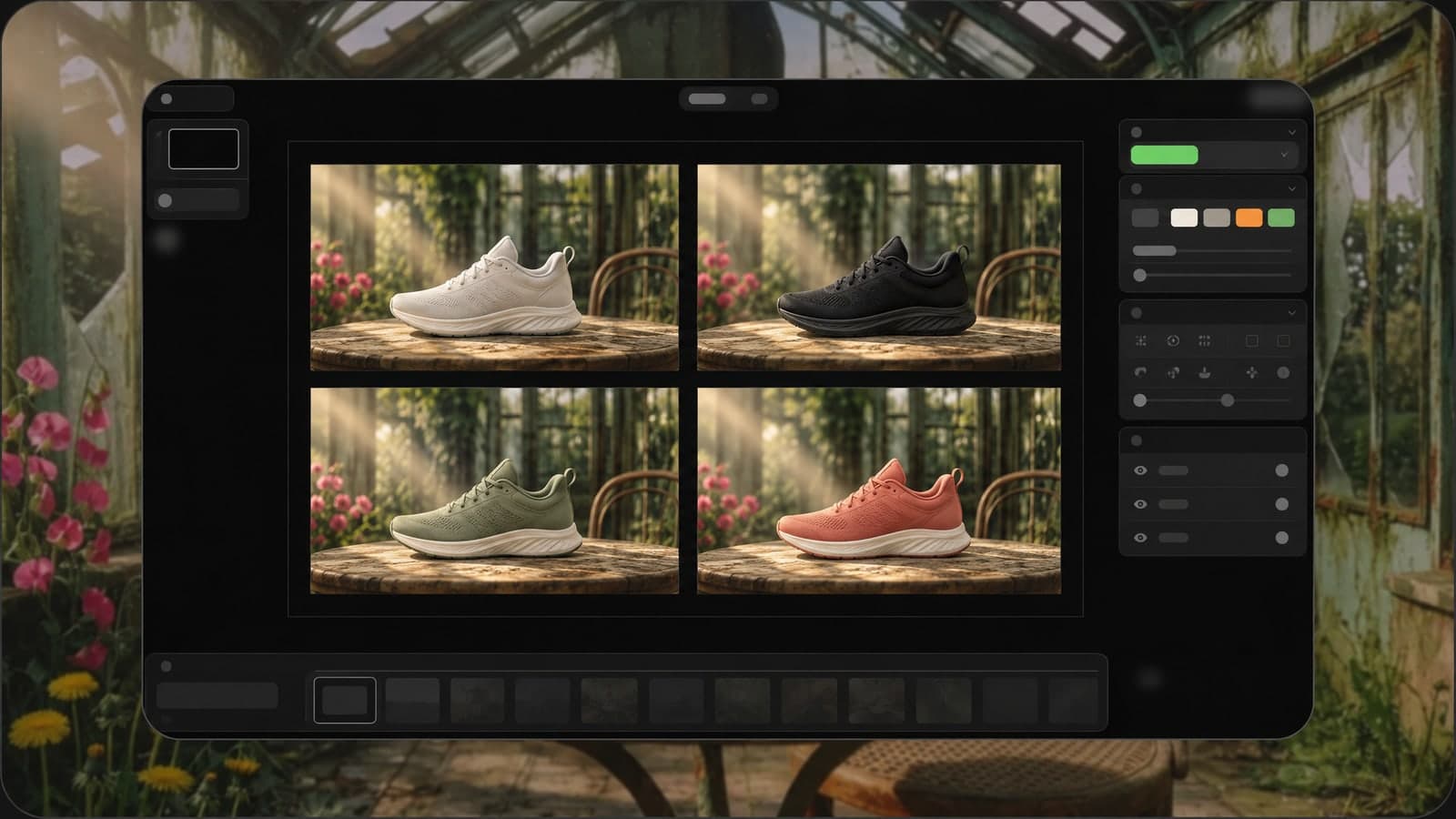
Upload up to four reference photos and mix a product, a face and a style into one new picture.
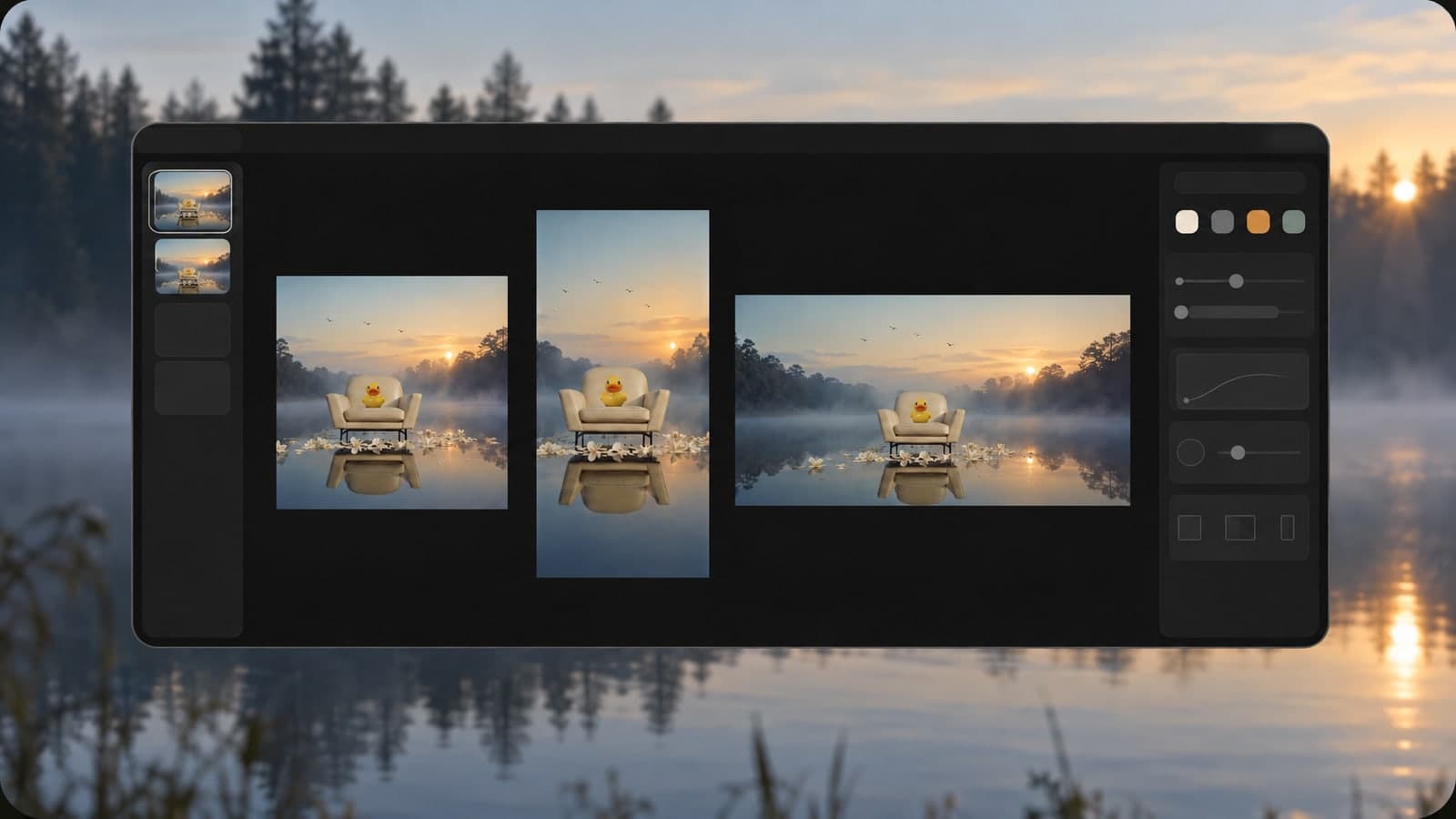
Pick Auto, square, portrait or widescreen, so each image fits your post, ad, banner or listing.
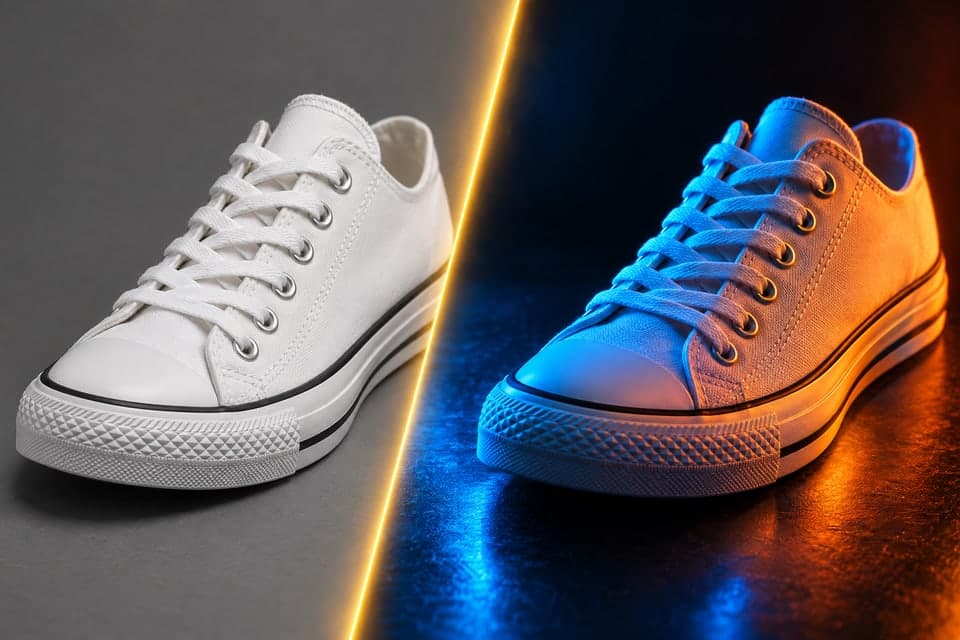
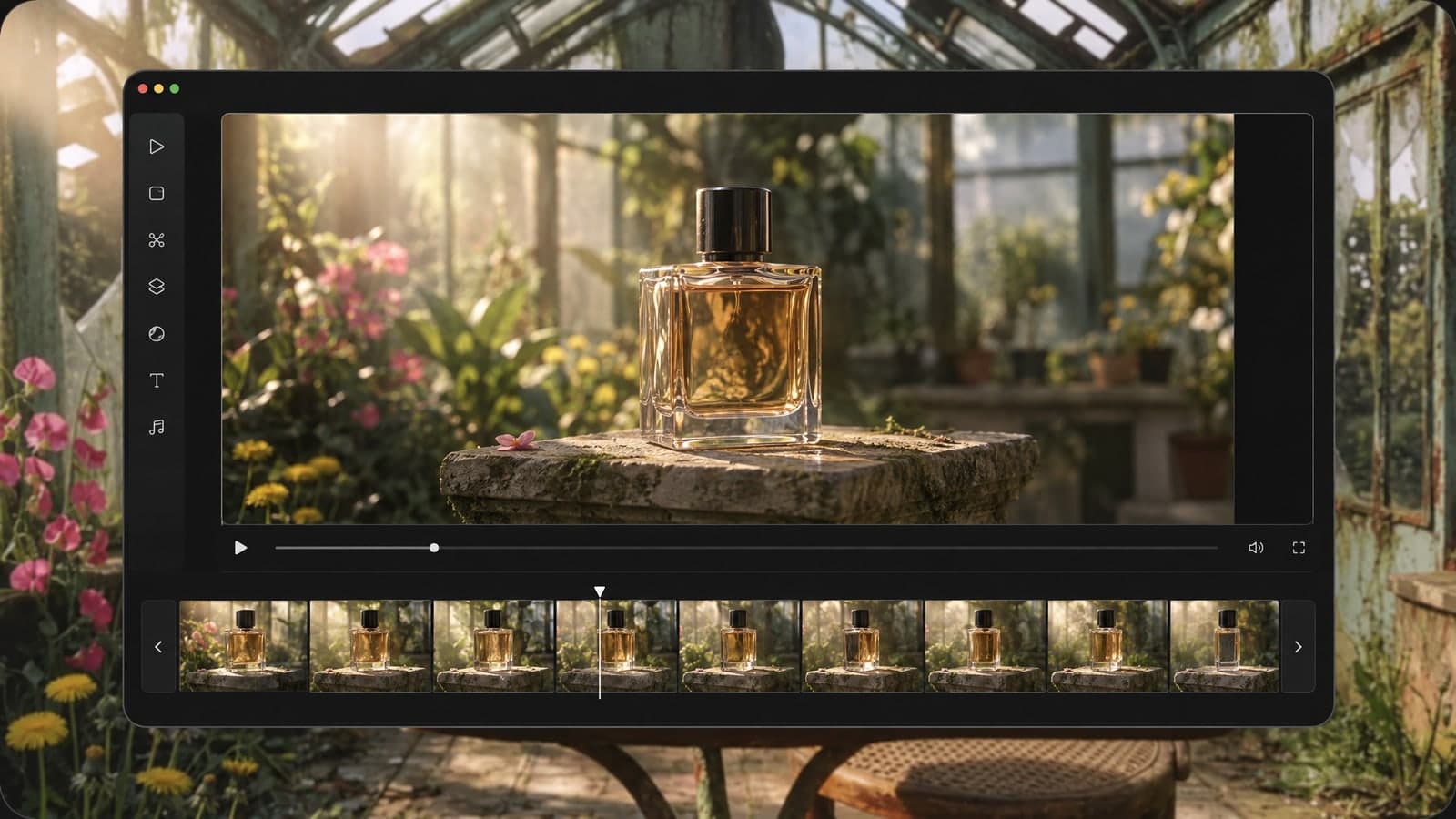
Upload a product shot, a game character or a building, then describe the new look. The AI keeps your subject and changes the setting, style or lighting.
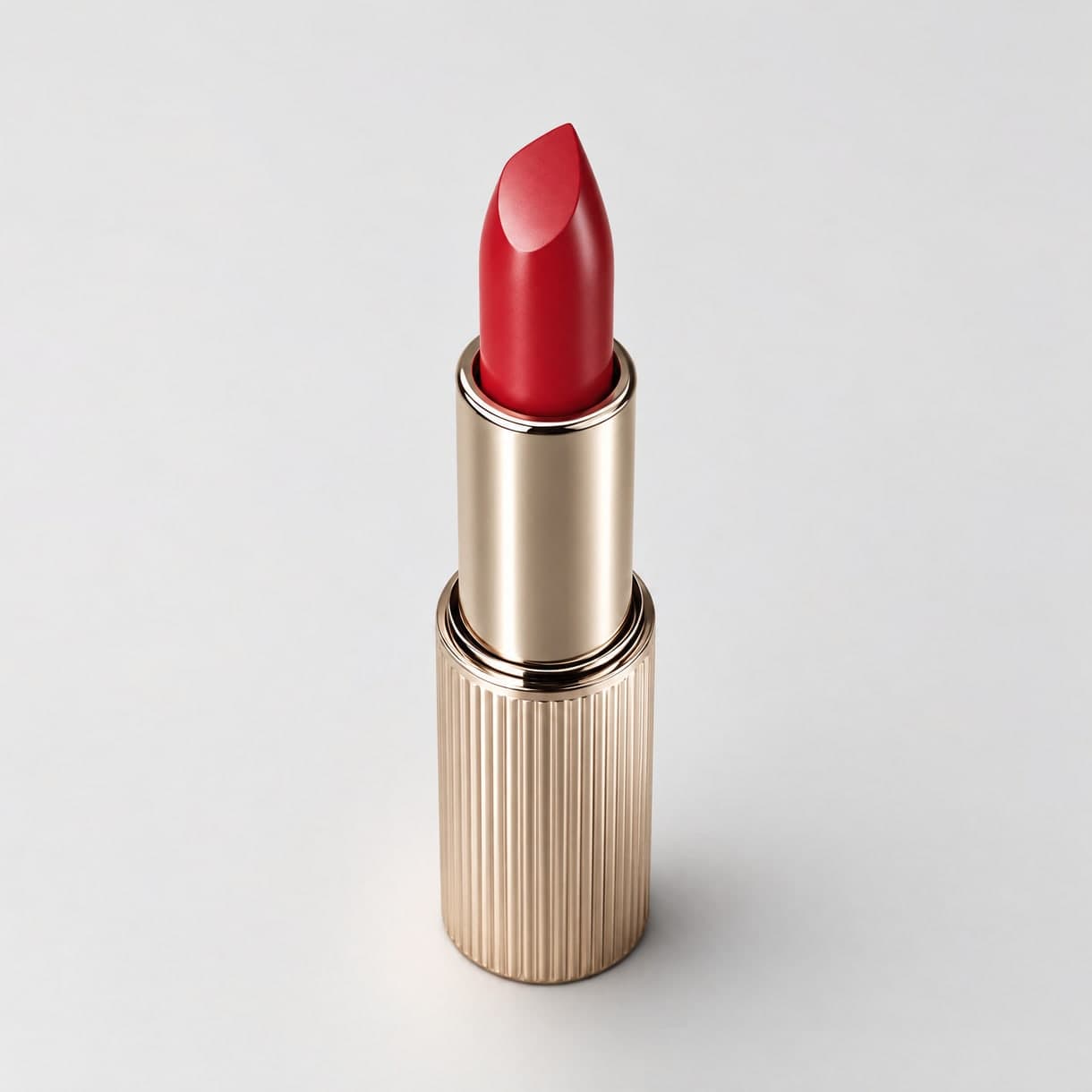
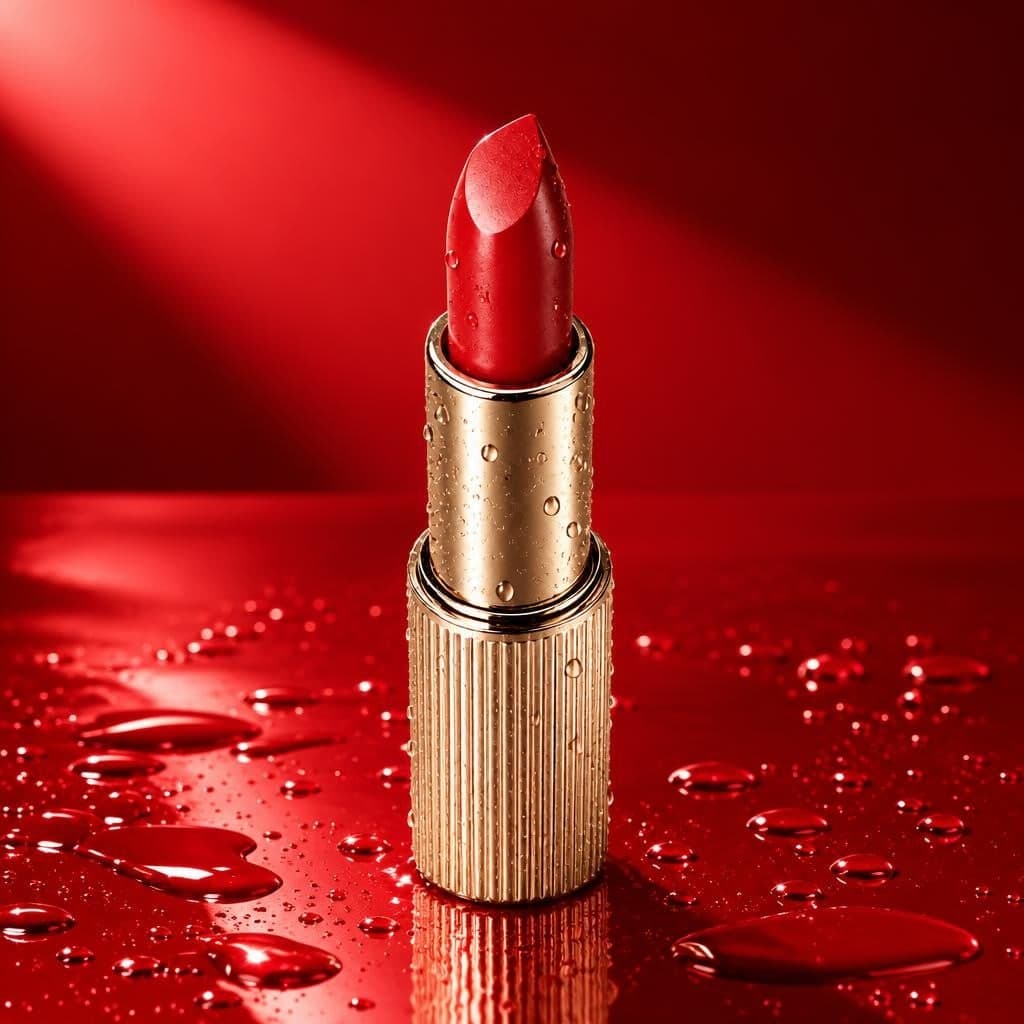
New shots for every listing in under a minute.
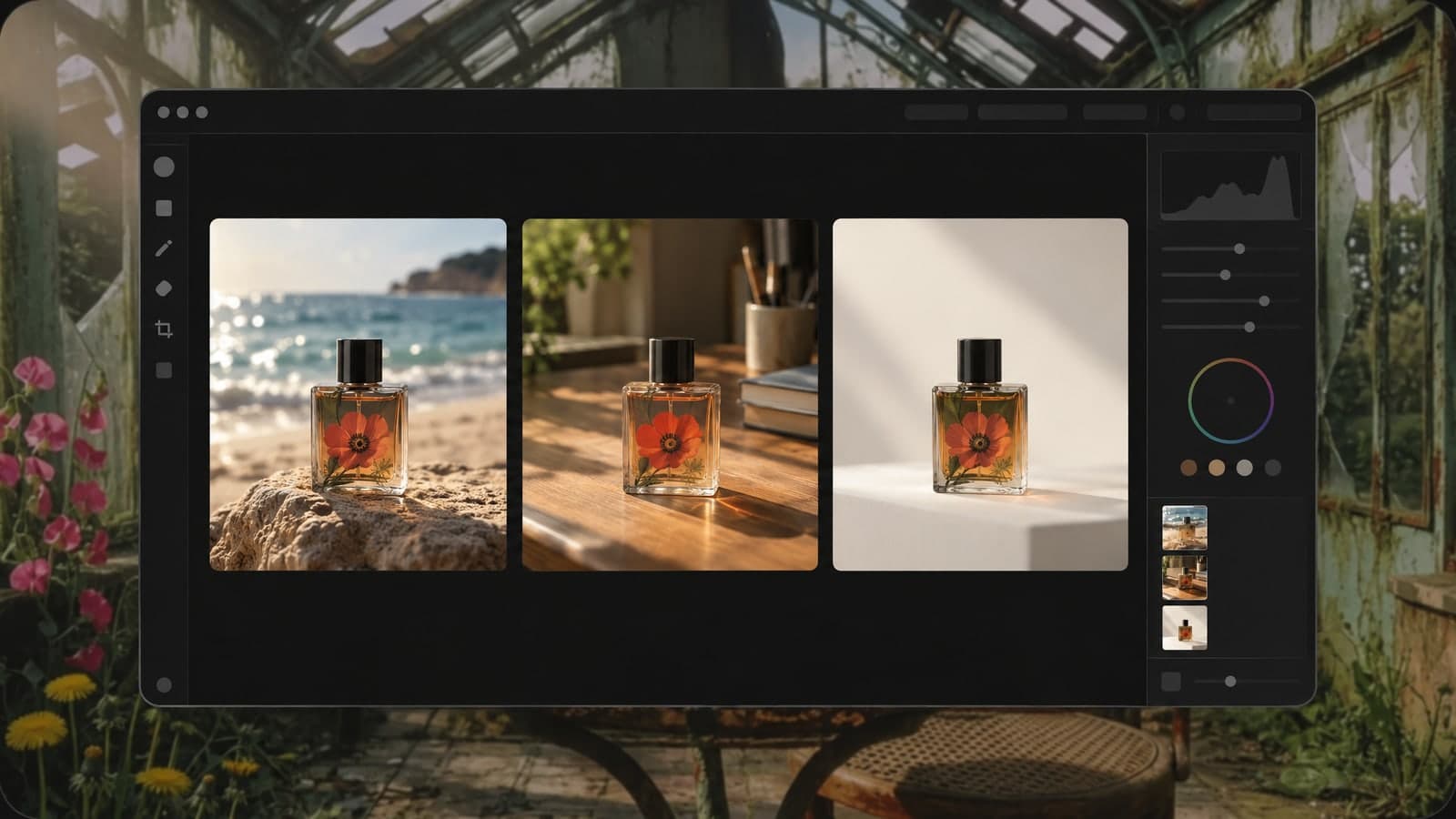
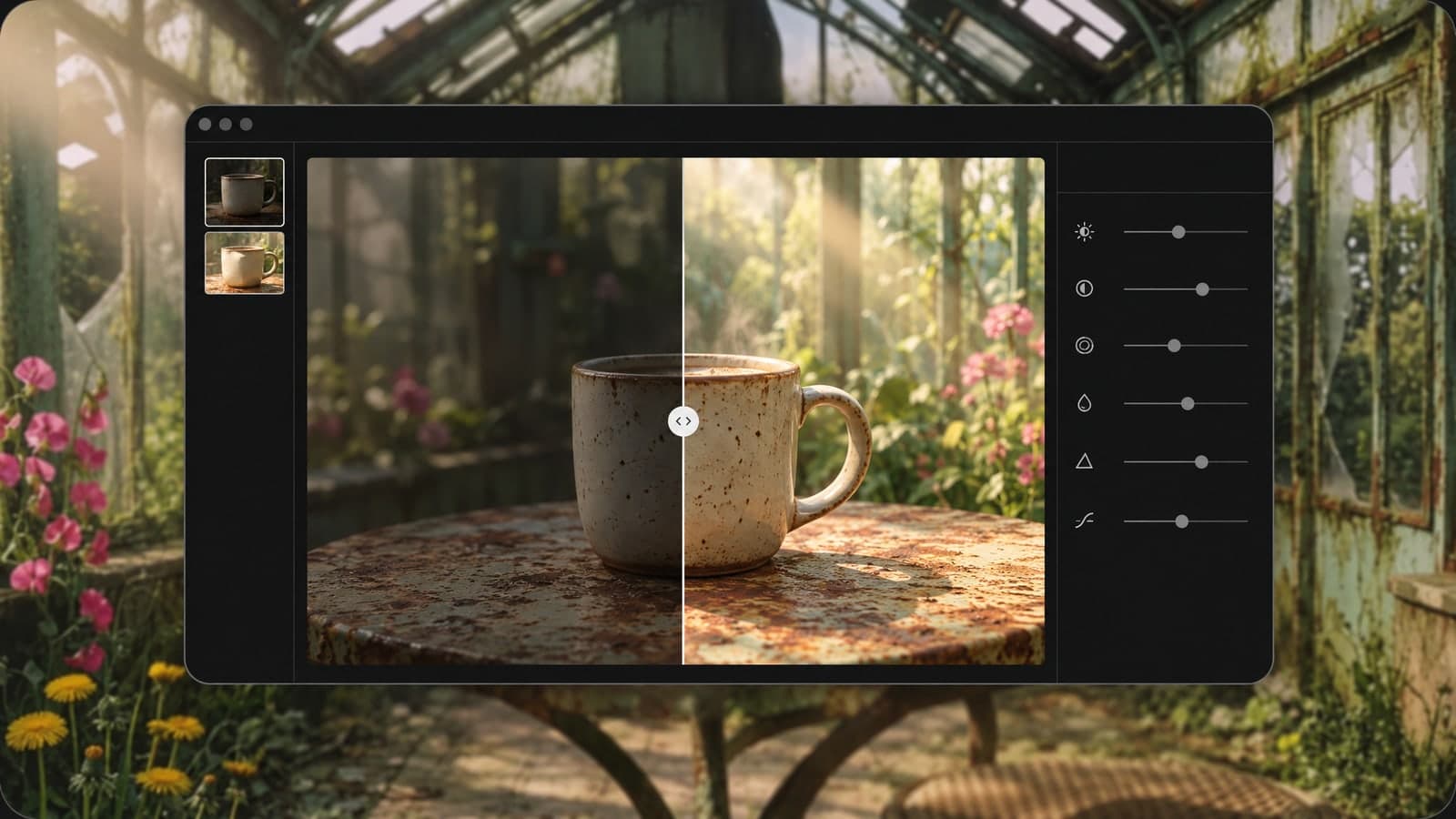
Fresh visuals for every feed and format.
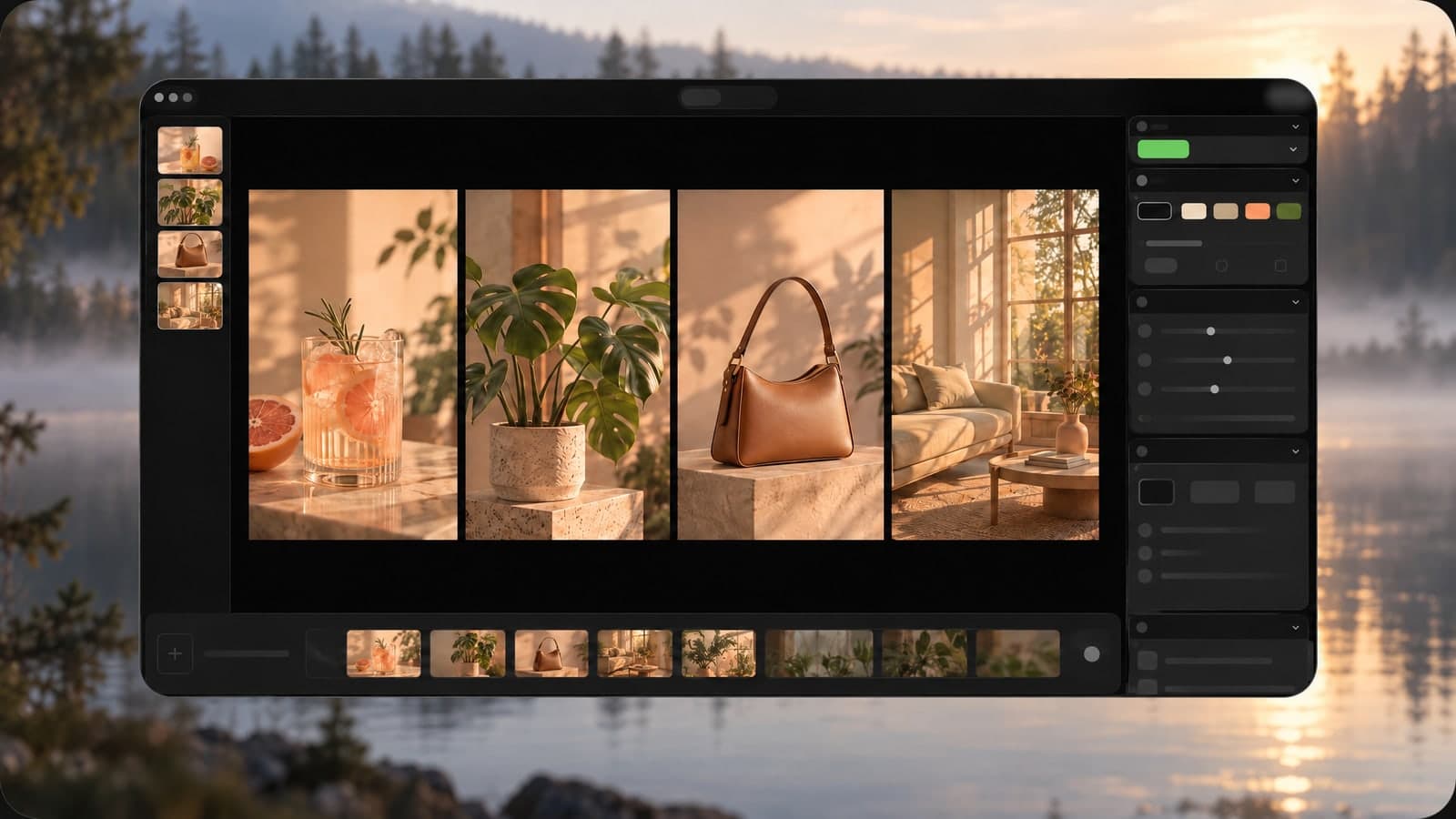
Test a look before you shoot, build or draw it.
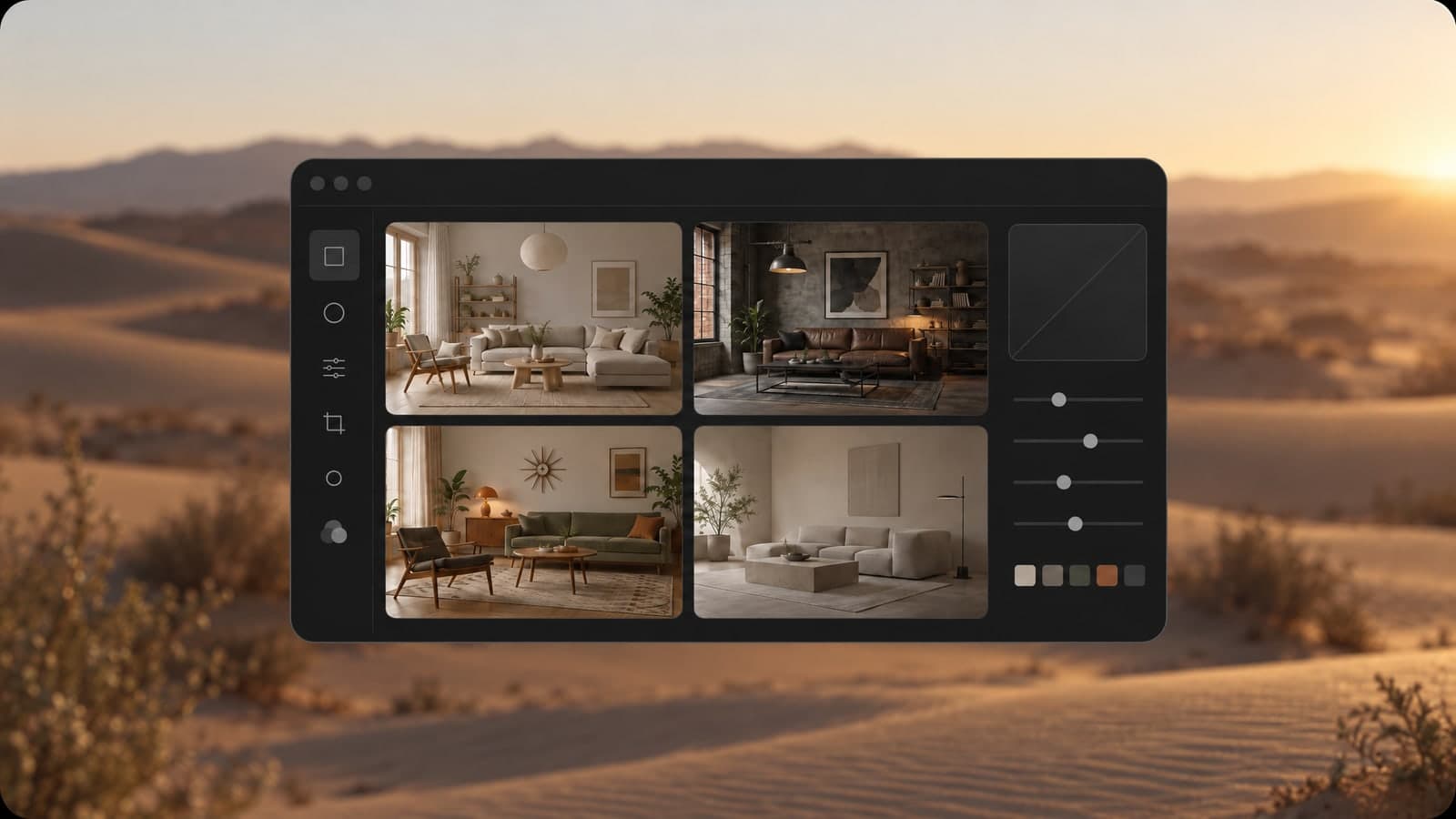
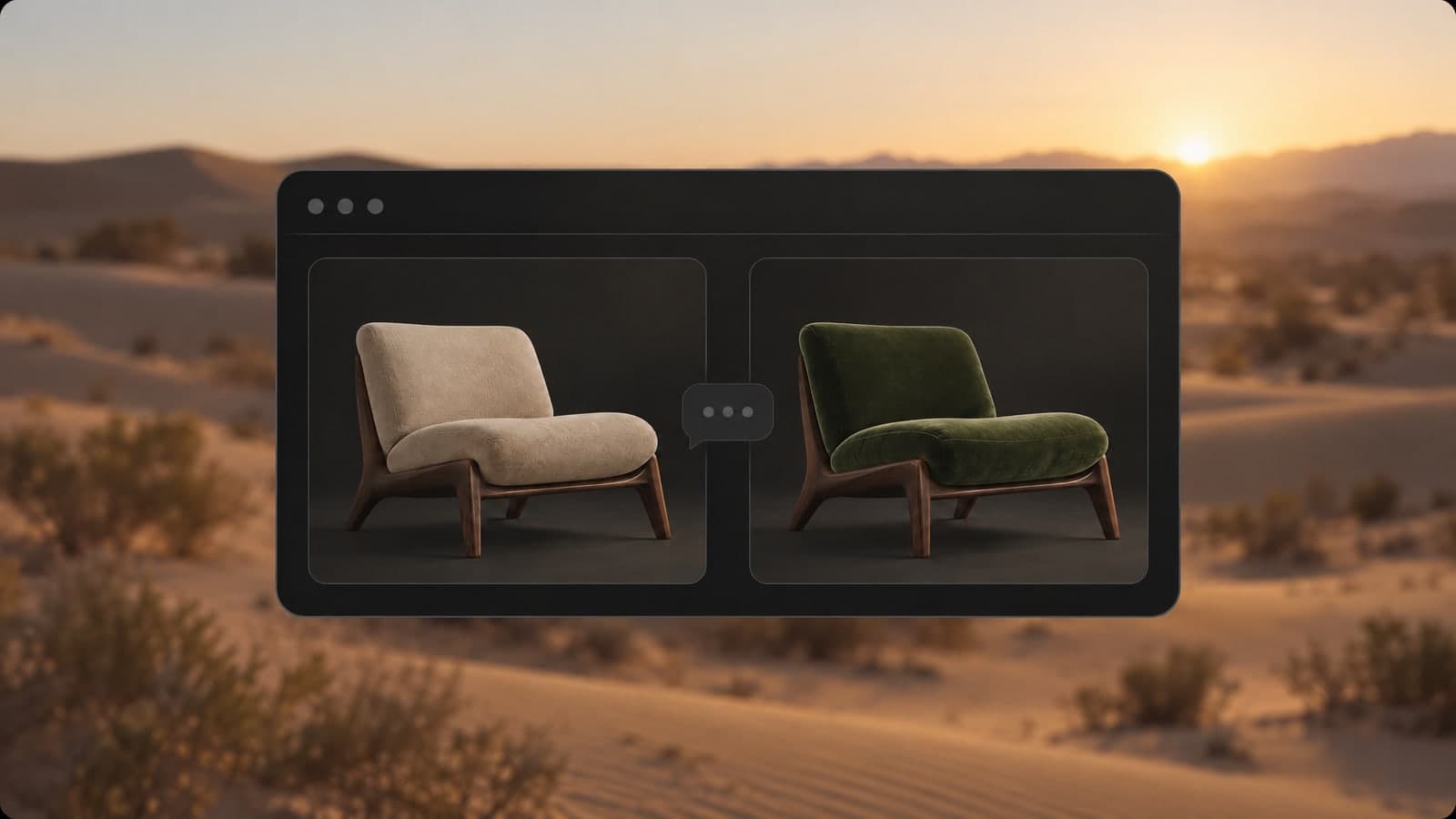
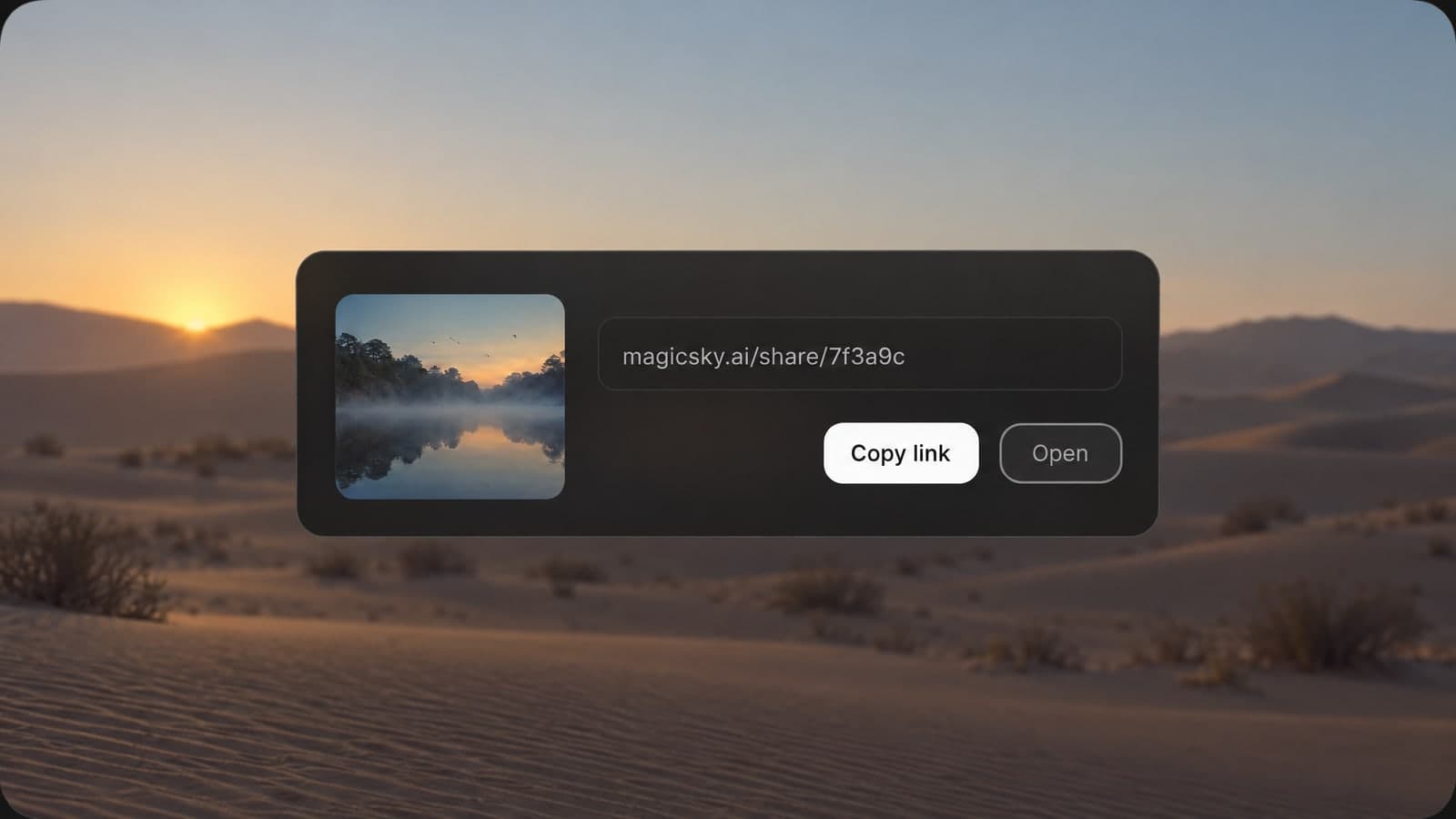
Nothing to install and no design skills needed. Upload, describe and download, all in your browser.
01 Upload
Upload up to 4 photos, or leave the box empty to start from text.
Clear photos with one main subject give the cleanest edits.
02 Describe
Type the change, pick an aspect ratio and press Generate.
Name the subject first, then the setting, style and light.
03 Download
Download the JPG in about 30 seconds, or share a link anyone can open.
Every result is saved to My Works, so you can find it later.
“I upload one product photo and get a new background for every listing in under a minute.”
Maria Lopez
Online store owner
“Blending my rough sketch with a style photo gives me concept art I can show clients that day.”
Alex Chen
Freelance illustrator
Every edit and every new image runs on GPT Image 2.5 Flare, a model that follows detailed prompts and keeps your subject intact.
Each tool starts from a prompt or a photo. Pick another one below and keep creating in the same account.
Animate a photo into a 5 or 10 second video with sound, or make a clip from a prompt
Describe a scene and watch it move, no photo needed
Change only what you describe in a photo, keep the rest
Turn a prompt into a short looping animated GIF
Upscale a photo to 4K and restore sharp, clean detail
Google's video model: a photo or prompt to a clip with sound
Create and edit images with GPT Image 2.6 Flare.
Generate and edit images with Google's Nano Banana 2.1.
Turn a photo or prompt into an 8-second video with sound.
Turn a photo or prompt into a 1080p video with sound.
Turn a photo of two people into a kissing video
Tips, guides and prompt ideas for editing images with AI.
Quick answers about editing photos with image to image AI.
Image to image AI is an AI image generator from image: it makes a new picture from a photo you already have. You upload the photo, describe the change in plain words, and the AI redraws it while keeping what you did not mention, such as the face, the product or the layout.
Unlike a basic image to image generator, the tool on MagicSky AI also works without a photo. Type a prompt and it creates a new image from text alone.
Image to image AI takes up to 4 reference images per generation, each up to 30MB, in JPG, PNG, WebP or iPhone HEIC format. On a computer, you can also scan a QR code and send photos straight from your phone. Add more than one image to blend them, for example a product from one photo and a background from another.
You can try it without an account. To keep going, sign up: new accounts get free credits and the daily check-in adds more. Each image uses credits, with or without uploaded photos, and you see the exact cost before you press Generate. Paid plans and credit packs add more credits for regular use.
Most images are ready in about 30 seconds. Text-only prompts are a little faster than edits that use uploaded photos. You can keep browsing while it works, and the result shows up on the page as soon as it is done.
Pick from 8 options: Auto, 1:1, 3:4, 4:3, 2:3, 3:2, 9:16 and 16:9. Auto follows the shape of your uploaded photo and makes a square image when you start from text only. Use 9:16 for stories and reels, 16:9 for banners and thumbnails, and 1:1 for product listings.
It can. To get an AI realistic image, write the prompt the way a photographer would describe the shot: the subject, the place, the time of day and the light, for example "a ceramic mug on an oak table, morning window light, shallow depth of field". Leave out style words such as cartoon or painting. If one detail is off, change only that part and generate again.
That depends on how you pay. On the free plan, your images are for personal, non-commercial use. With a paid plan or a credit pack, you can also use them for commercial work such as ads, product pages and client projects. Only upload photos you have the rights to, and read our Terms of Service for the full details.
When you are signed in, every result is saved to My Works, where you can view, download or share it at any time. Your images stay private unless you share a link, and anyone with that link can only view the one image you shared.
Try it without an account. Ready in 30 seconds.