Gemini Omni 1.2 Flash - MagicSky AI
01 Upload
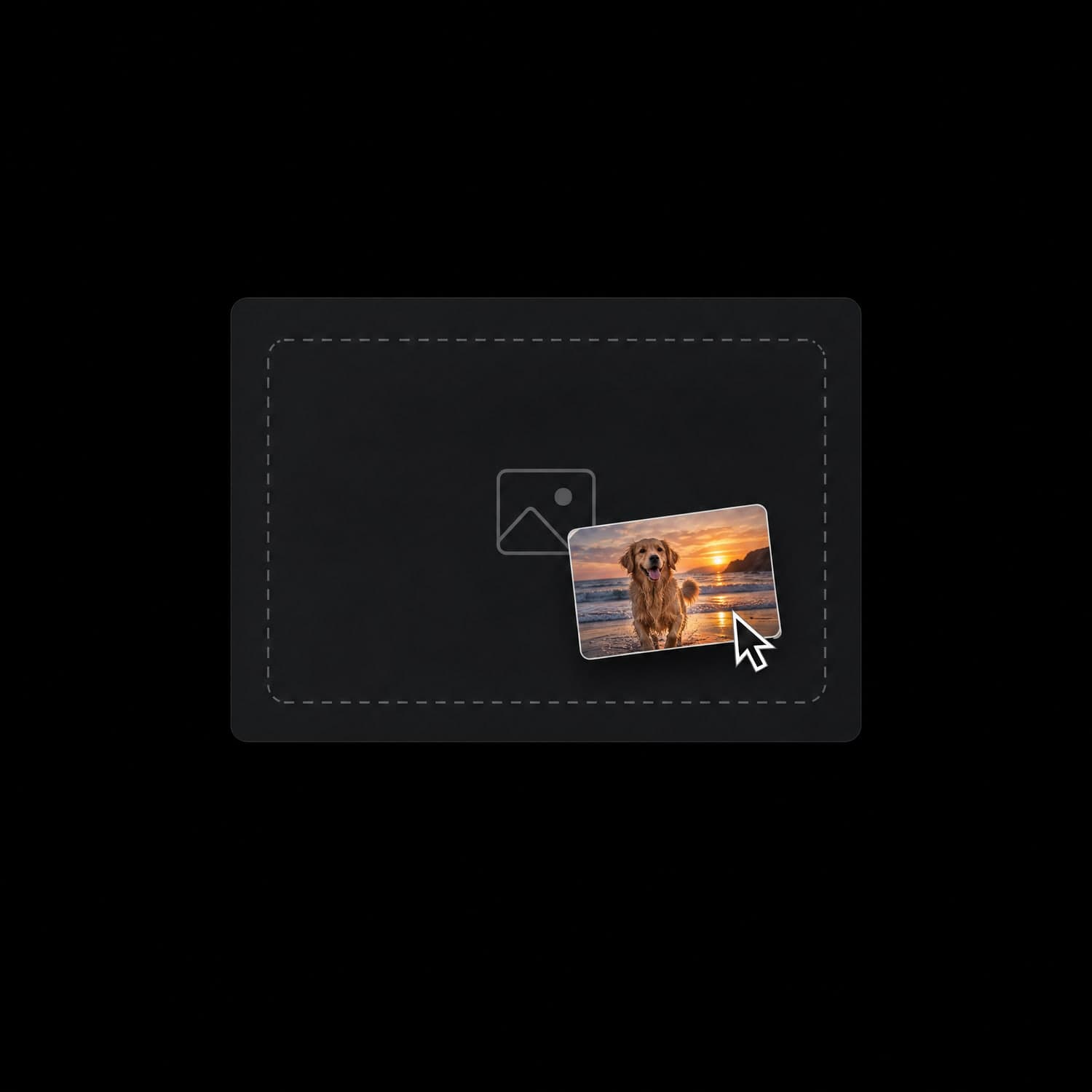
Pick the photo to animate
Upload one clear photo, or skip it and start from text alone.
A vertical photo gives you a vertical 9:16 video.
Upload a photo or write a prompt and get a clip with sound.
 Input imageVideo
Input
Input imageOutputs
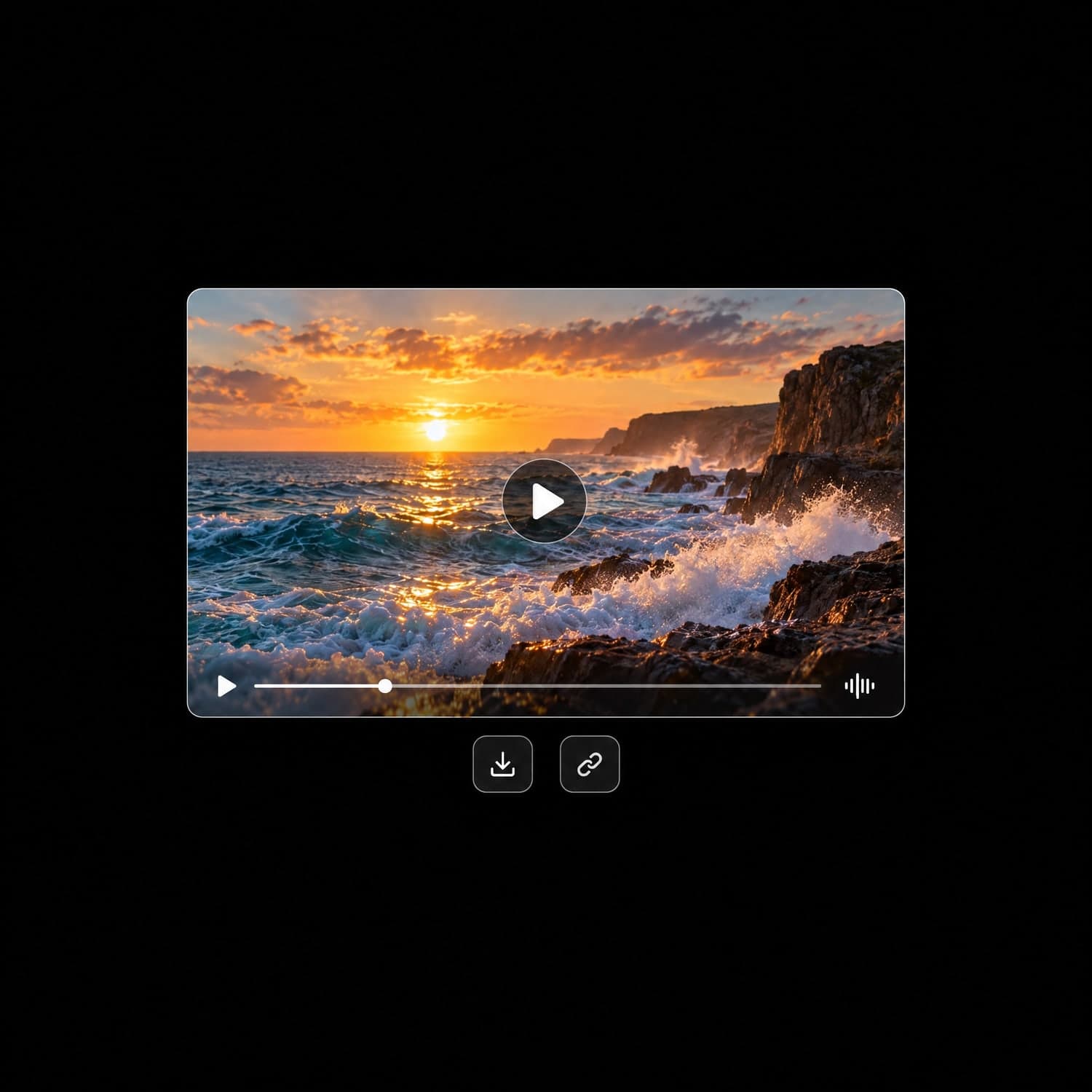
VideoGoogle's Gemini Omni 1.2 Flash makes the video and its sound together, so one photo becomes a clip to post.
Write dialogue, music or sound effects into your prompt and hear them play in sync with the motion.
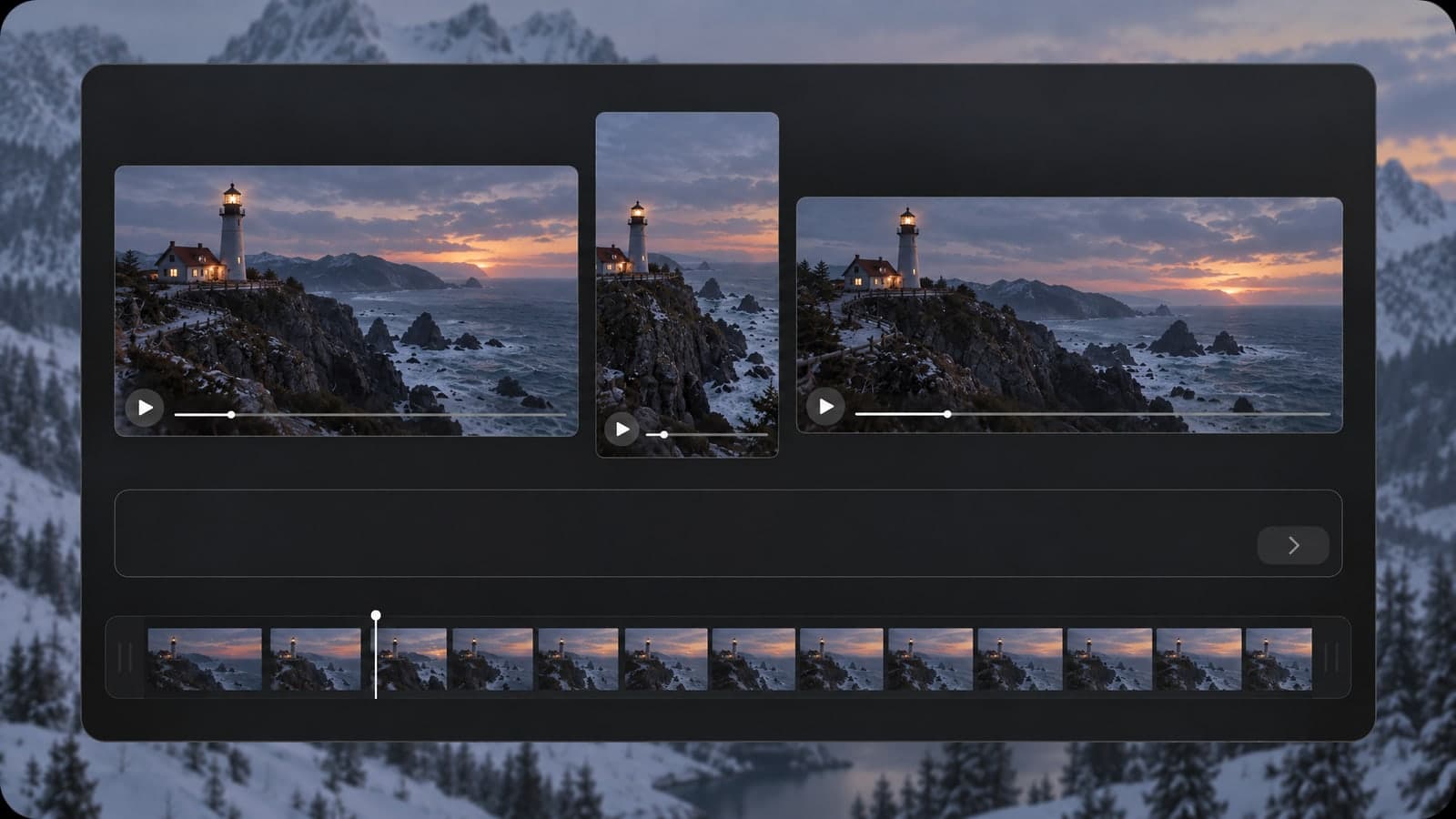
A vertical photo gives a 9:16 clip for reels, and a wide one gives 16:9 for YouTube or your website.
Pick 720p or 1080p and a 5, 10 or 15 second length. Most 5-second clips are ready in about a minute.
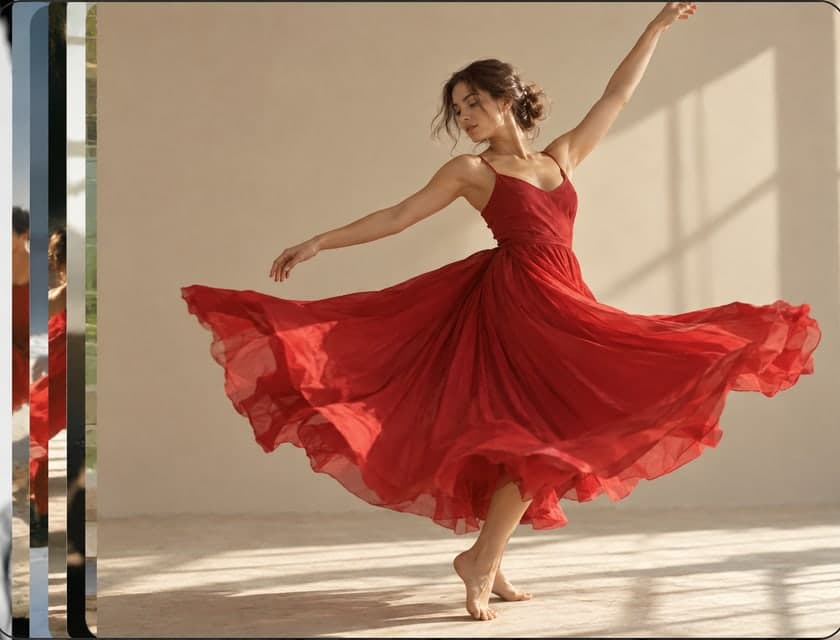
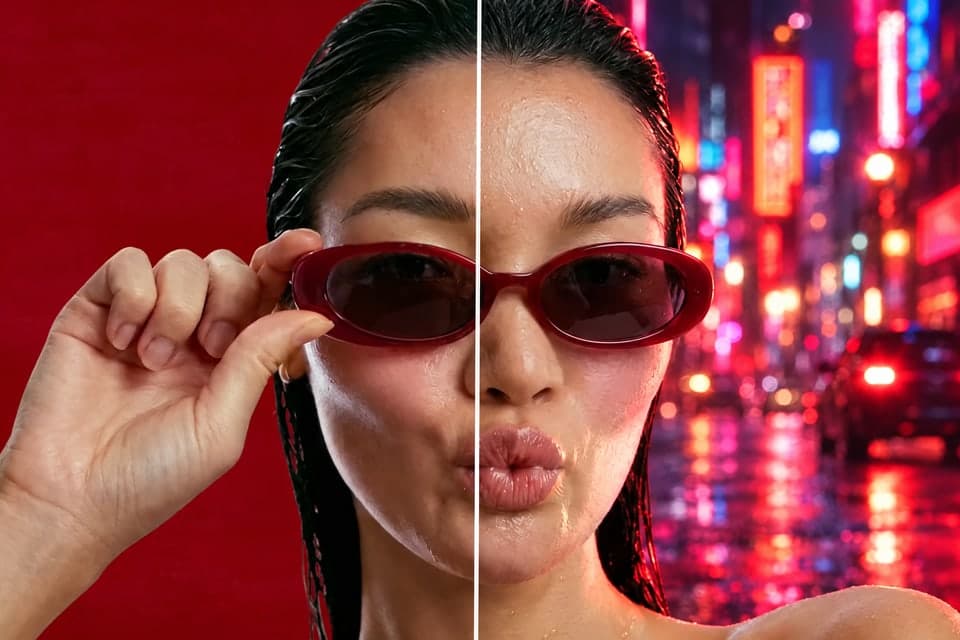
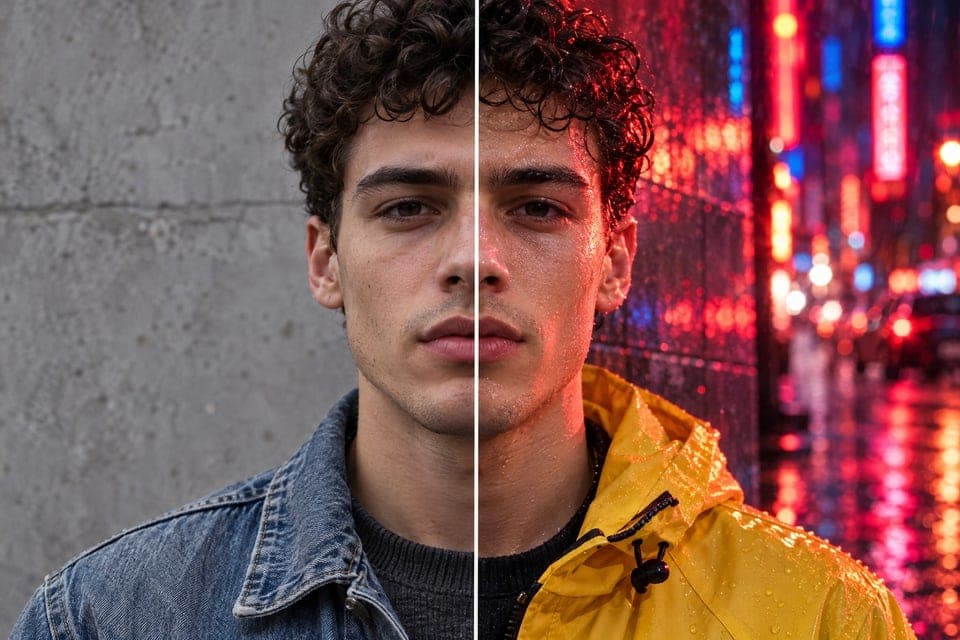
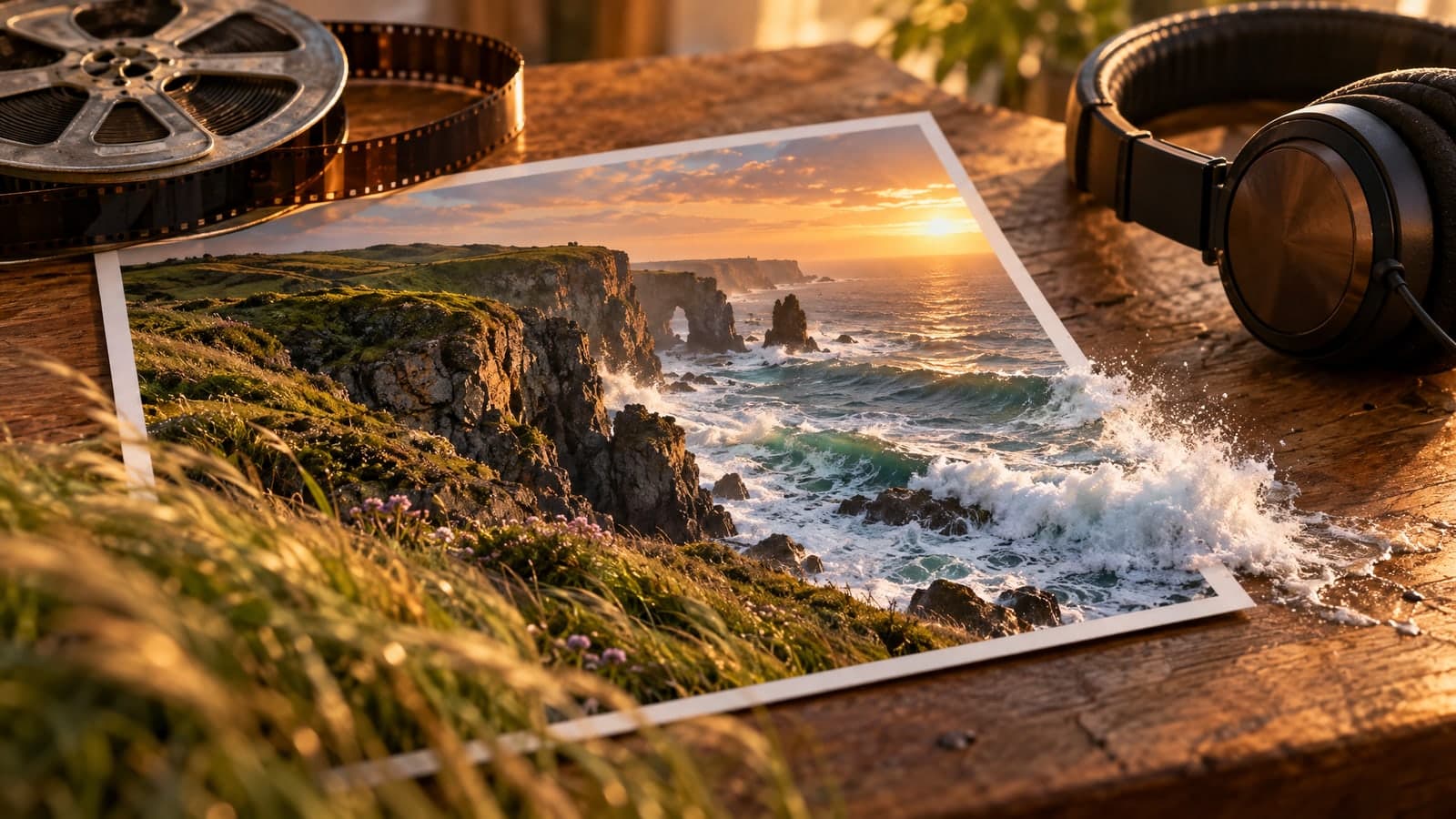
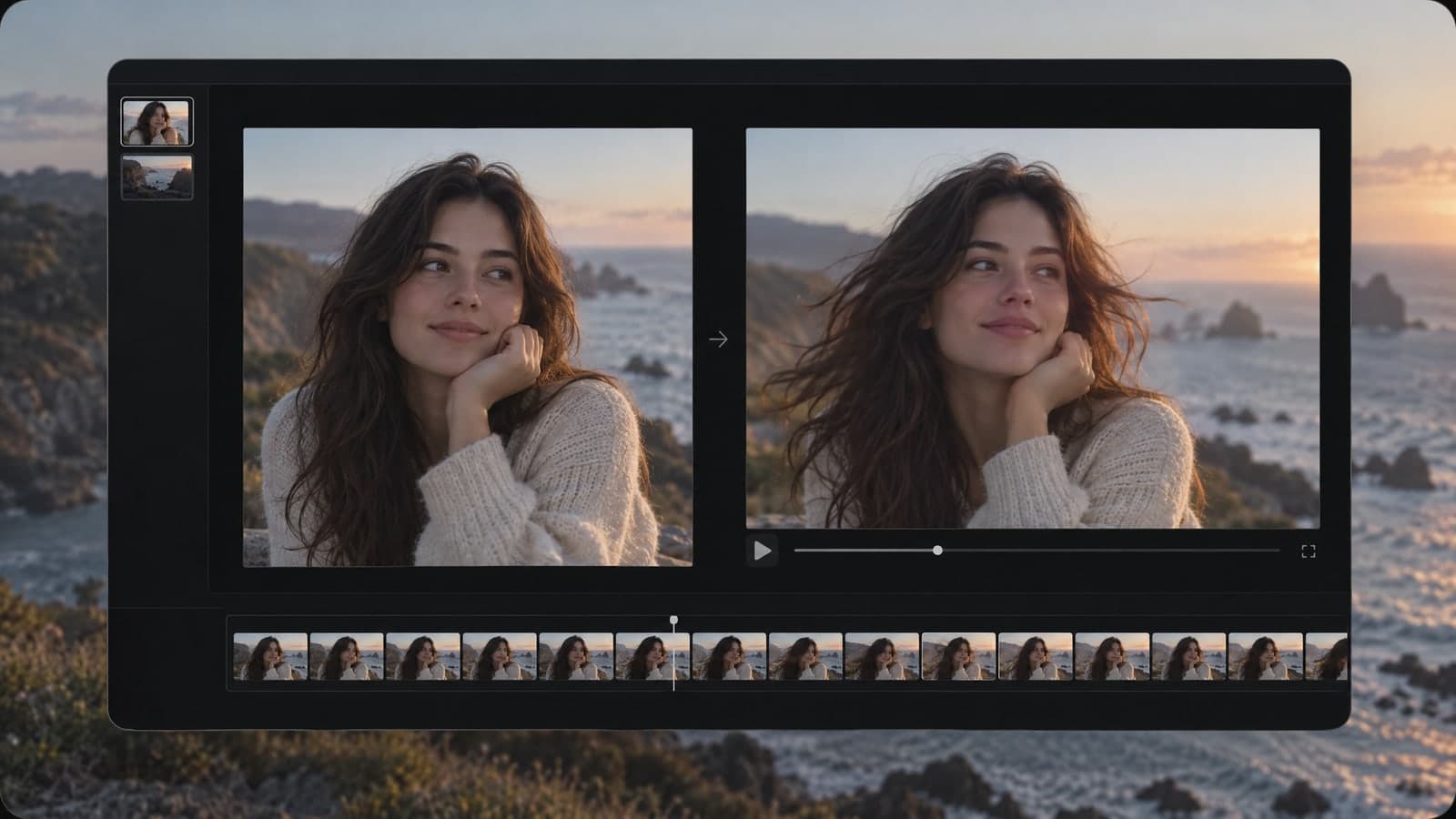
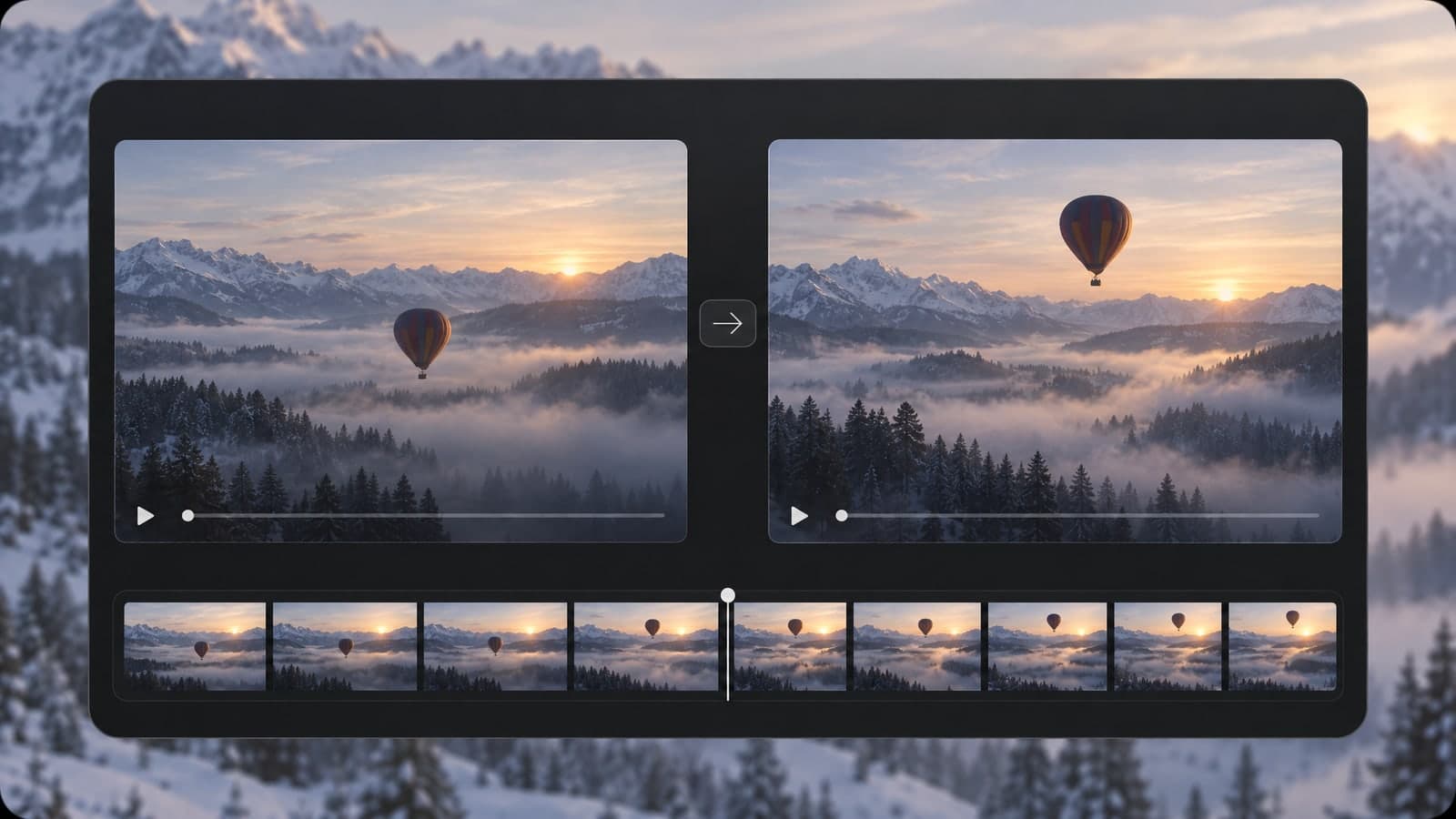
Each clip below started as a single still photo. Gemini Omni 1.2 Flash used it as the first frame, then added the motion, the camera move and the sound.

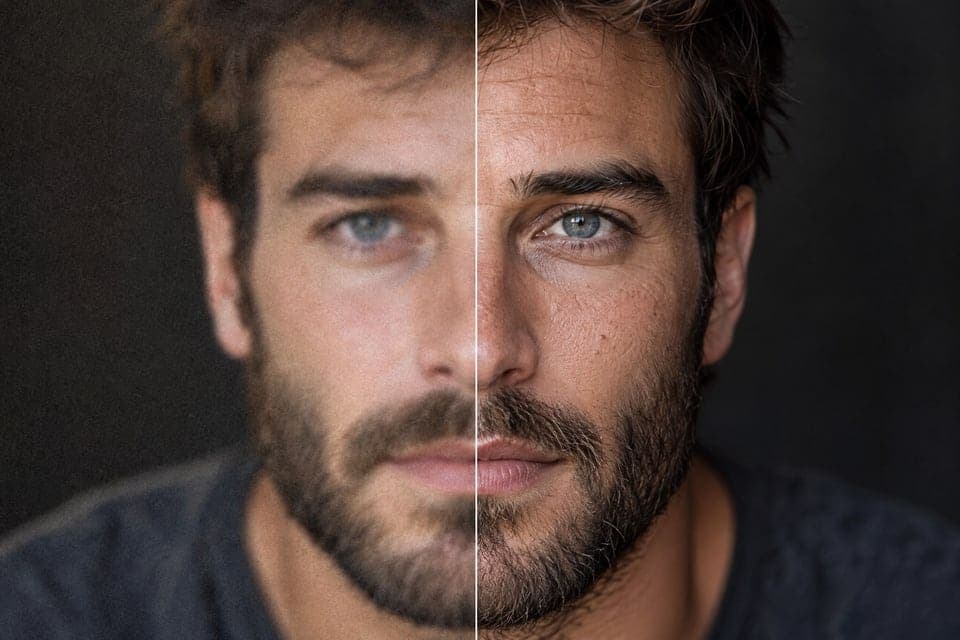
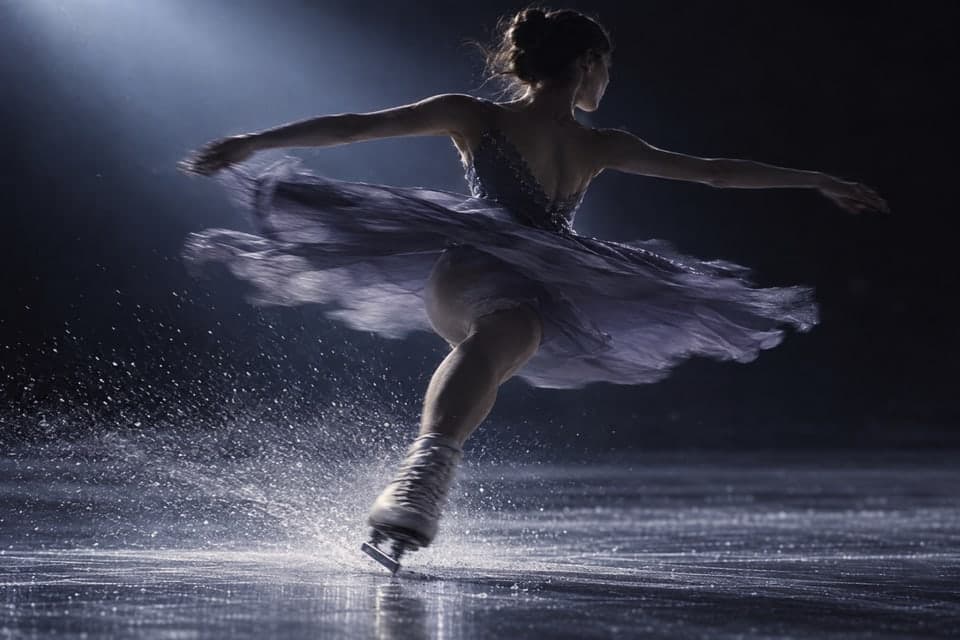
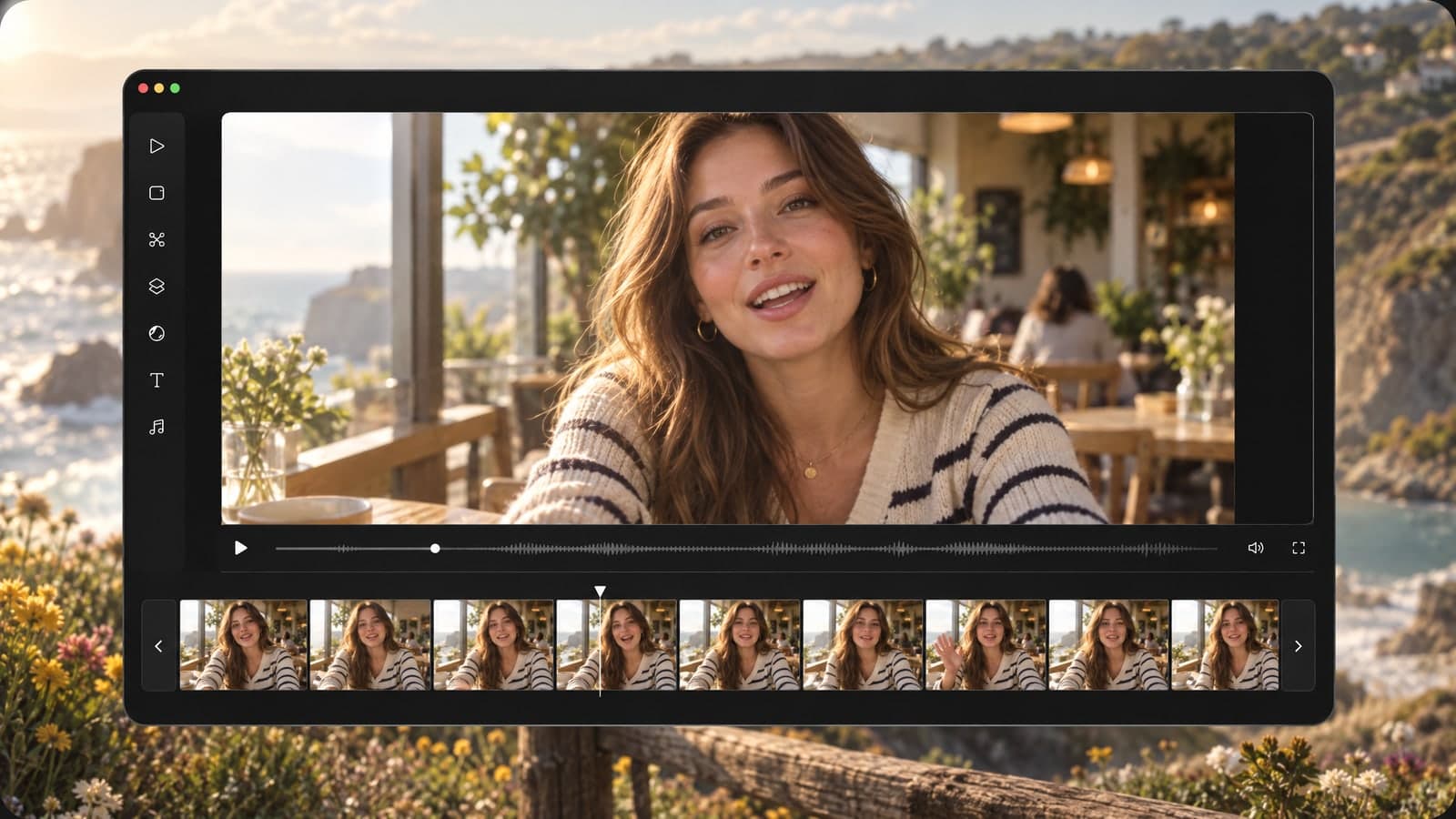
Give a still portrait a voice and a reason to stop.
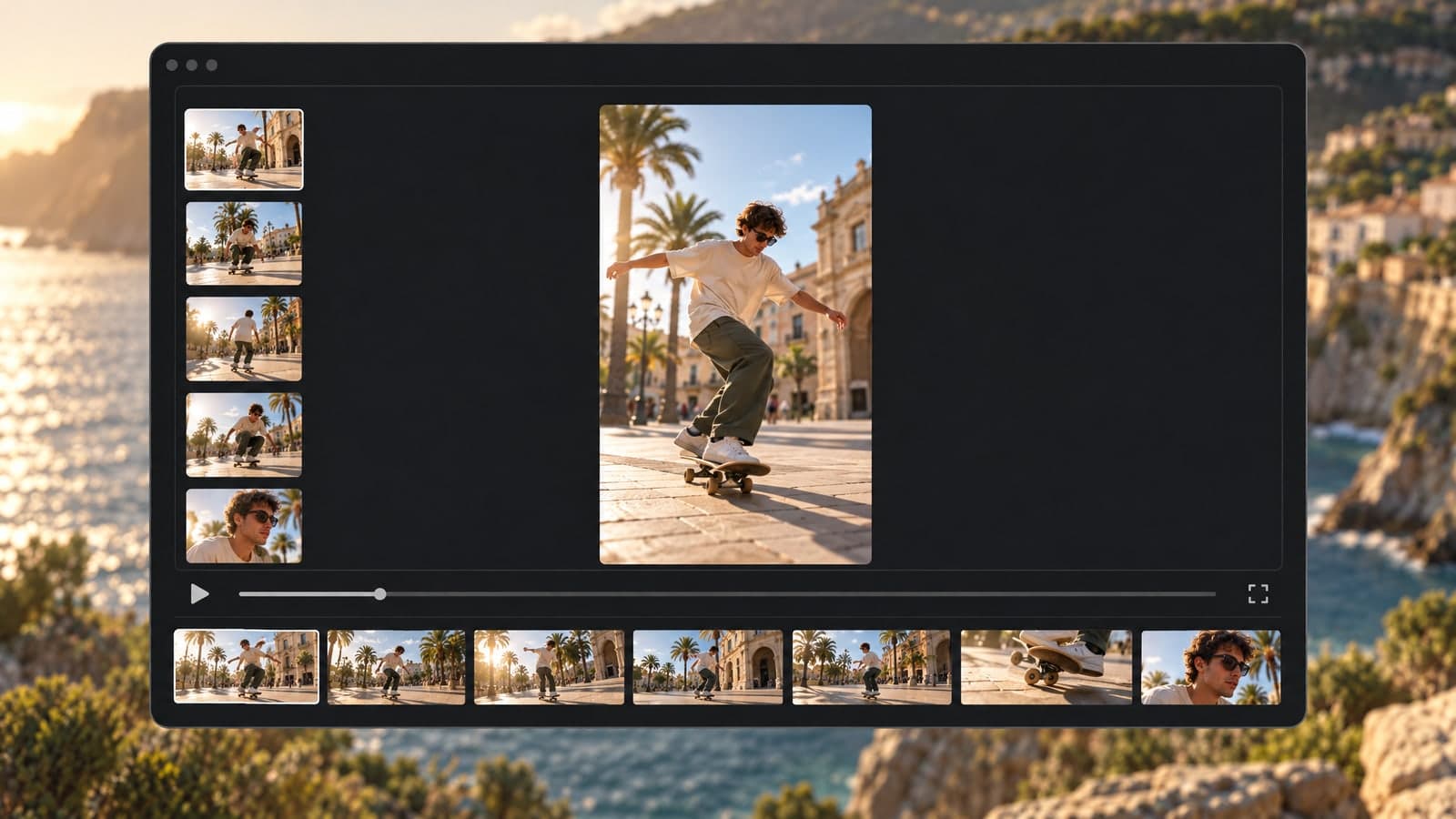
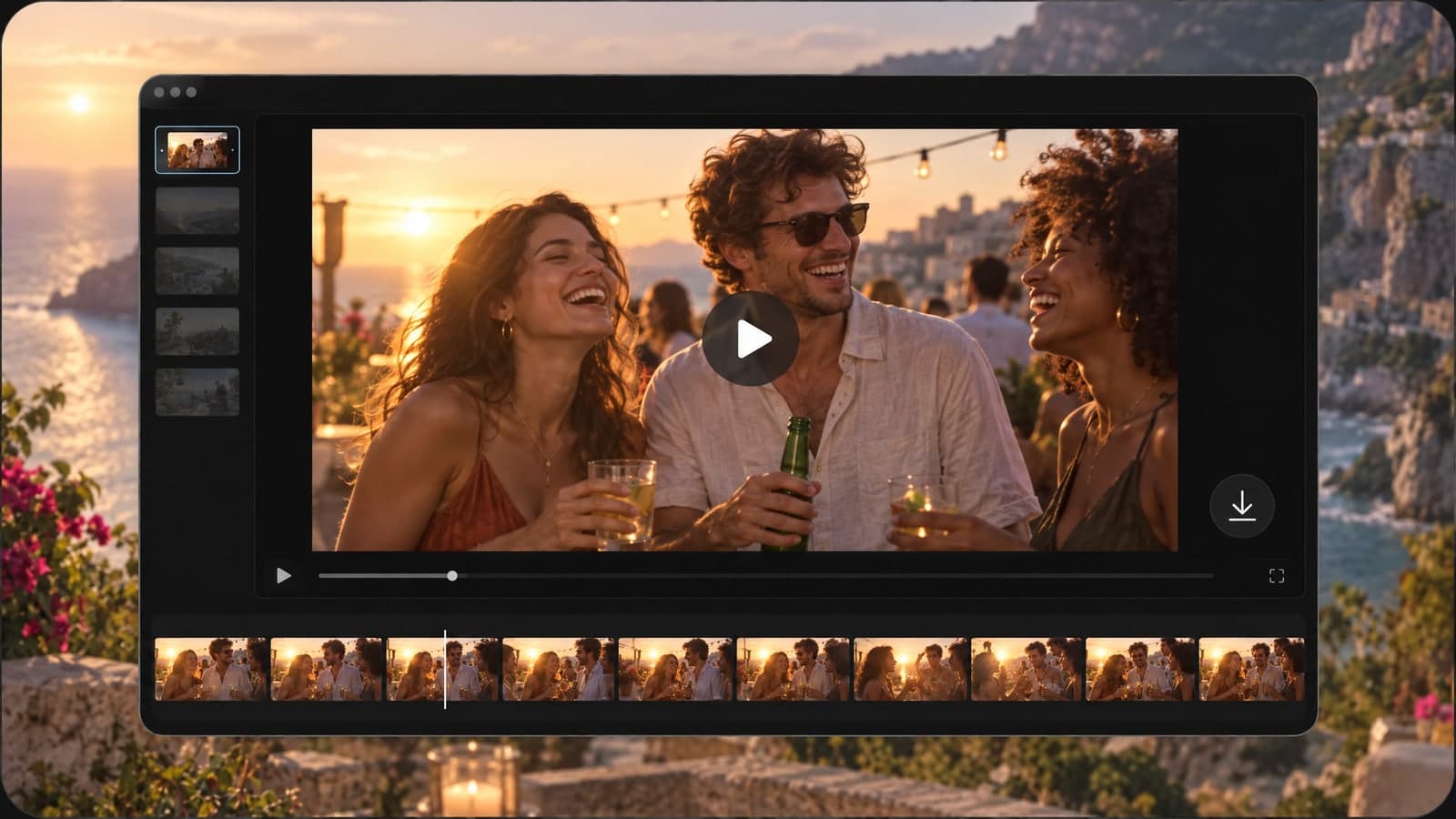
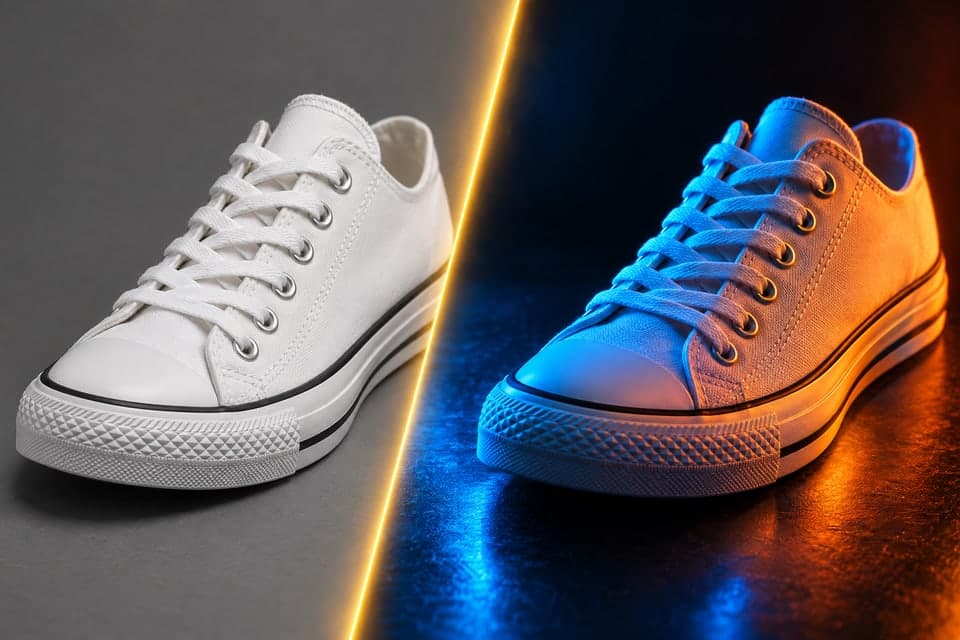
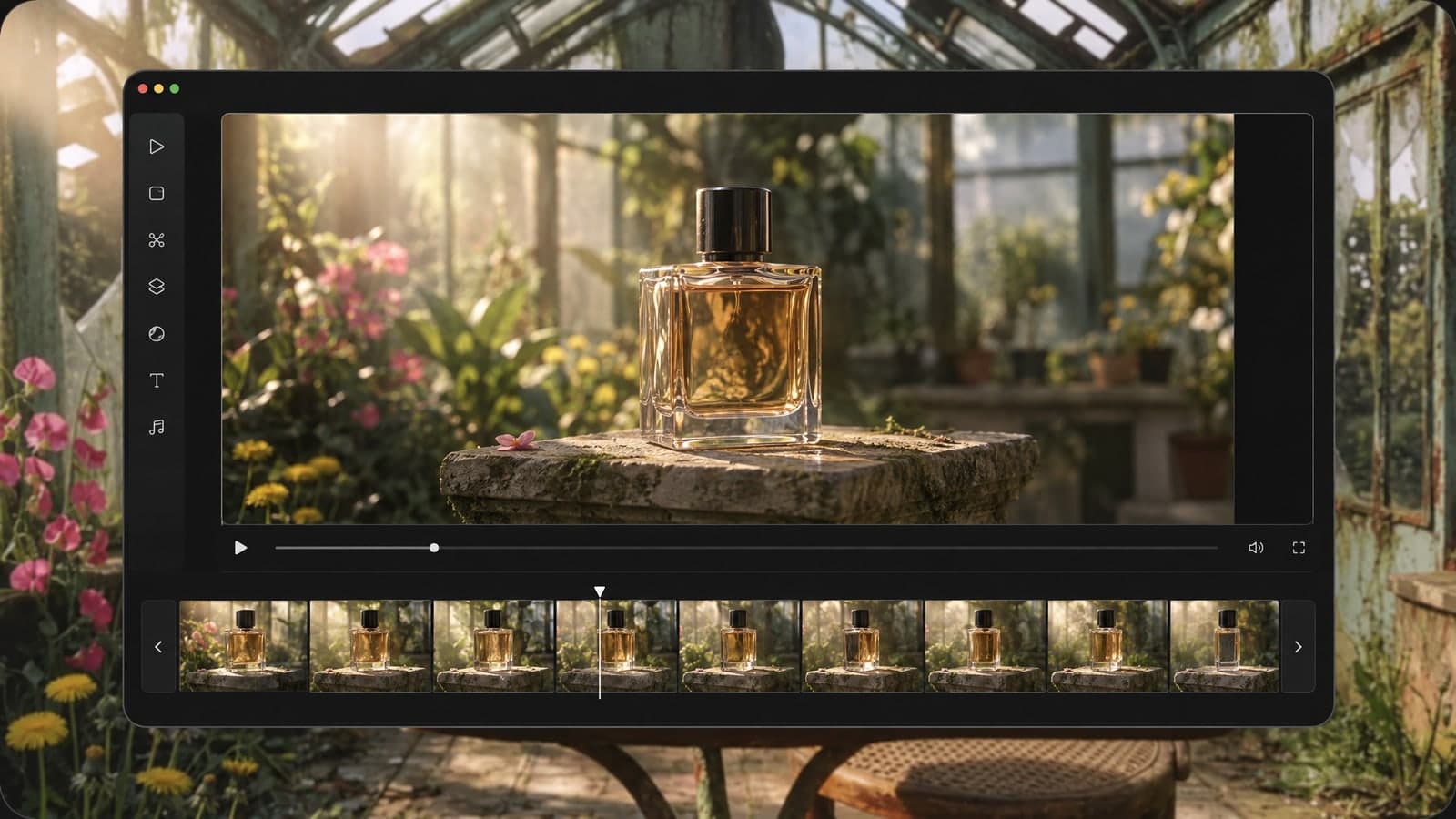
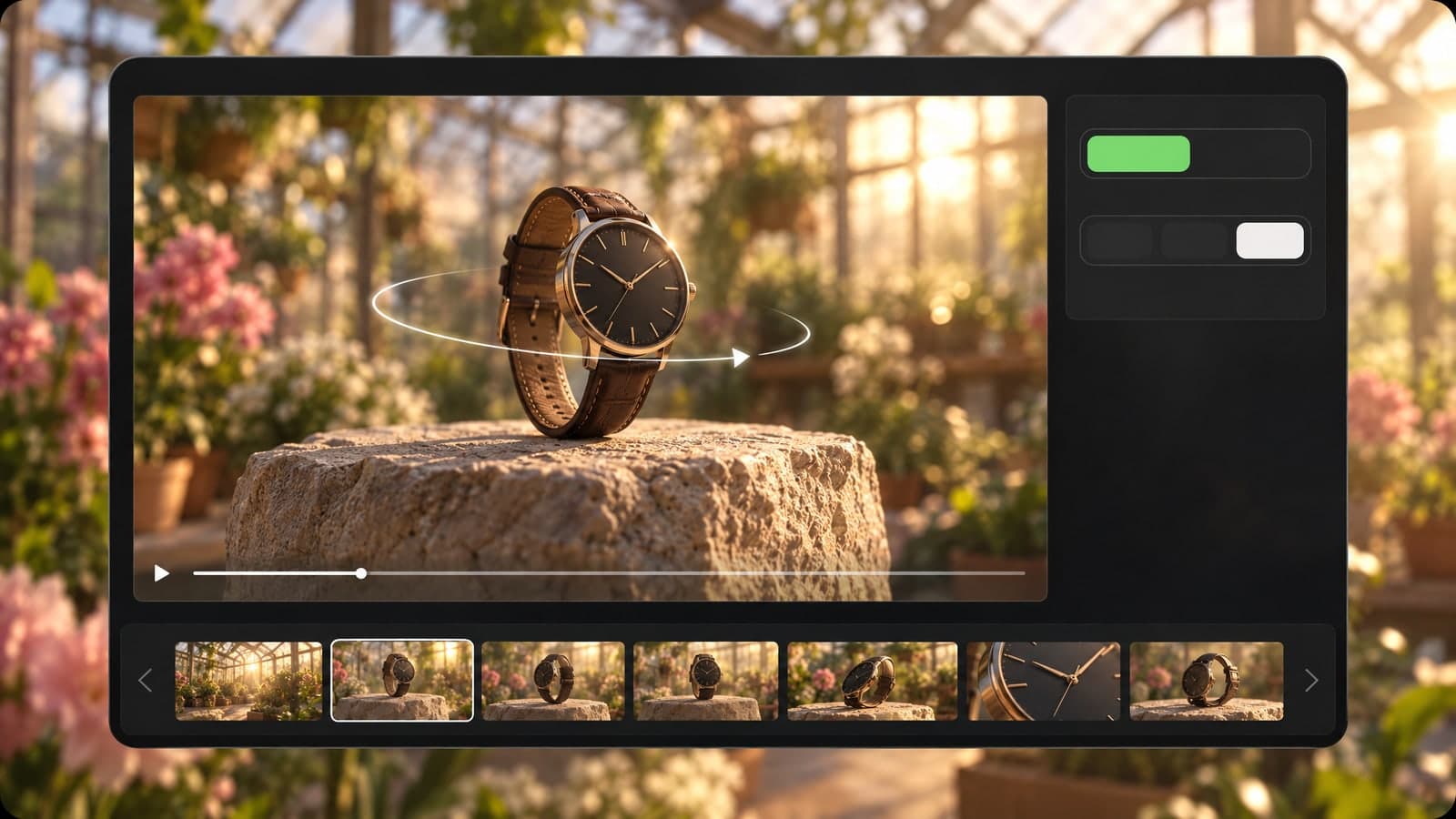
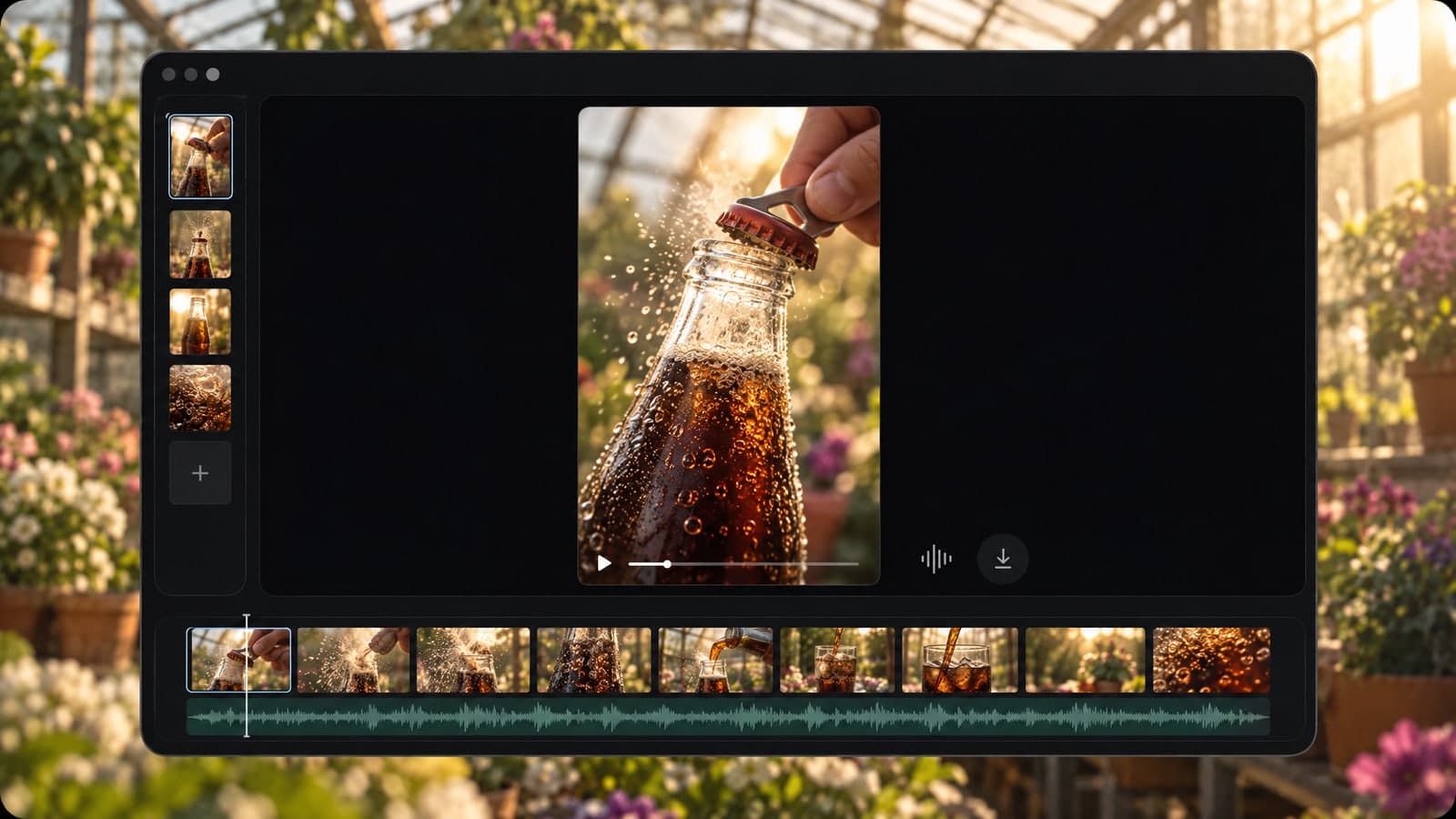
Turn catalog photos into short ads with sound.
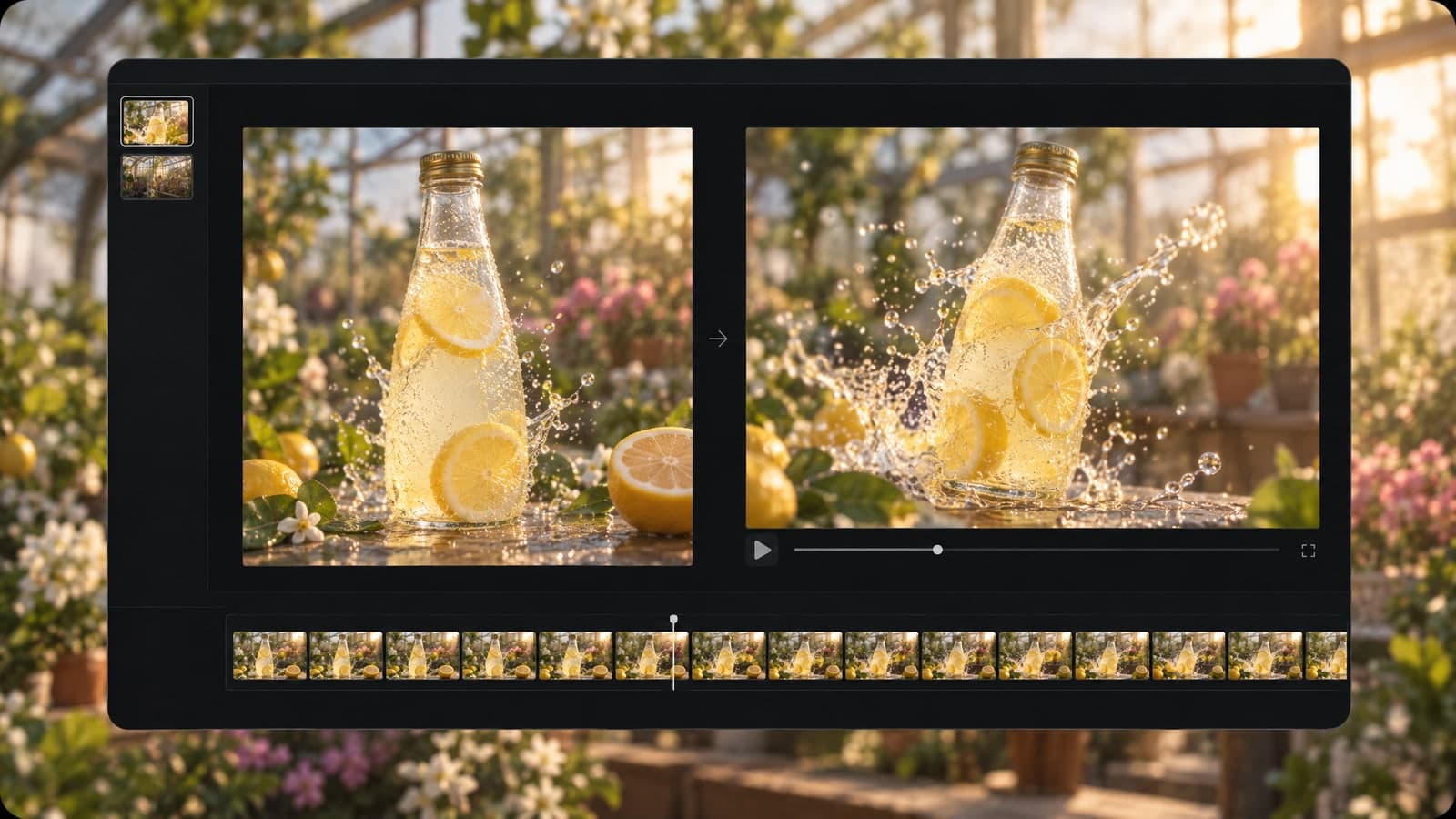
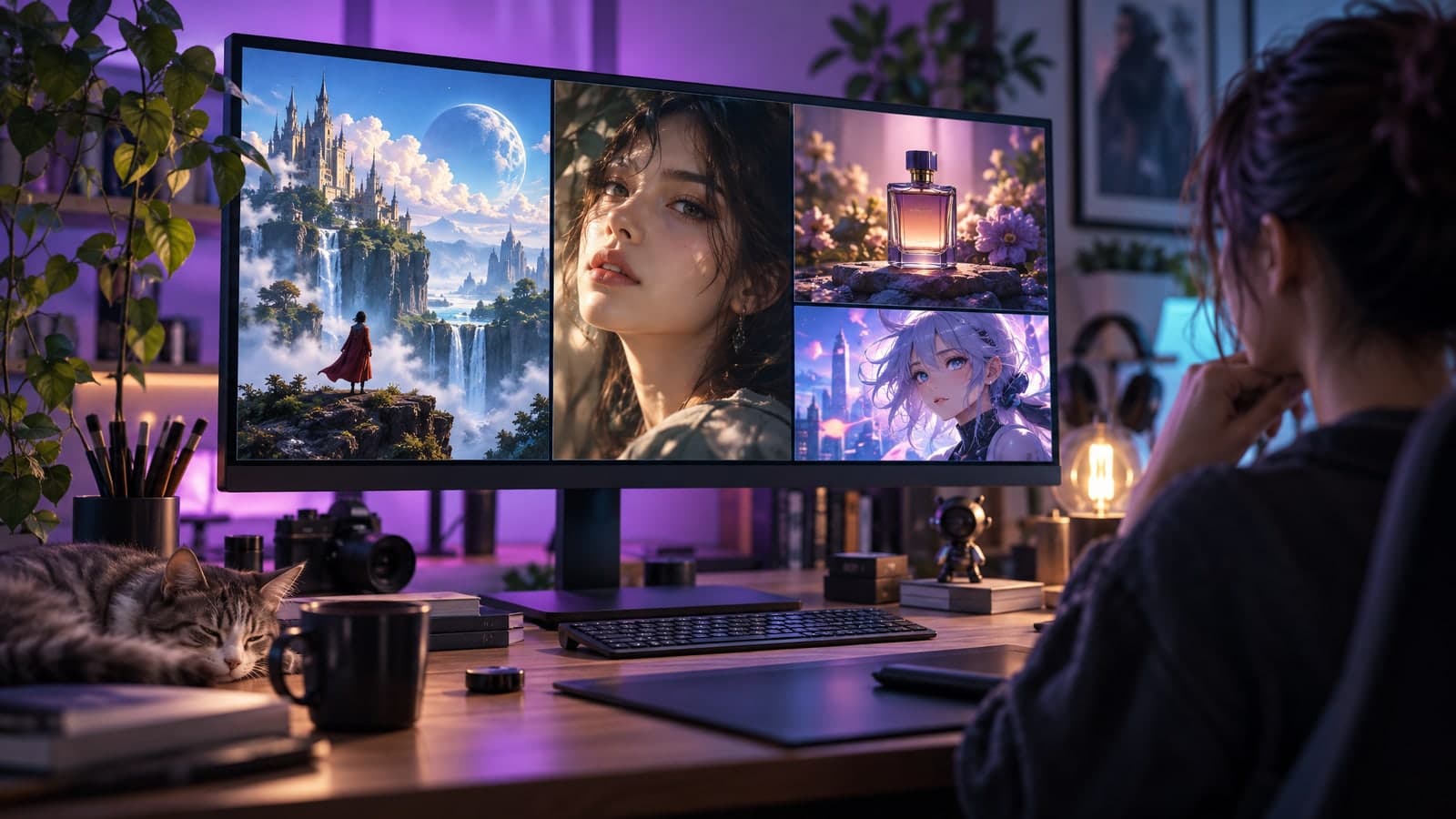
No photo yet? Start from a prompt.
Nothing to install and no editing skills needed. Upload, describe and download, all in your browser.
01 Upload
Upload one clear photo, or skip it and start from text alone.
A vertical photo gives you a vertical 9:16 video.
02 Describe
Describe the motion and the sound, then pick the resolution and length.
Put spoken lines in quotes so the model knows what to say.
03 Download
Download the MP4 with sound, or share a link anyone can open.
Every video is saved to My Works, so you can find it later.
“I turn one product photo into a short clip with sound for my shop, no video shoot needed.”
Priya Shah
Online store owner
“Animating a single photo gives me a fresh reel every day, and the sound is already there.”
Daniel Brooks
Social media manager
Every clip on this page runs on Google's Gemini Omni 1.2 Flash, which starts from your photo and makes the sound with the video.
Each tool starts from a prompt or a photo. Pick another one below and keep creating in the same account.
Edit, restyle or blend up to 4 photos with a prompt, or create a new image from words alone
Change only what you describe in a photo, keep the rest
Turn a prompt into a short looping animated GIF
Upscale a photo to 4K and restore sharp, clean detail
Animate a photo into a 5 or 10 second video with sound, or make a clip from a prompt
Describe a scene and watch it move, no photo needed
Create and edit images with GPT Image 2.6 Flare.
Generate and edit images with Google's Nano Banana 2.1.
Turn a photo or prompt into an 8-second video with sound.
Turn a photo or prompt into a 1080p video with sound.
Turn a photo of two people into a kissing video
Tips, guides and prompt ideas for making videos with AI.
Quick answers about making videos with Gemini Omni 1.2 Flash.
Gemini Omni 1.2 Flash is a video model from Google that makes the picture and the sound in one pass. You give it a photo, a prompt or both, and it returns a 24 fps clip with dialogue, music or sound effects that match the scene.
On MagicSky AI you can use the Gemini Omni 1.2 Flash video generator right in your browser: upload one photo to use as the first frame, or skip the photo and describe a scene.
Upload one photo, describe what should move and what it should sound like, then pick 720p or 1080p and a 5, 10 or 15 second length. The model uses your photo as the first frame. Upload a JPG, PNG, WebP or iPhone HEIC file up to 30MB, or scan a QR code to send one from your phone. Sharp photos with one main subject give the cleanest motion.
You need a free account to generate with Gemini Omni 1.2 Flash. New accounts get free credits, and the daily check-in adds more. The cost depends on the length you pick, and you see the exact cost before you press Generate. Paid plans and credit packs add more credits for regular use.
A 5-second clip is usually ready in about a minute. A 15-second clip at 1080p takes longer, up to about two minutes. You can keep browsing while it works, and the video shows up on the page as soon as it is done.
Choose 720p or 1080p and a length of 5, 10 or 15 seconds. When you upload a photo, a vertical photo gives a 9:16 video and a wide photo gives 16:9. When you start from text, pick 16:9 for YouTube and websites or 9:16 for reels and stories. Every clip downloads as an MP4 at 24 frames per second.
Describe the sound in the same prompt as the motion. Put spoken lines in quotes, for example: she smiles and says "Welcome to our shop". Ask for music by mood, like soft piano or upbeat pop, and name sound effects such as rain, waves or a door closing. One or two sound ideas per clip give the cleanest result.
There is no visible watermark or logo on your download. Each clip does carry Google's invisible SynthID watermark, which marks it as AI-generated without changing how it looks or sounds. If you only need the picture, you can mute the sound in any video editor.
That depends on how you pay. On the free plan, your videos are for personal, non-commercial use. With a paid plan or a credit pack, you can also use them for ads, product pages and client work. Each video stays private in My Works until you share a link. Only upload photos you have the rights to, and read our Terms of Service for the full details.
Sign up free and turn a photo into a clip.