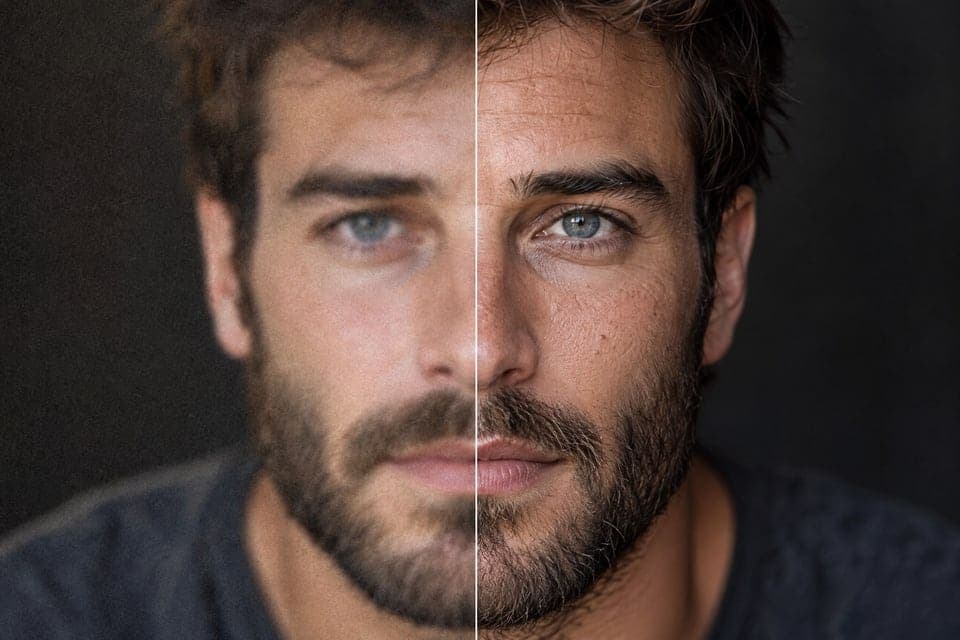
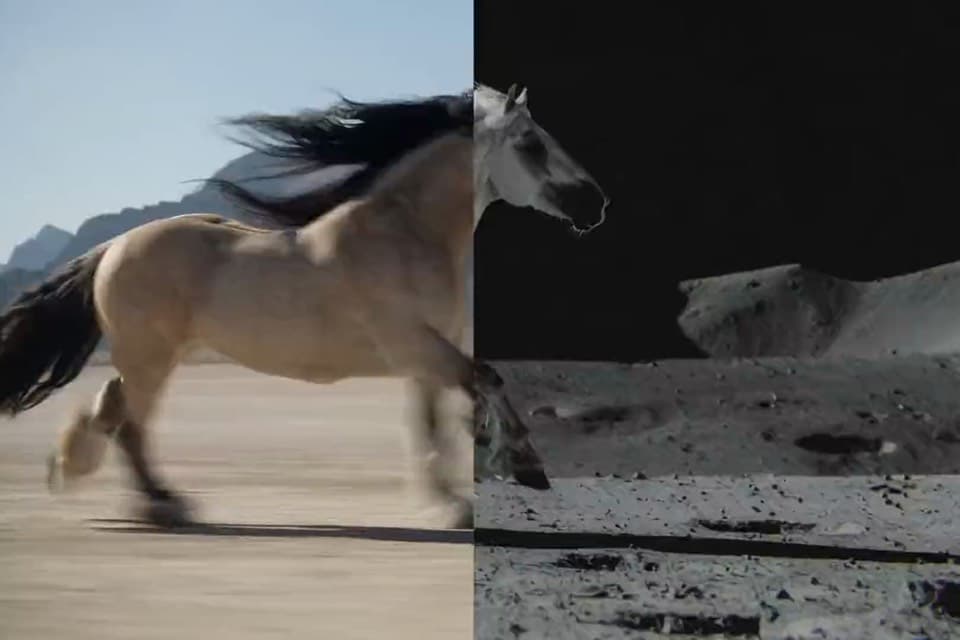
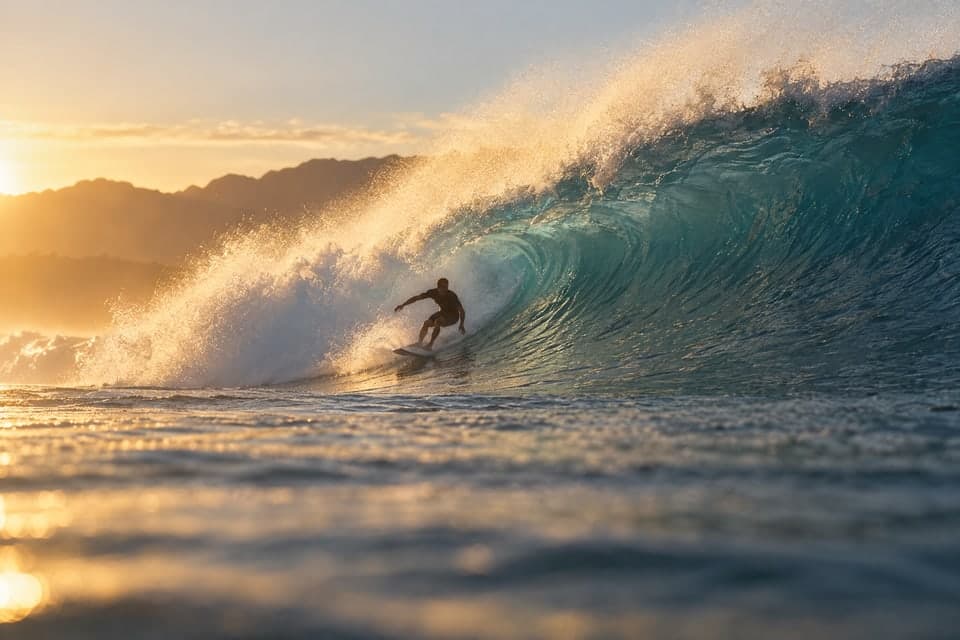
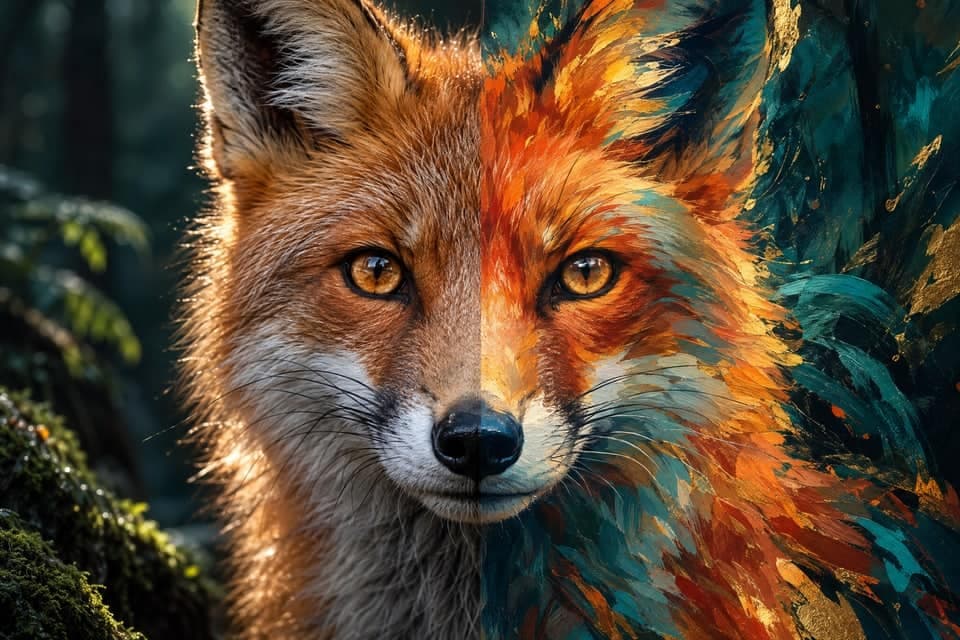
Veo 3.1 Fast - MagicSky AI
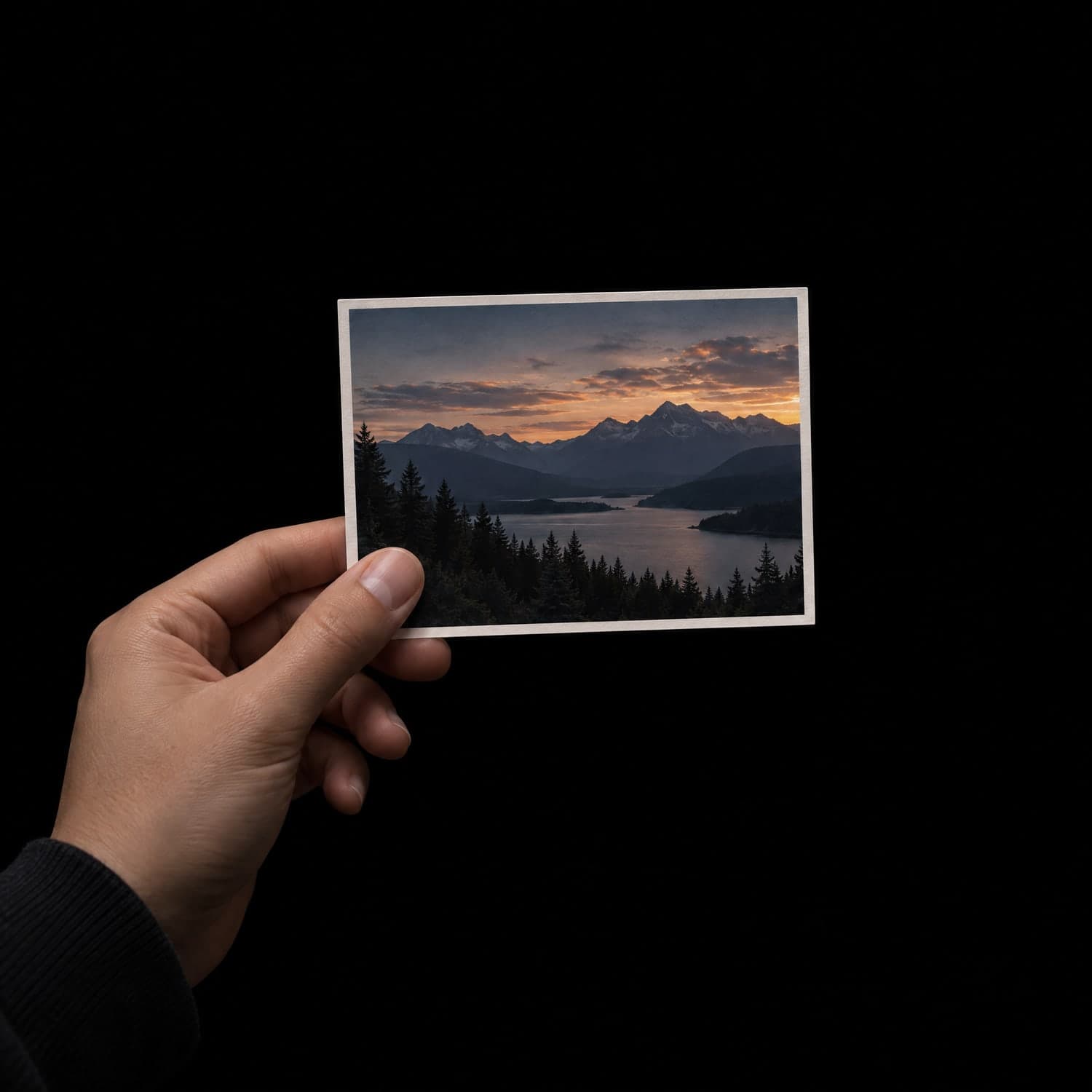
01 Upload
Pick the photo to animate
Upload one clear photo, or skip it and start from text alone.
Starting from text, pick 9:16 for reels or 16:9 for YouTube.
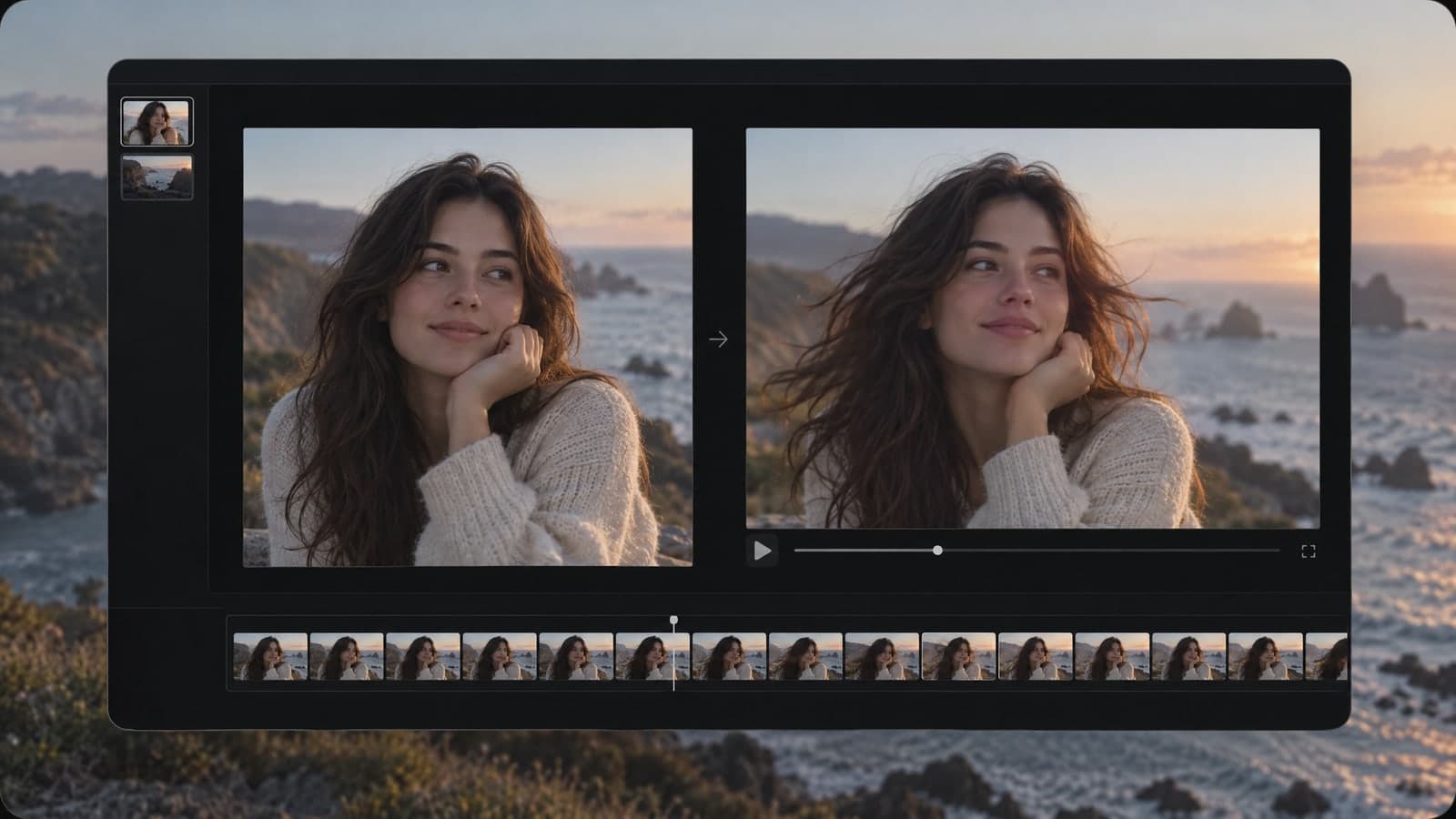
Upload one image, describe the motion, and get a clip with sound.
 Input imageVideo
Input
Input imageOutputs
VideoTurn a still photo into motion and sound in one pass, so you skip the shoot and the edit.
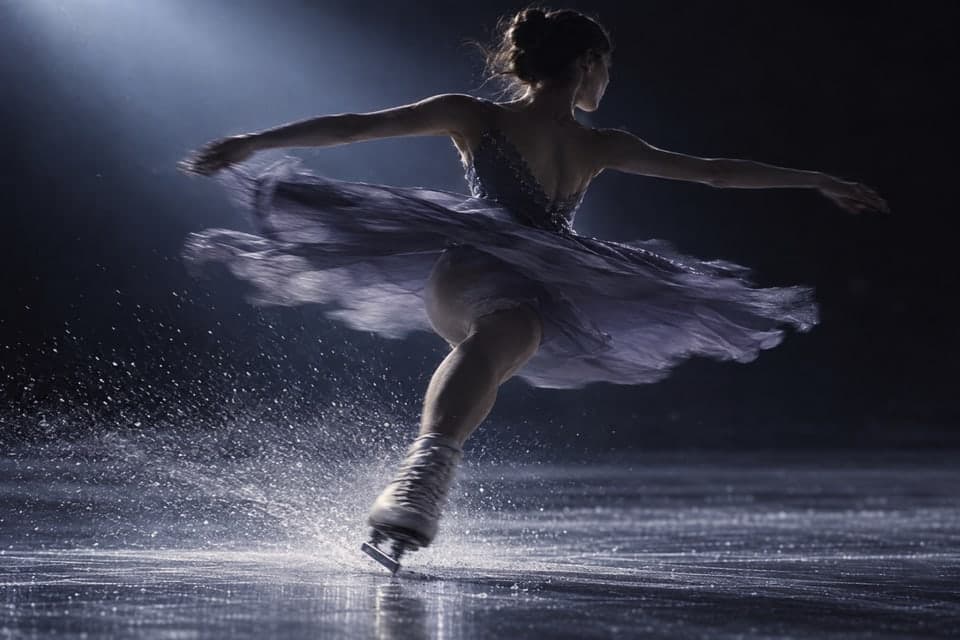
Ask for dialogue, music or rain in the prompt, and the audio lines up with what happens on screen.
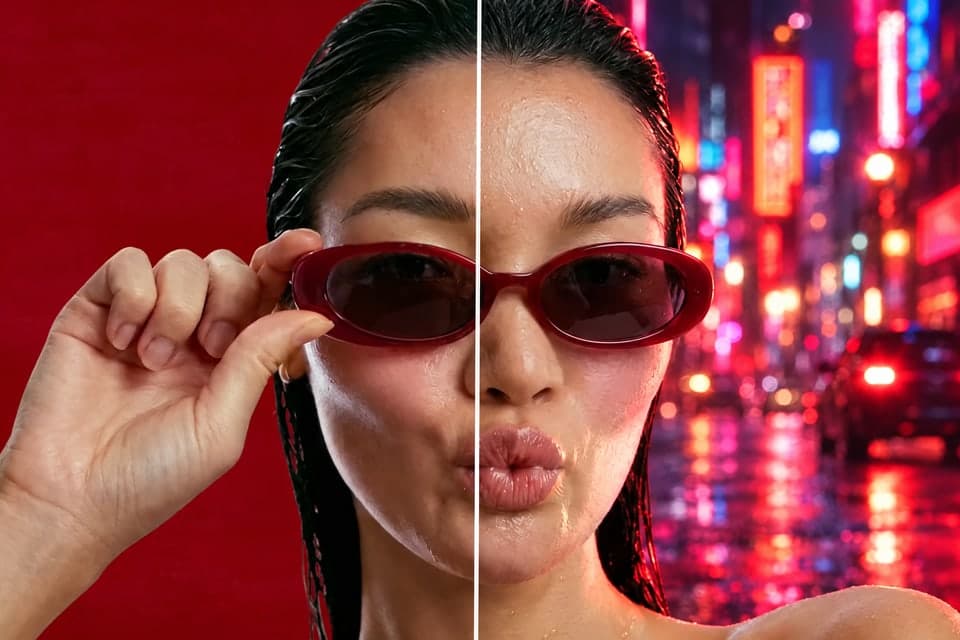
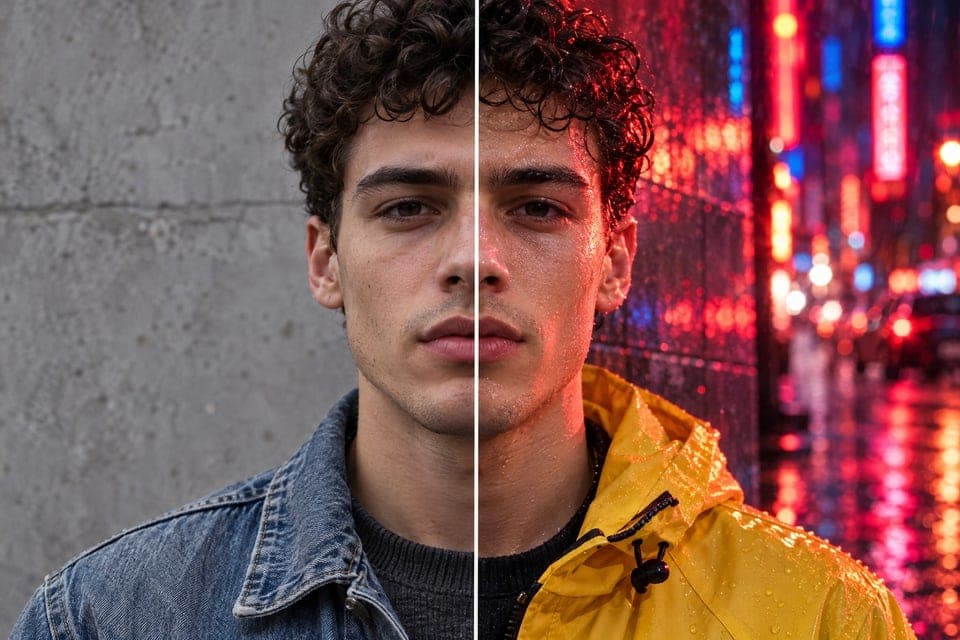
Your image becomes the first frame, so the place, the product and light stay as they look.
Pick a landscape or portrait frame for text clips, then download an MP4 with no visible watermark.
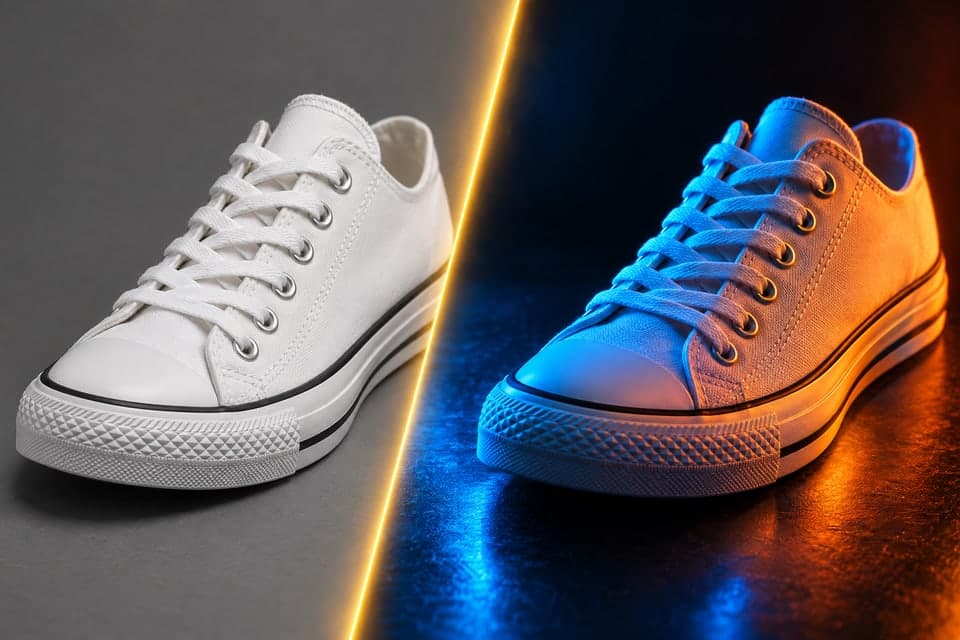
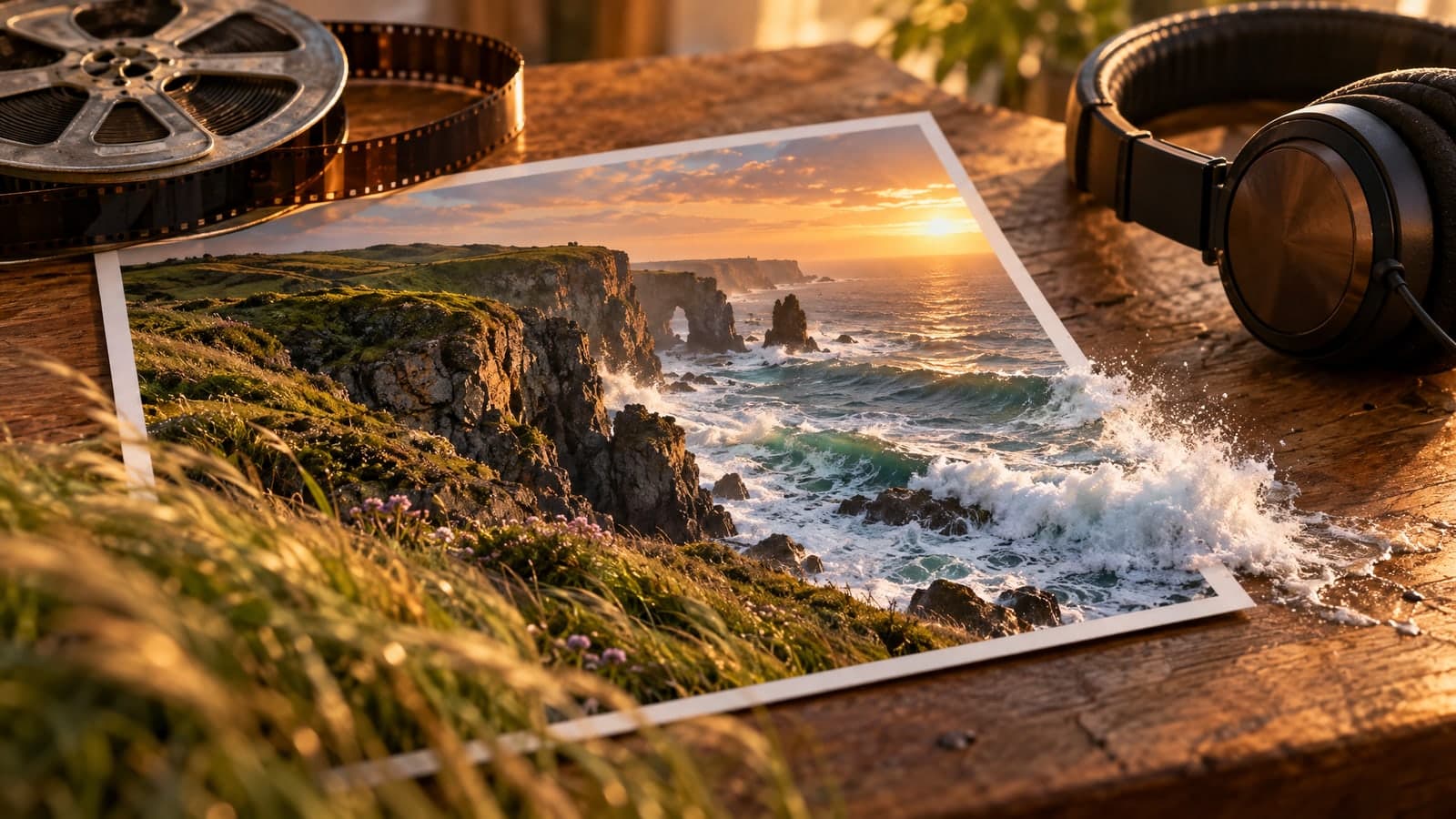
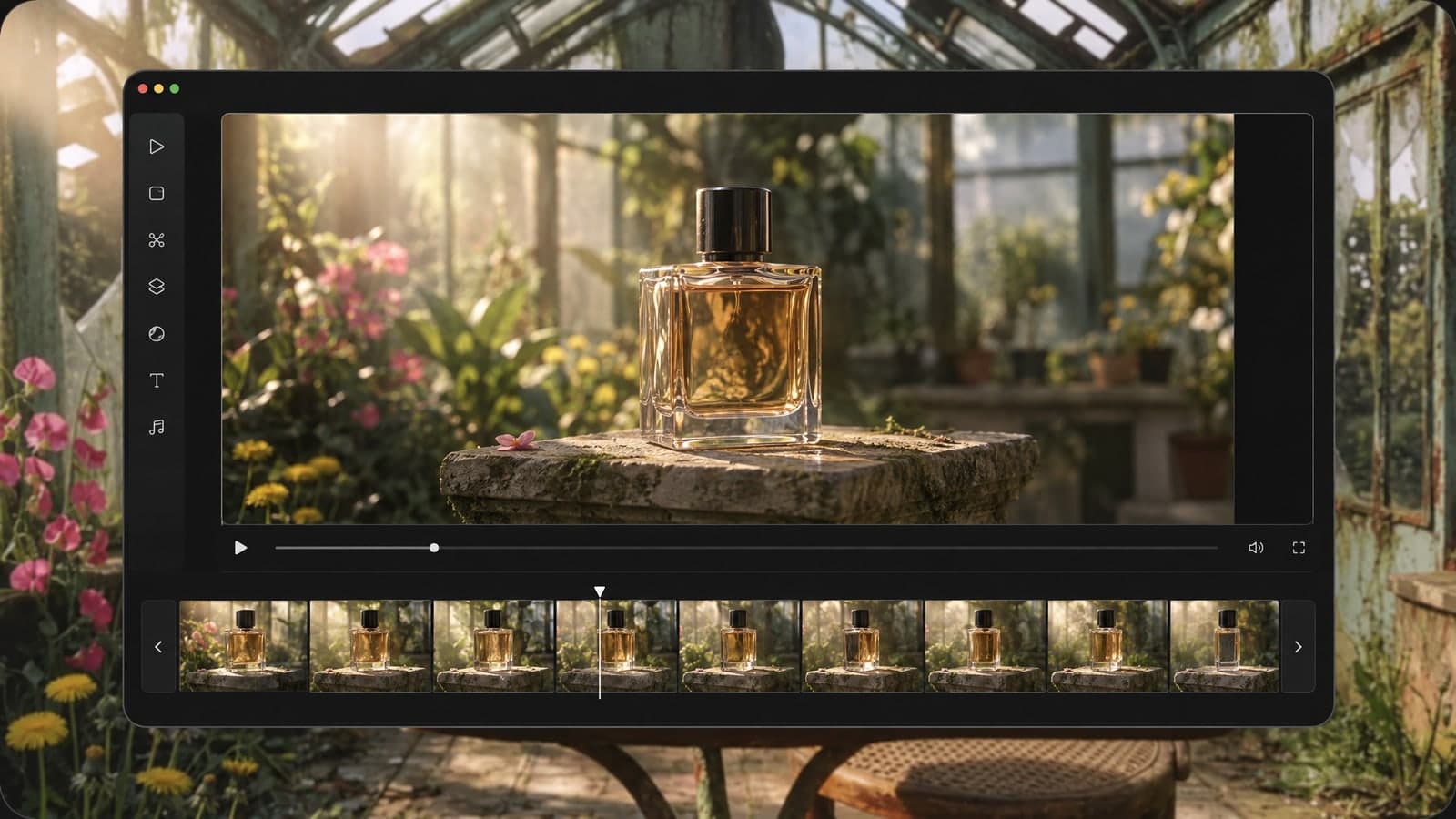
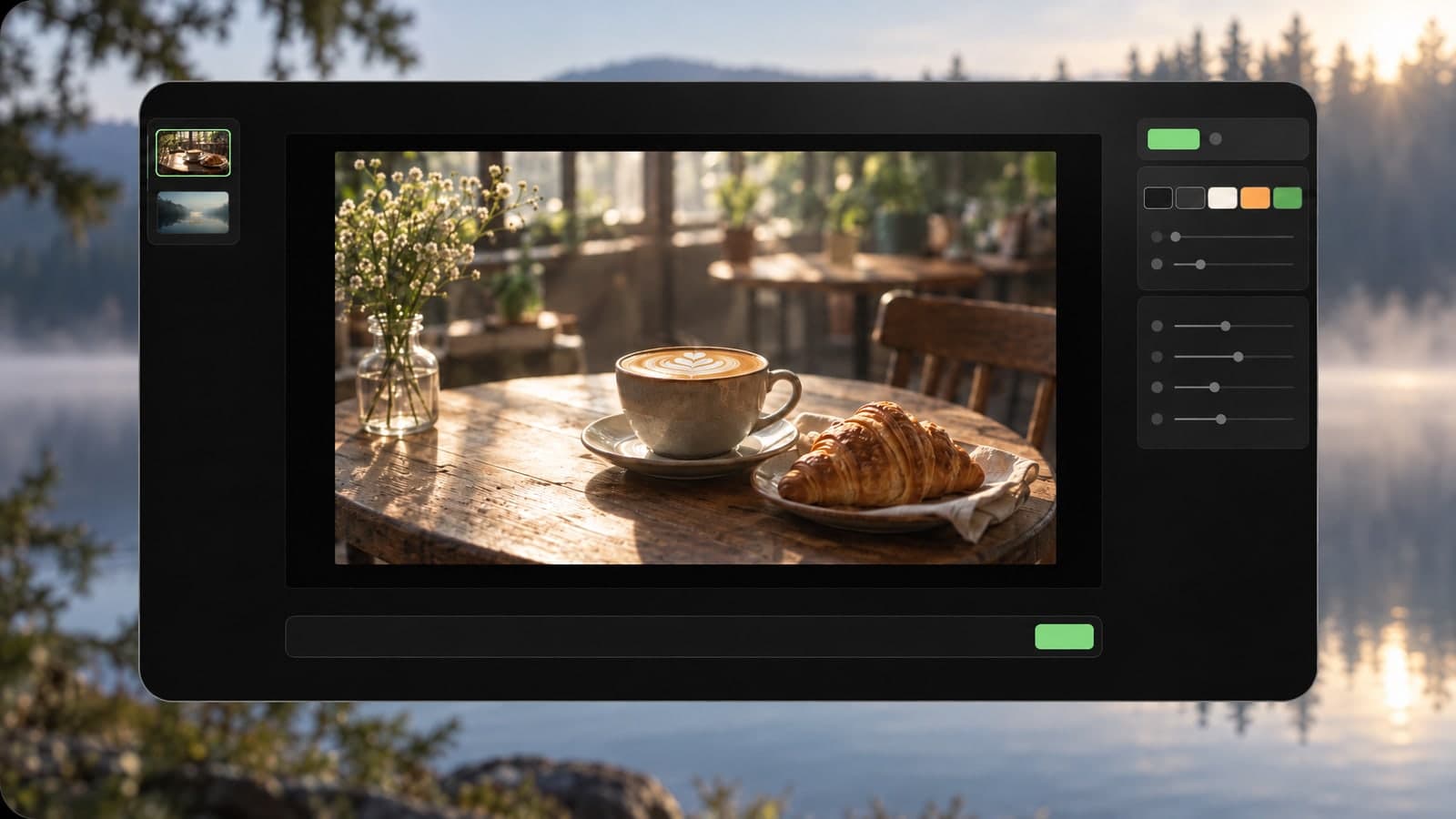
A product shot, a portrait or a landscape can all become an 8-second clip. Upload one photo, describe the movement and the sound, and the scene starts to move.

Stop the scroll with motion and sound, not a flat still.

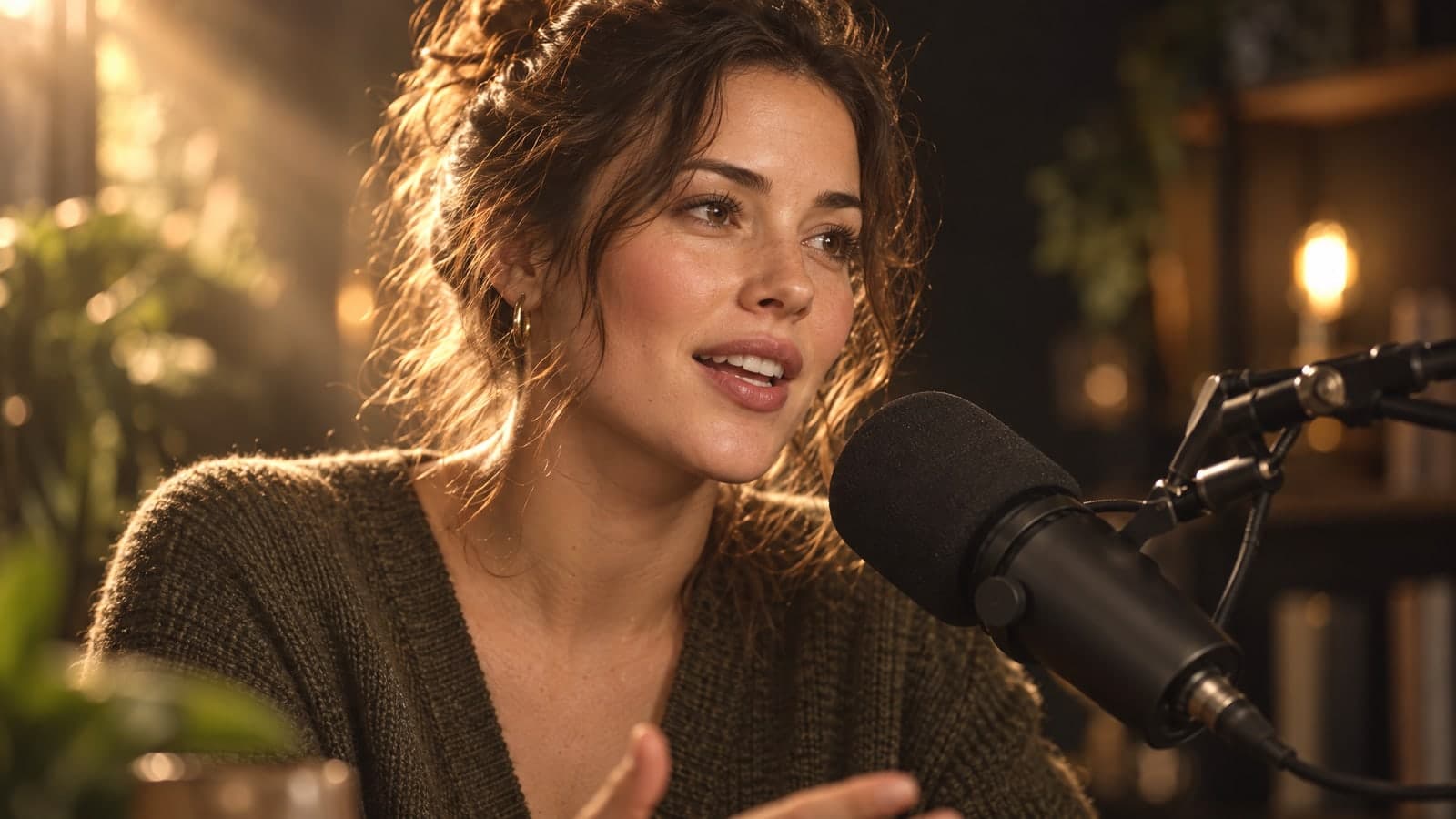
Turn catalog photos into short ads with real motion.



Test a shot before booking a crew or a location.
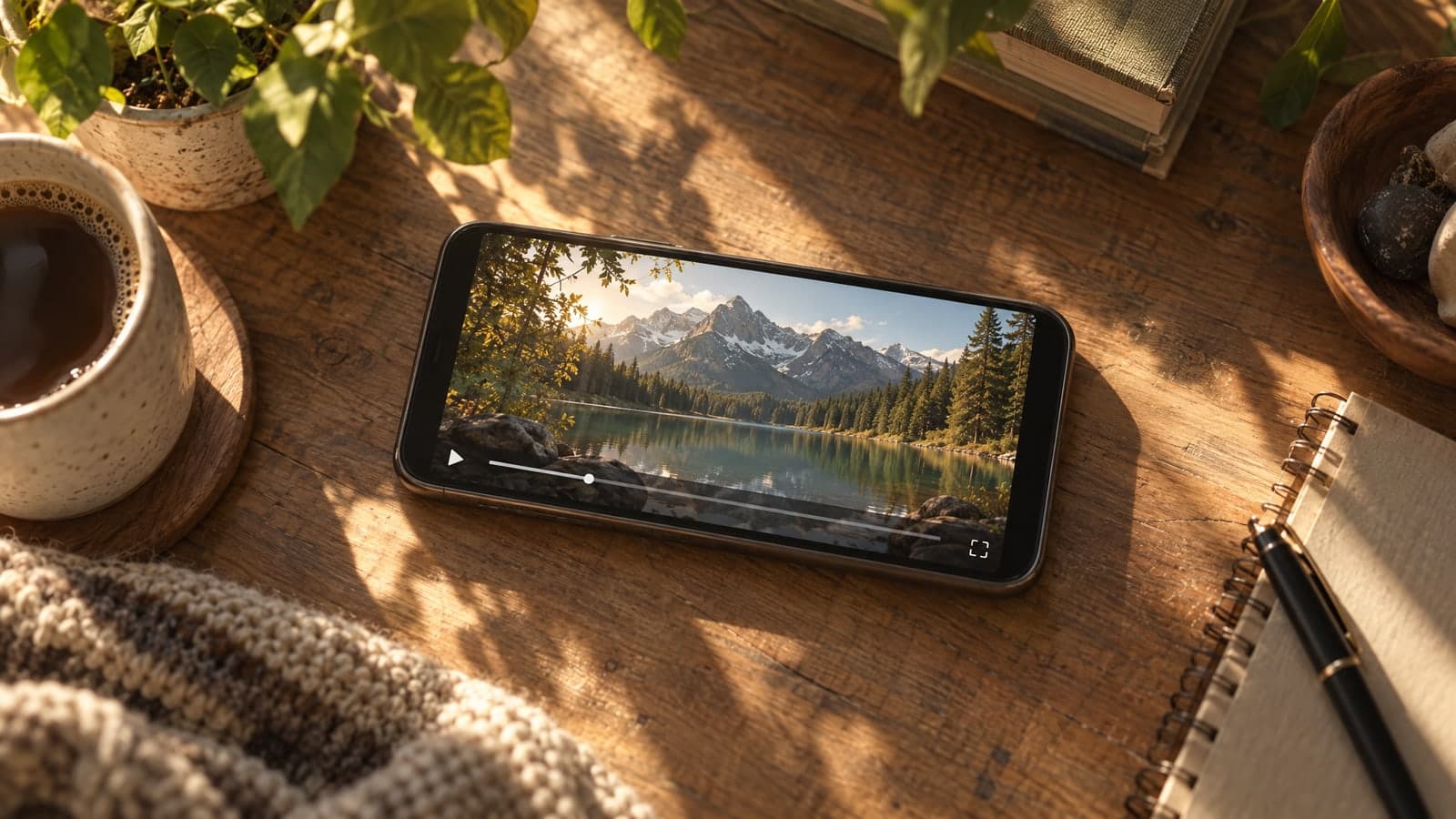
Nothing to install and no editing skills needed. Upload, describe and download, all in your browser.
01 Upload
Upload one clear photo, or skip it and start from text alone.
Starting from text, pick 9:16 for reels or 16:9 for YouTube.
02 Describe
Describe the motion and the sound, then pick the resolution.
Put spoken lines in quotes so the model knows what to say.
03 Download
Download the MP4, or share a link anyone can open.
Every video is saved to My Works, so you can find it later.
“One photo of our bottle became an eight-second ad with the fizz already in it.”
Maya Chen
Skincare brand founder
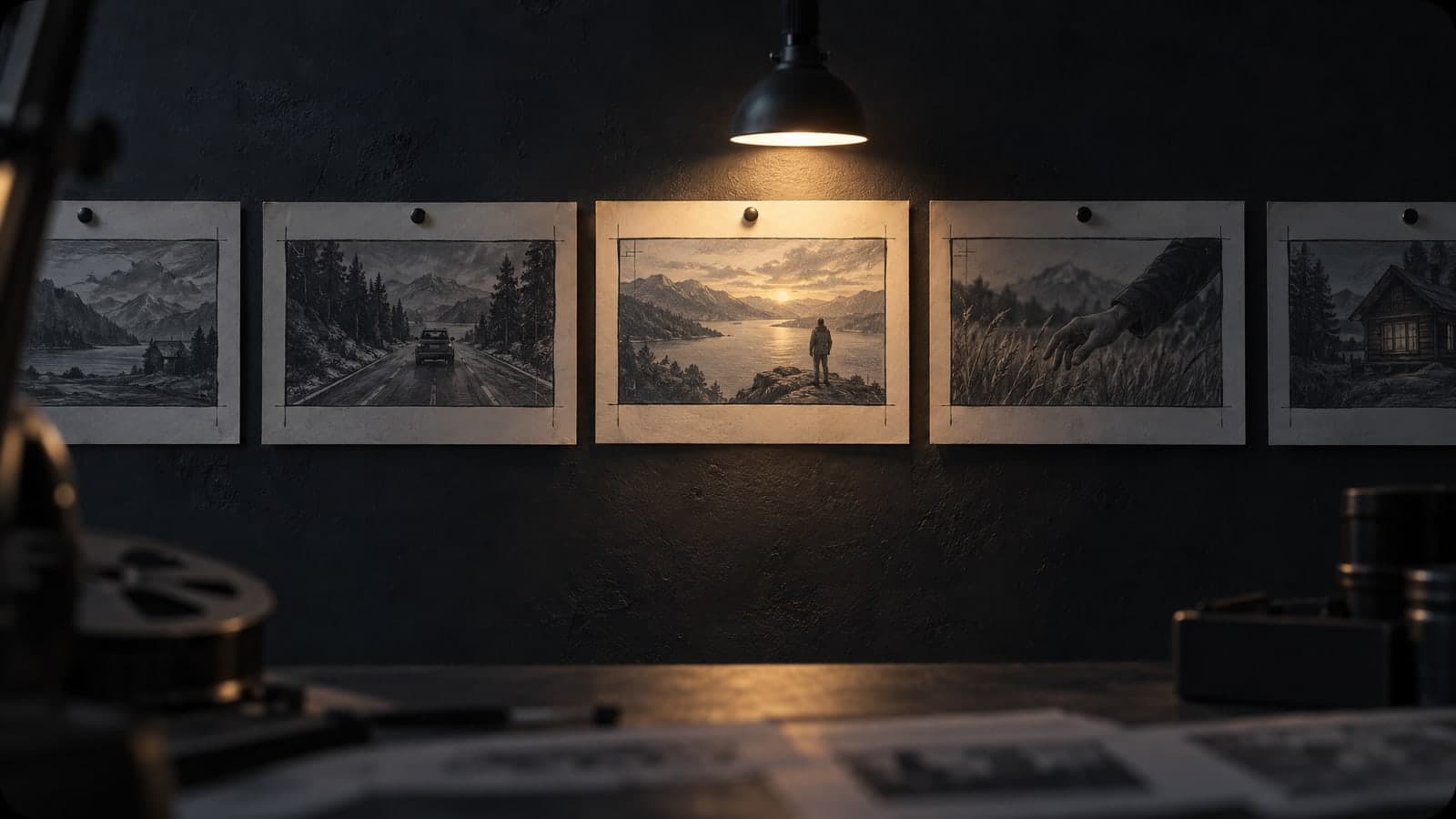
“I storyboard a scene from a single frame, then show the clip to the client the same morning.”
Daniel Brooks
Commercial video director
Every clip on this page runs on Veo 3.1 Fast, the quicker version of Google's Veo model, which builds motion and sound together.
Each tool starts from a prompt or a photo. Pick another one below and keep creating in the same account.
Edit, restyle or blend up to 4 photos with a prompt, or create a new image from words alone
Change only what you describe in a photo, keep the rest
Turn a prompt into a short looping animated GIF
Upscale a photo to 4K and restore sharp, clean detail
Animate a photo into a 5 or 10 second video with sound, or make a clip from a prompt
Describe a scene and watch it move, no photo needed
Google's video model: a photo or prompt to a clip with sound
Create and edit images with GPT Image 2.6 Flare.
Generate and edit images with Google's Nano Banana 2.1.
Turn a photo or prompt into a 1080p video with sound.
Turn a photo of two people into a kissing video
Tips, guides and prompt ideas for making videos with AI.
Quick answers about making videos with the Veo model.
Veo 3.1 is Google's video model for turning a photo or a written scene into a short clip with sound. The version on this page, Veo 3.1 Fast, is the quicker tier: it returns an 8-second video at 720p or 1080p.
In short, this is a Google Veo 3.1 AI video generator that runs in your browser, also written veo3.1. You bring one photo or one prompt and the model makes the motion and the audio.
Upload one photo, describe what should move and what it should sound like, then press Generate. The model uses your photo as the first frame and keeps the place, product and light from your image. Upload a JPG, PNG, WebP or iPhone HEIC file up to 30MB, or scan a QR code to send one from your phone. If you have tried Veo 3.1 in Google Flow, the flow here is shorter: one upload, one prompt, one download.
You need a free account to generate with it. New accounts get free credits, and the daily check-in adds more. Veo 3.1 pricing is the same at 720p and 1080p: every 8-second clip costs the same number of credits, and you see the exact cost before you press Generate. Paid plans and credit packs add more credits for regular use.
A 720p clip usually takes two to three minutes; our test of an 8-second 720p video finished in 130 seconds. A 1080p render can take up to about four minutes. You can keep browsing while it works, and the video appears on the page as soon as it is ready.
Every clip is 8 seconds, at 720p or 1080p, in a 16:9 or 9:16 frame. Starting from text, pick 16:9 for YouTube or 9:16 for reels. With a photo, your image becomes the first frame and the model fits it into the video frame. Veo 3.1 Lite, Google's lower-cost tier, is not offered here; this page runs the Fast tier.
Yes. The model builds the audio with the picture. Put spoken lines in quotes, for example: she looks at the camera and says "Fresh out of the oven". Name the sounds you want, such as rain on a window, a car engine or soft piano. One or two sound ideas per clip give the cleanest result.
The veo 3.1 vs sora 2 choice usually comes down to the starting material and the length. The Fast tier takes one photo as the first frame and returns eight seconds with sound; Sora 2 is a separate model with its own strengths. This page only runs the Fast tier, so you can compare it with our other video tools in the same account.
There is no visible watermark on your download. Google adds an invisible SynthID mark that labels the clip as AI-generated without changing how it looks. Commercial use depends on your plan: free-plan videos are for personal, non-commercial use, while a paid plan or credit pack covers ads, product pages and client work. Each clip stays private in My Works until you share a link.
Sign in free and animate one photo.